How to add an avatar to your email mailbox
 Rachael O'Flaherty
Ever wondered how to add your company logo as an avatar to your email account?
Compared to a blank image, or Google displaying the first letter of your email address as your profile picture – creating a personalised look to your emails is always going to look more professional as well as human.
Whether you can’t figure it out or haven’t gotten around to doing it yet, in this post we’ll show you how to go about adding an avatar to your mailbox.
The first thing to bear in mind is this is very different depending on whether you're just setting an avatar in Gmail or setting a company logo that'll show up reliably for your band across most major email clients.
Setting your avatar in Gmail
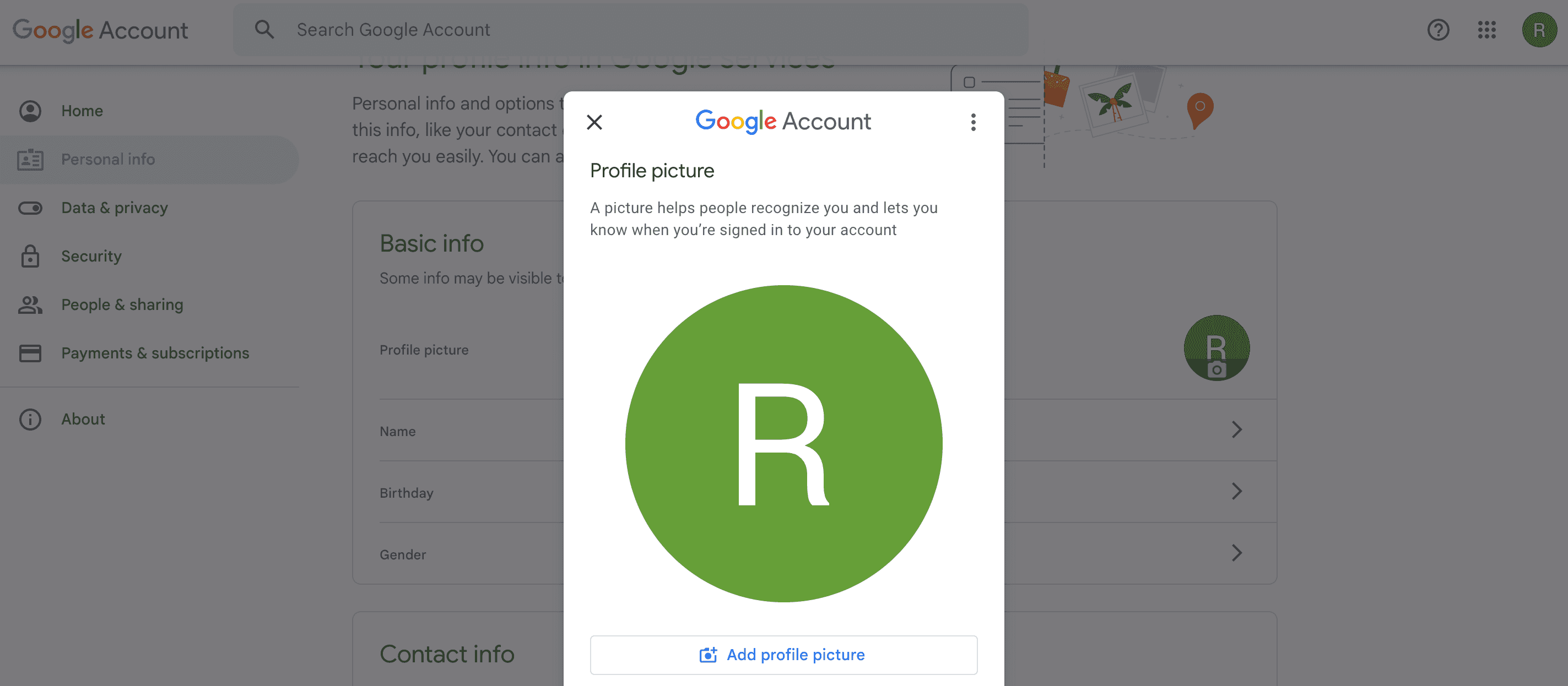
Starting with Gmail first, you’ll need to head to your inbox:
- Click on the icon in the top right corner. For me, this says ‘R’ because you know, my name is ‘Rachael’ and all, but you do you here.
- On the page that opens up, click "personal info".
- Click your current Google icon, which will have a camera icon on the lower half of the circle avatar.
- A box will open up which will allow you to add a photo by browsing a file on your computer.
- Select the photo you want, and voila!
Setting your logo with BIMI
If you want subscribers to open your emails and engage with them, every step you take to come across as a genuine human or company helps.
BIMI stands for "Brand Indicators for Message Identification".
As a relatively new email standard, BIMI allows businesses to display a logo next to authenticated messages. Although BIMI can be a little more complicated to set up, the goal is to create added trust for consumers.
By the way, if you care about your avatar, you probably also care about your subject lines. Check out our AI Subject Line Generator to ensure your next subject line is on point.
## Other ways to customise and personalise your emails
Use a custom email domain
It’s fine to use a Gmail account for personal mail.
But it goes without saying — for business purposes, a custom email domain will always be more credible and look more professional.
Email suffixes are normally named after the business – e.g. for "Example Enterprises" it might be "@example.com".
Email prefixes (the name part) can add even more personalisation by assigning the address to a team member – e.g. "james".
So the full email address would be "james@example.com".
Send from you
Having names listed in the email address is great for personalisation, but so is adding real and full names to the email account itself.
That way, when the email appears in an inbox, the name of the sender appears alongside the email address.
In combination, this looks as if a real person has sent that email. This is exactly what we want users to experience when trying to engage with them, let alone getting them to convert.
Set a good email signature
Last but not least, who can forget the good old email signature?
As a place where you can add your name, job title, contact information and website address, email signatures work like a digital business card.
Don’t forget that with EcoSend Forms, you can capture new subscribers for your website or mailing list too.
Check out the EcoSend Digital Marketing Glossary to learn more helpful email marketing terms.
The newsletter for purpose-driven marketers
Join hundreds of marketers getting weekly insights on ethical email marketing, sustainable growth, and responsible digital practices.
Unsubscribe anytime. No spam. No nonsense.