Lists
Lists are completely optional in EcoSend, and they're a powerful way to manage your audience as it grows. Most customers just starting out don't need to use Lists until they grow in size and sophistication.
Lists are the best way to clearly separate your audience and give your contacts control over the emails they receive.
When to use Lists
Use Lists if you want to send multiple types of email to your contacts, and give them options over which emails they receive.
For example, you might want to send a weekly industry newsletter to your entire audience, while sending a monthly email to just your paying customers to let them know about your upcoming product announcements.
To achieve this, you might set up a "Customers" List so that you can easily email your customers on an ongoing basis with your latest product announcements, while sending your weekly newsletter to your whole audience.
Smart Groups and Lists
Lists are best used for clearly defining an audience of contacts you wish to send email to on a regular basis.
In EcoSend, you can also create Smart Groups. These are best used for quickly selecting a small group of contacts you might email once, and for gaining deeper insight into your audience.
| Examples of Lists | Examples of Smart Groups |
|---|---|
| Newsletter | Recent Signups |
| Customers | Disengaged Contacts |
| VIPs | Weekly Active Users |
Lists offer the following features:
- Contacts can opt-in and opt-out of being on a List.
- You can add contacts to a List from a Form.
- You can display Lists on the Subscription Preferences page for contacts.
- You can select multiple contacts at once to add to or remove from a List.
How to create a List
It's easy to create a List. Just follow these steps to get started:
- Head to Project Settings > Contacts
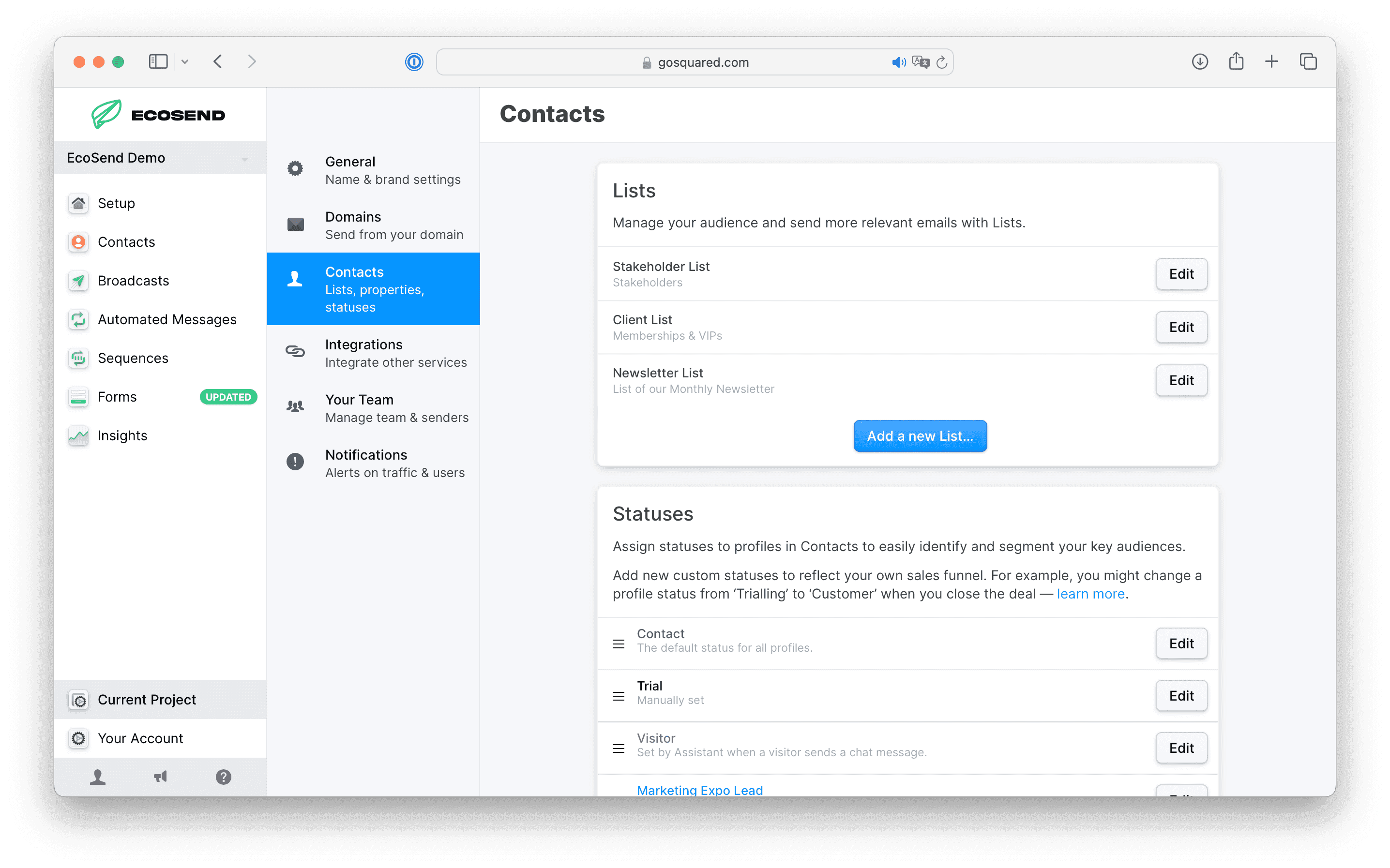
- Hit Add a new List...
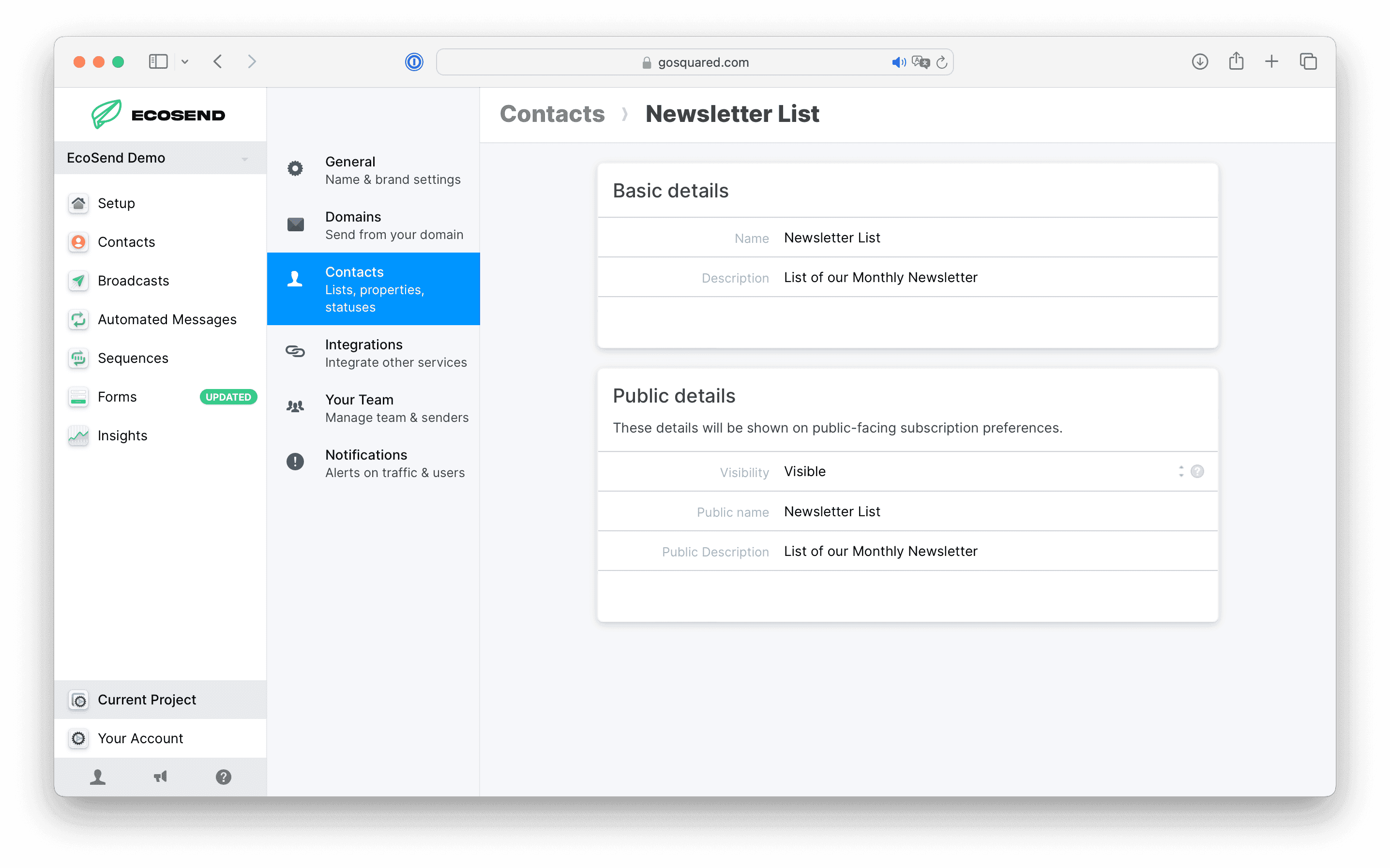
-
Give your List a name and a description. You can also give your List an internal-facing name and description if you wish to name it differently to what your contacts see.
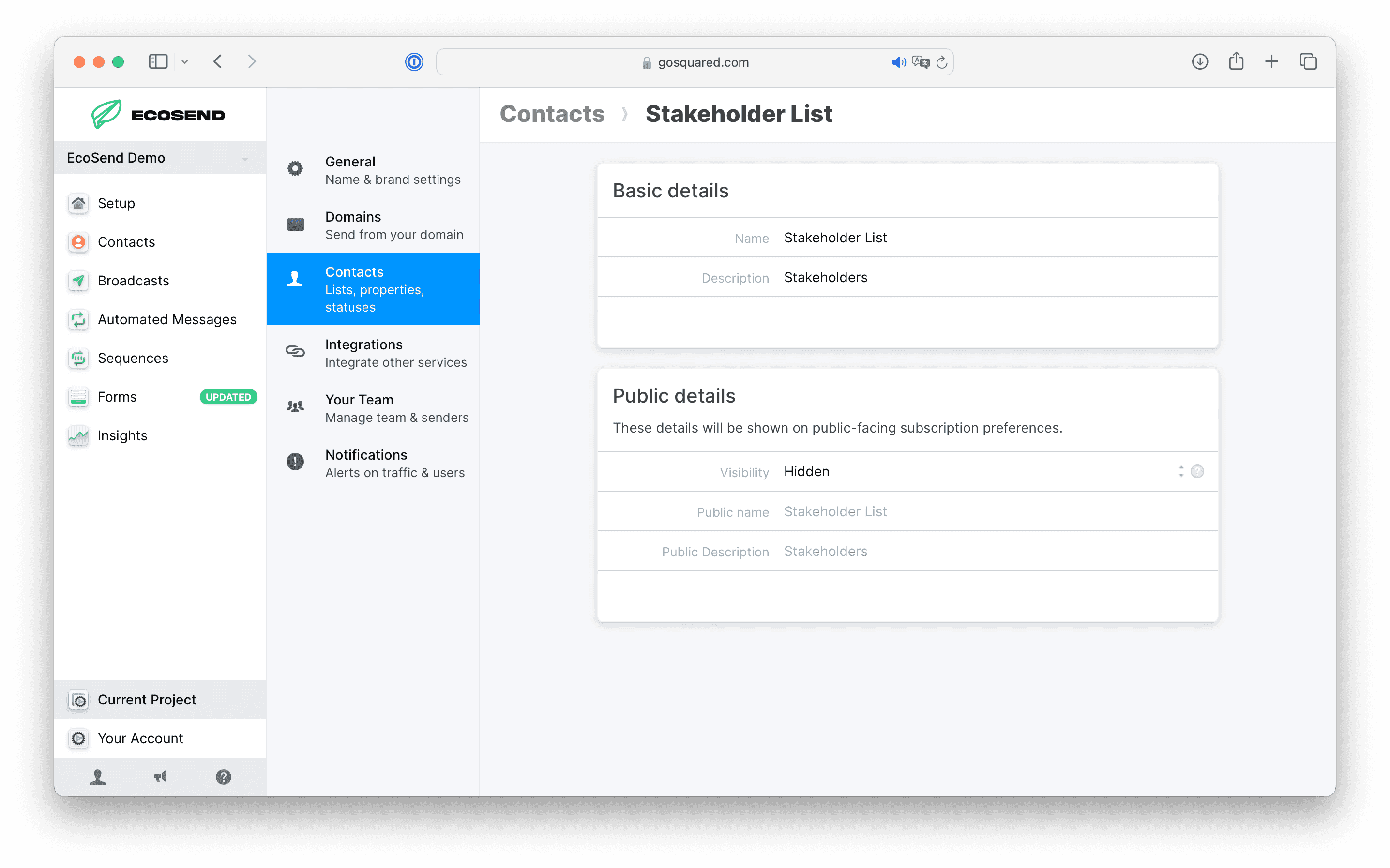
-
Set the visibility of your List. Setting your List to "Hidden" will mean the List is not visible to contacts on the Subscription Preferences page unless the contact is subscribed — meaning contacts cannot opt in to the list, they can only opt out of it.
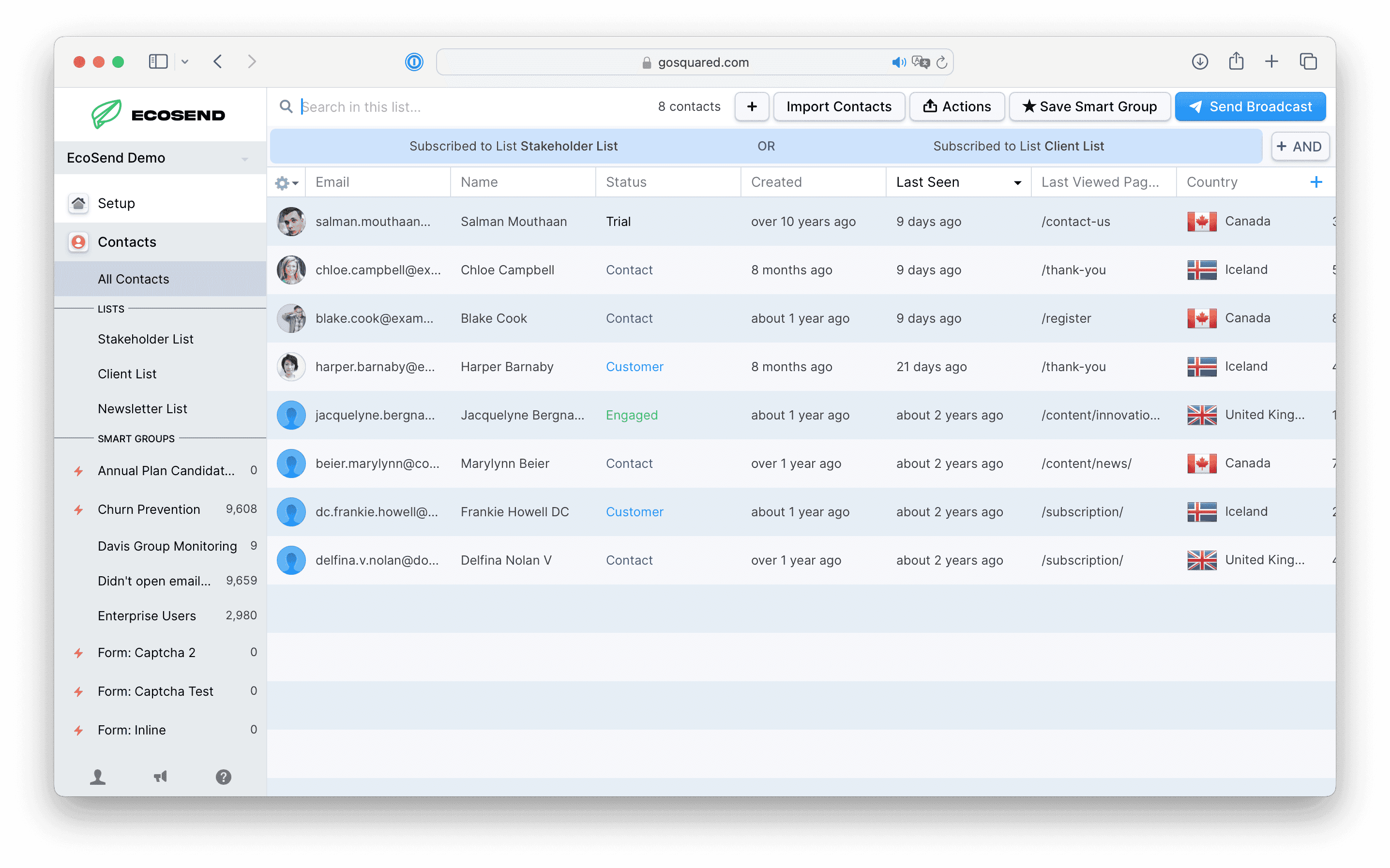
Lists are shown at the top of the sidebar in EcoSend Contacts, above Smart Groups.
You can also create a list filter, by heading to Add a Filter > Subscribed to List [name of list]
Adding contacts to a List
Bulk Add Smart Groups
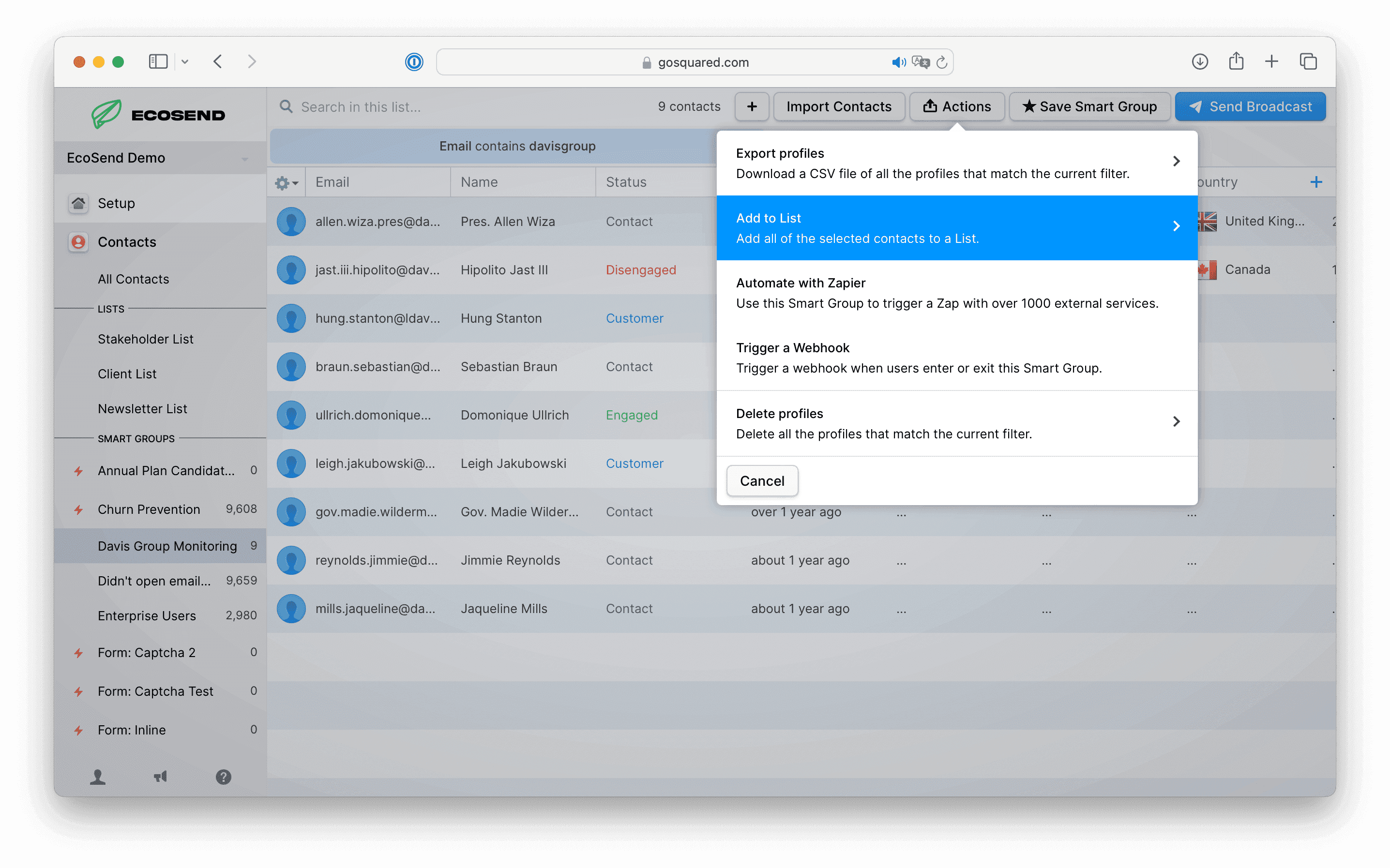
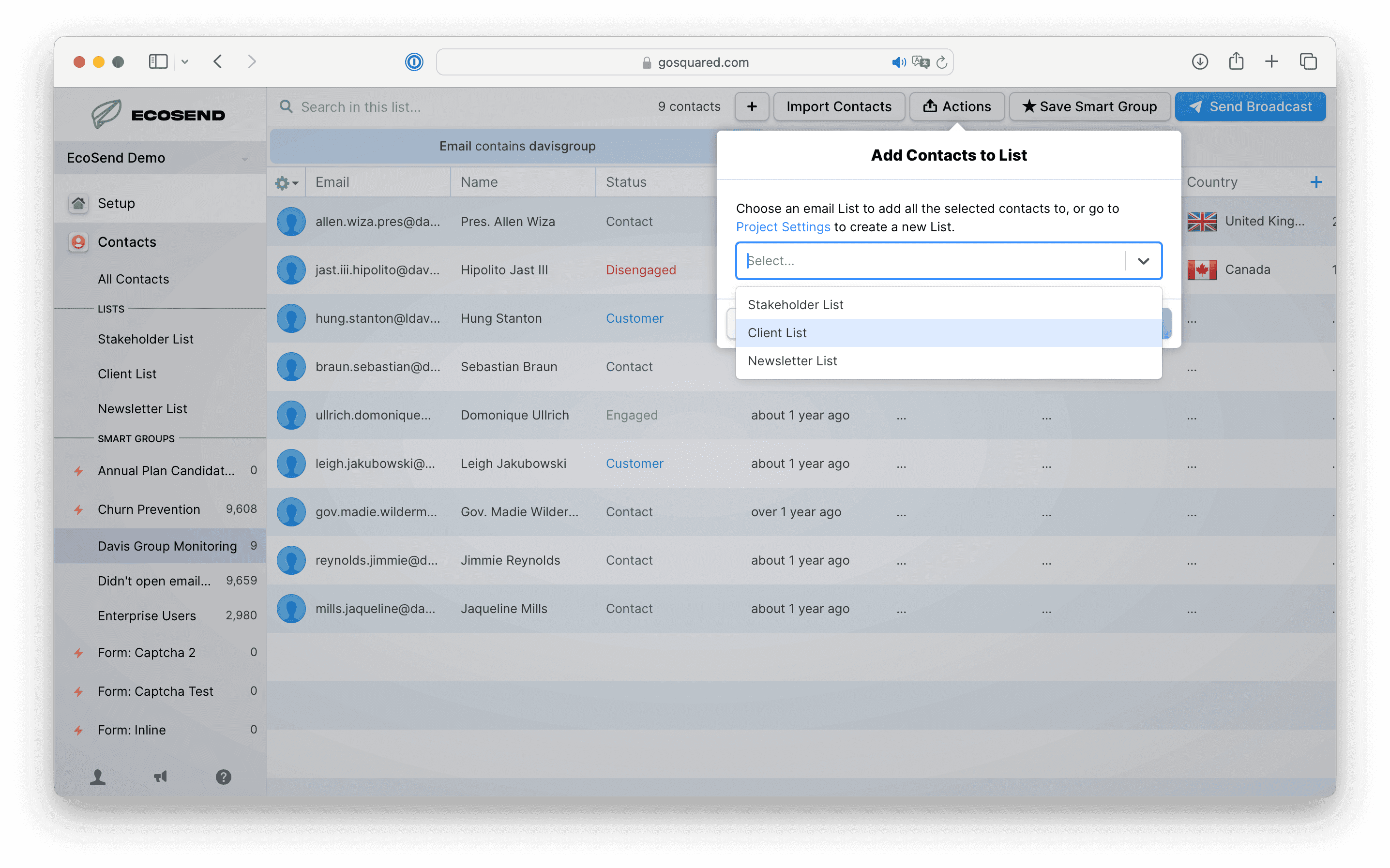
To bulk add a Smart Group of users to your chosen list, simply select the Smart Group followed by Actions > Add to List > Select list from dropdown
Add Individual Profiles to Lists
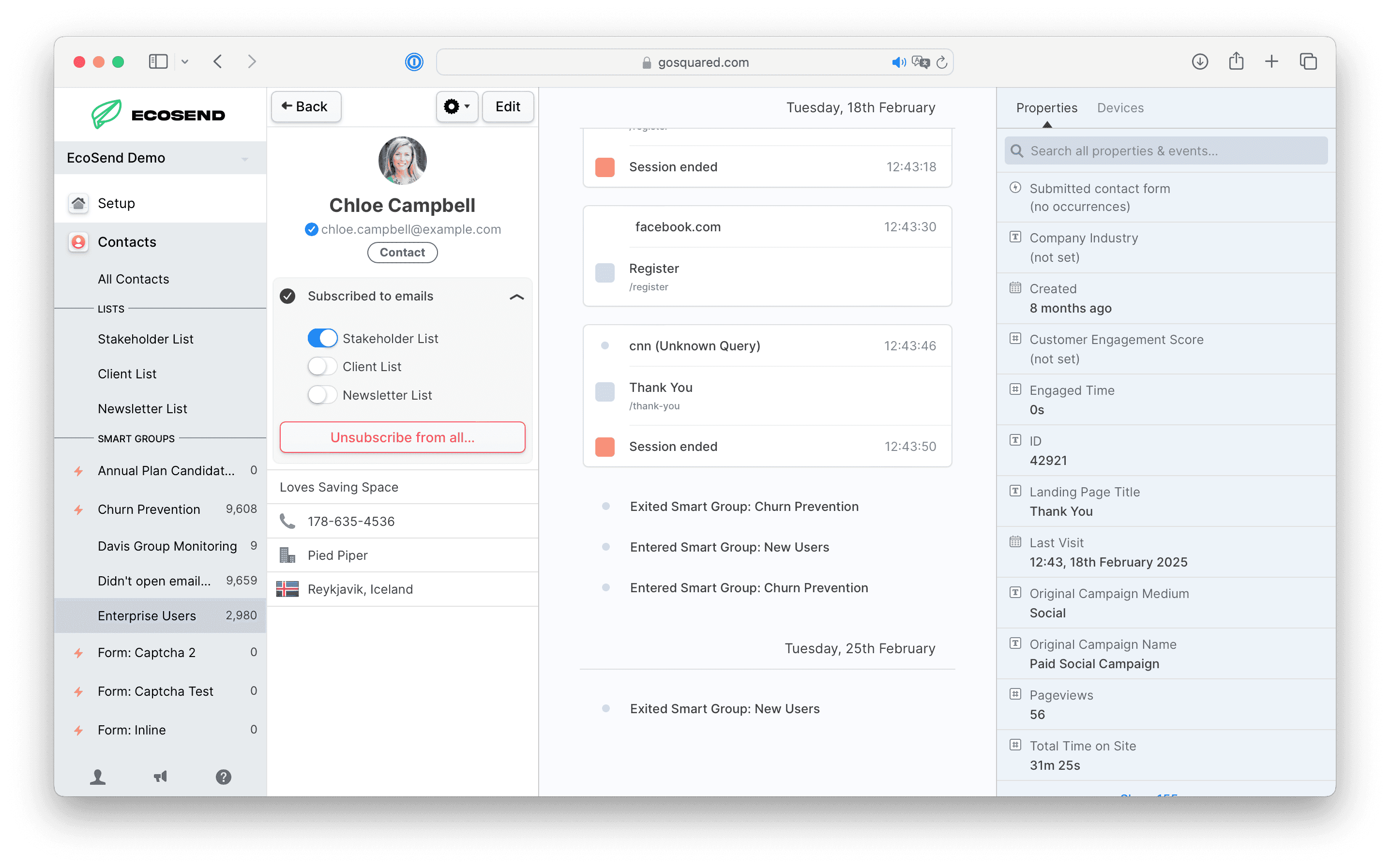
Click into the user's profile, followed by the Subscribed to emails dropdown, and toggle which lists to subscribe or unsubscribe the user from.
Upload Profiles via CSV or Mailchimp Import to Lists
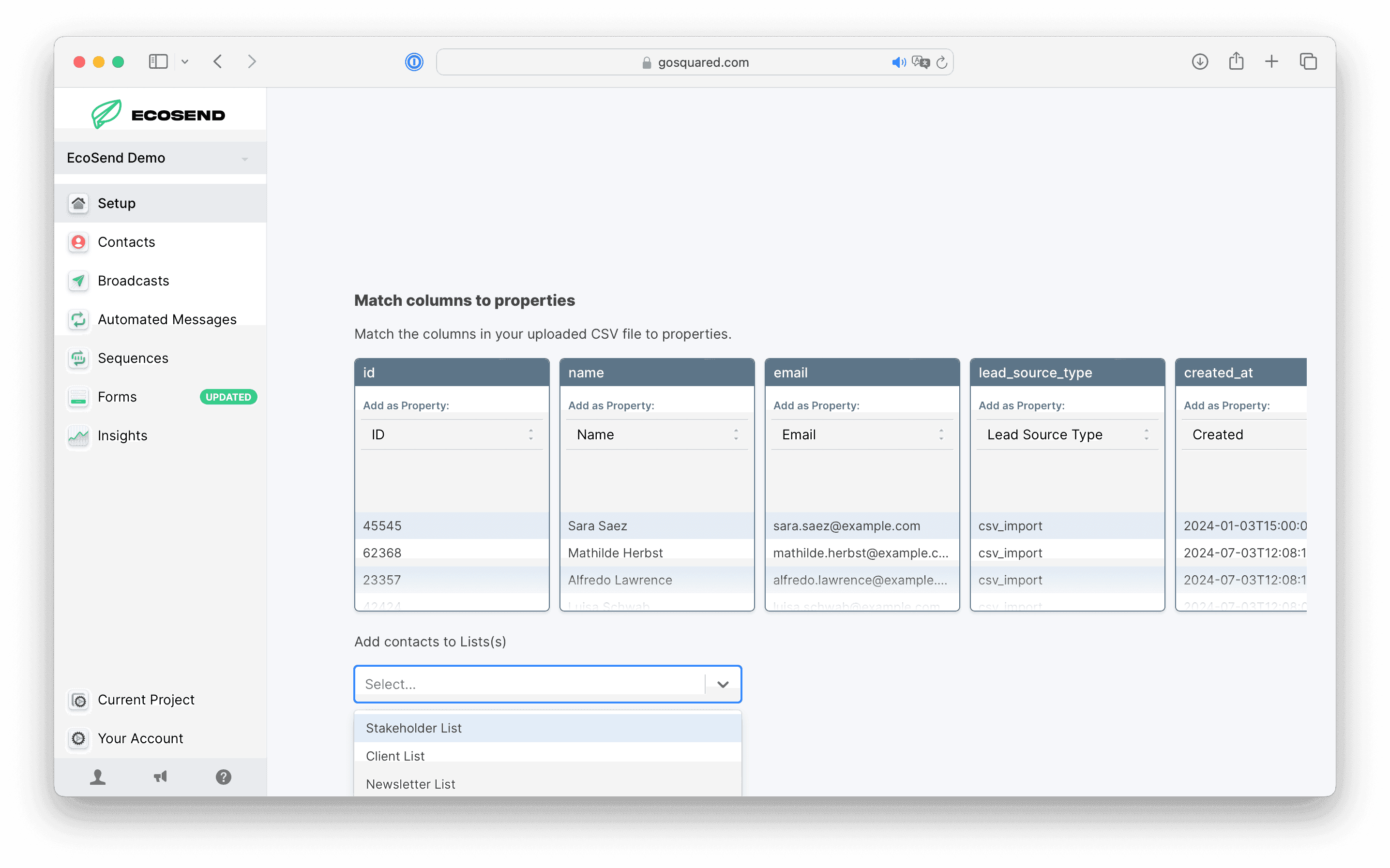
You can also directly import users onto a list via CSV or Mailchimp Import, by using the dropdown from Add contacts to Lists, and selecting one or multiple lists from the dropdown.
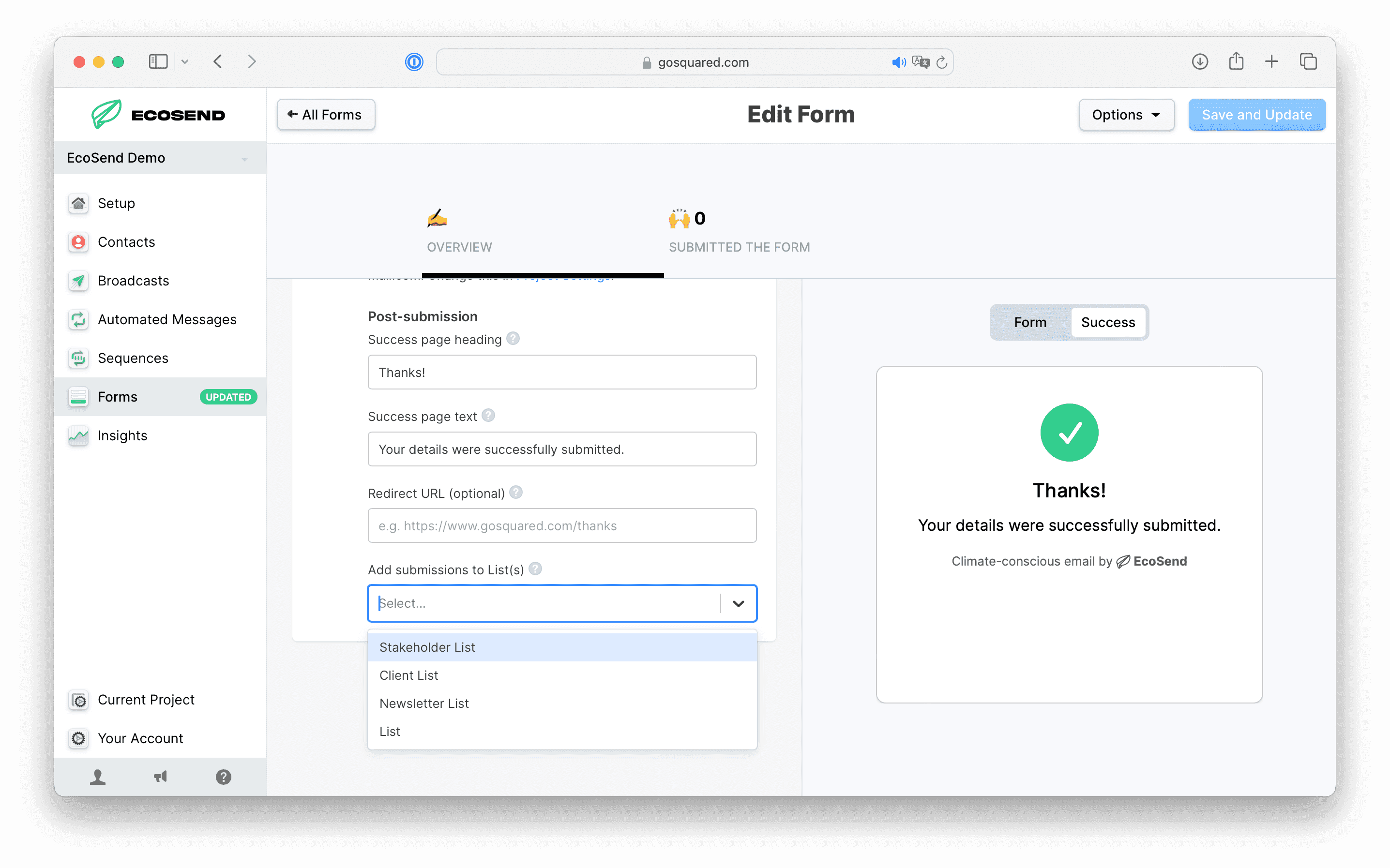
Add Submissions to Lists from EcoSend Forms (Agent side)
You can select for users to sign-up to one or more lists when submitted an EcoSend Form, under the Advanced Options settings of your Form.
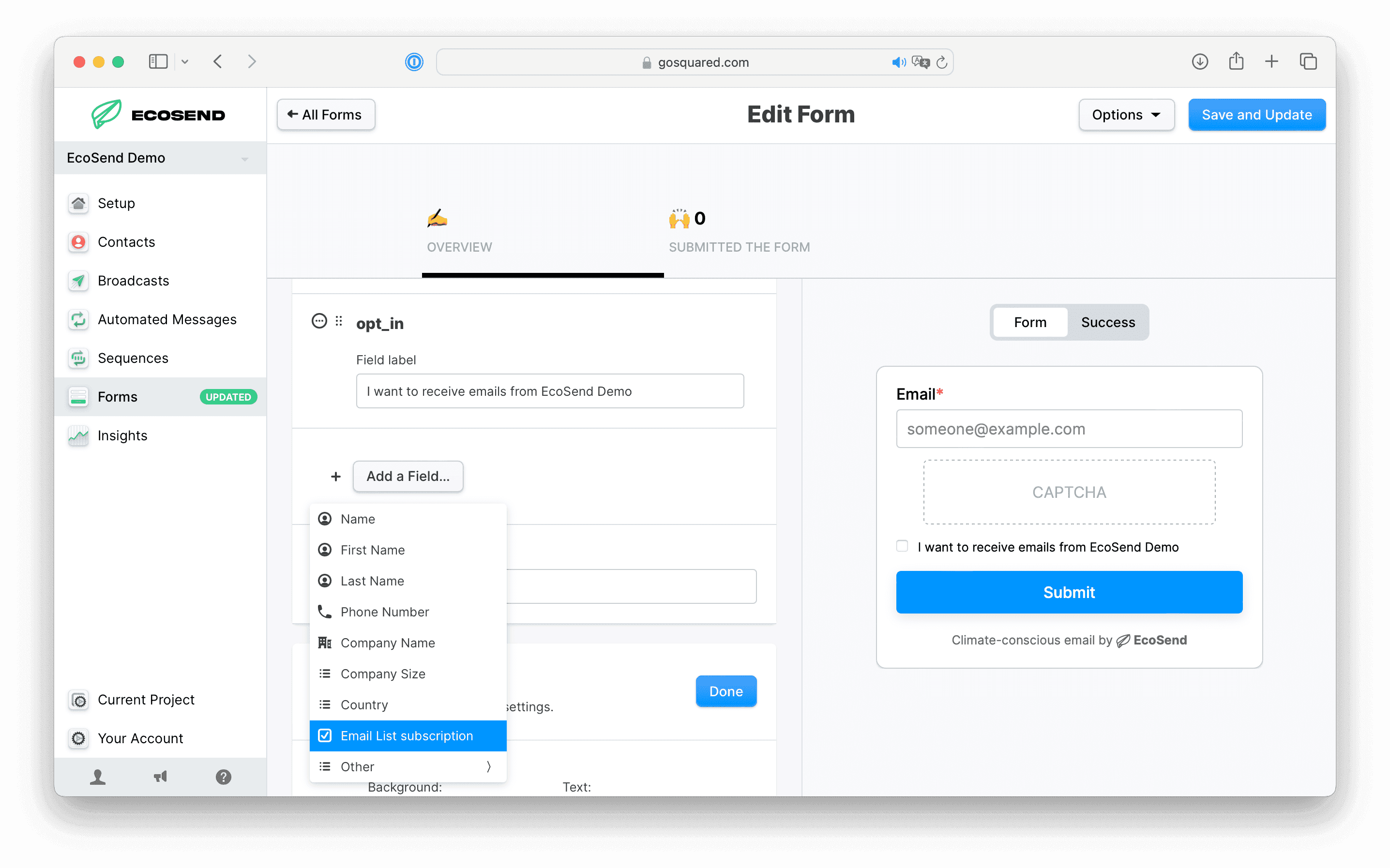
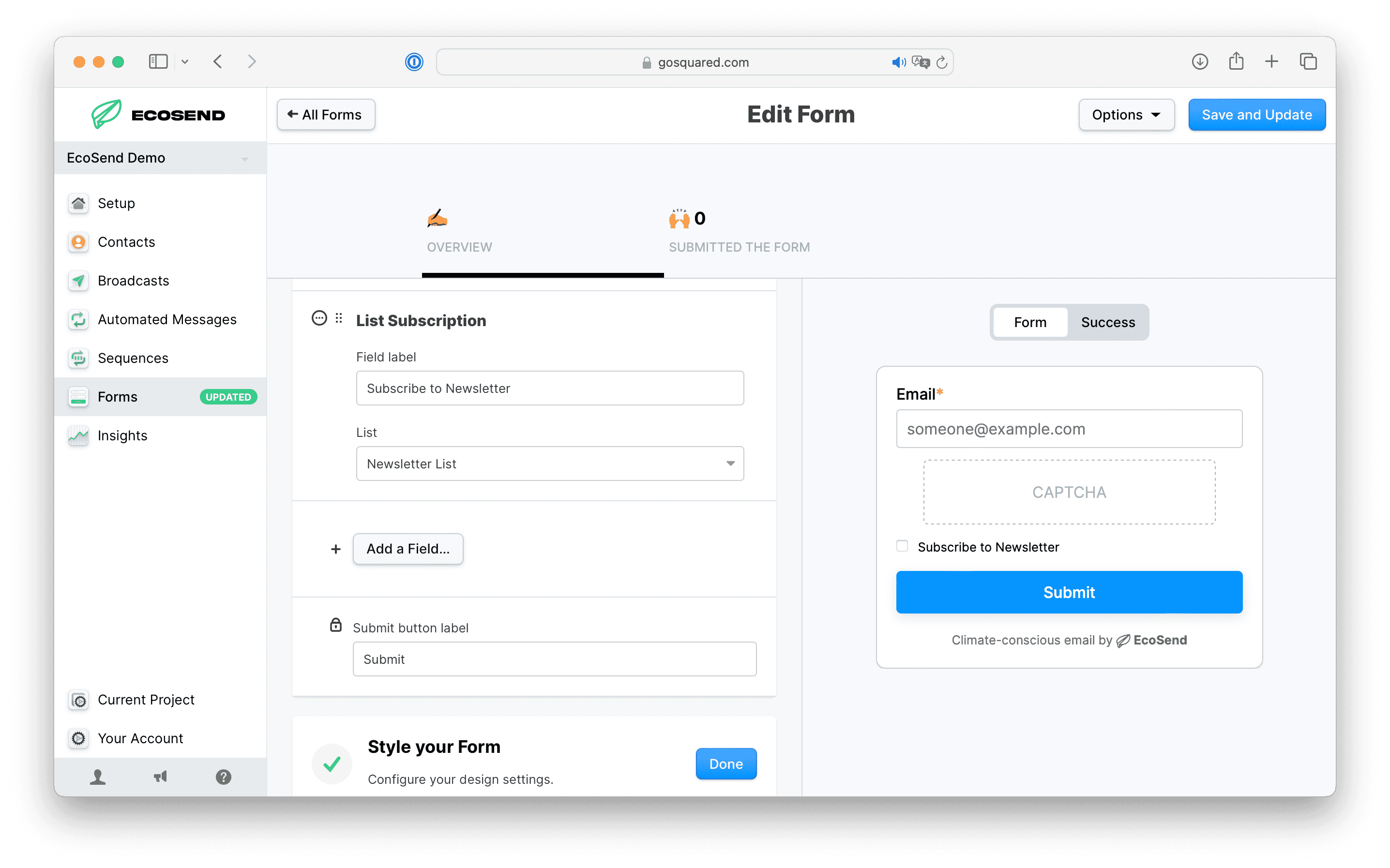
Add submissions to Lists from EcoSend Forms (User side)
You can also allow your end-users to select which email lists they would like to be entered into when submitting a Form, by adding the custom field Email List Subscription.
Subscription Preferences
How to link to Subscription Preferences in your emails
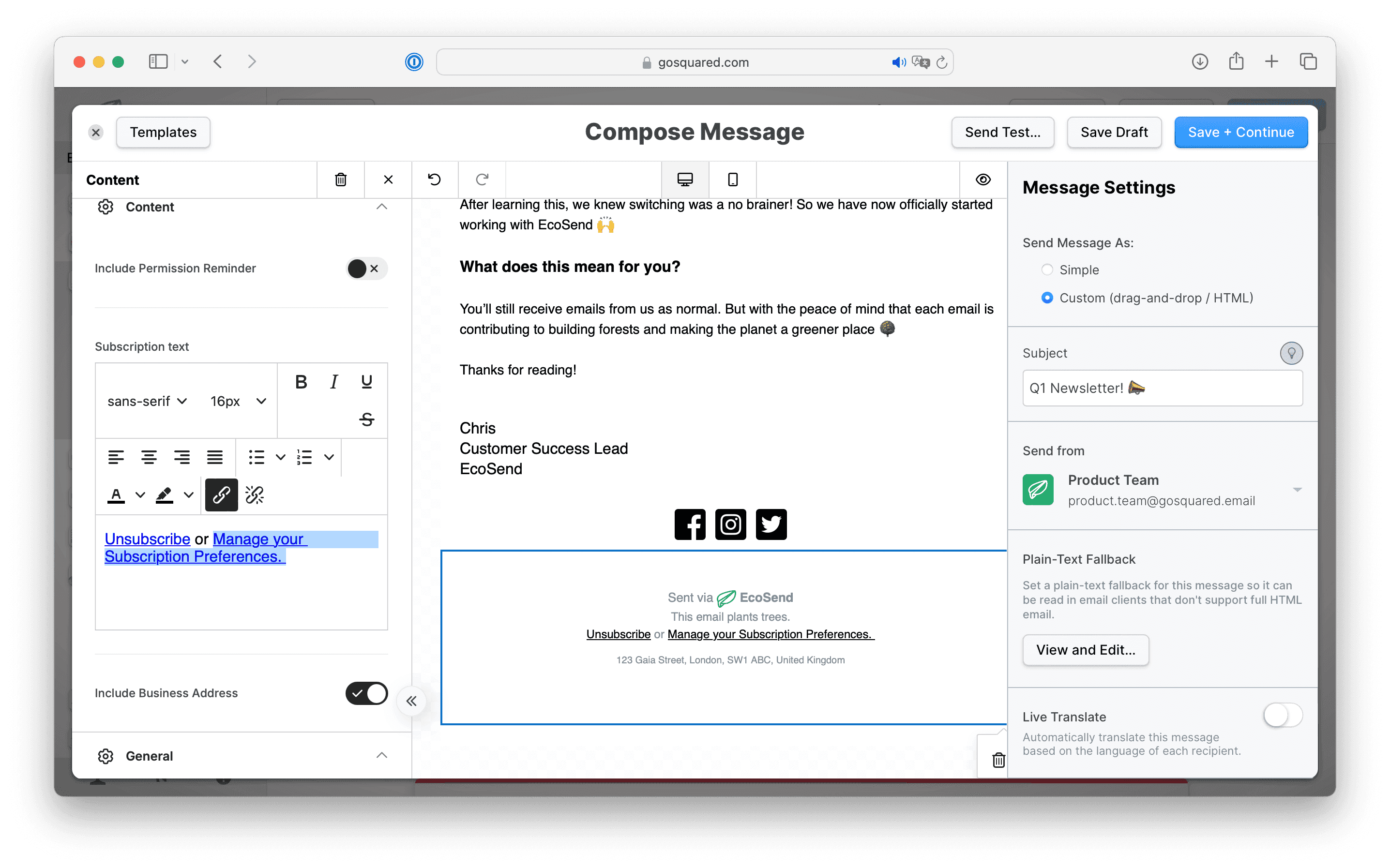
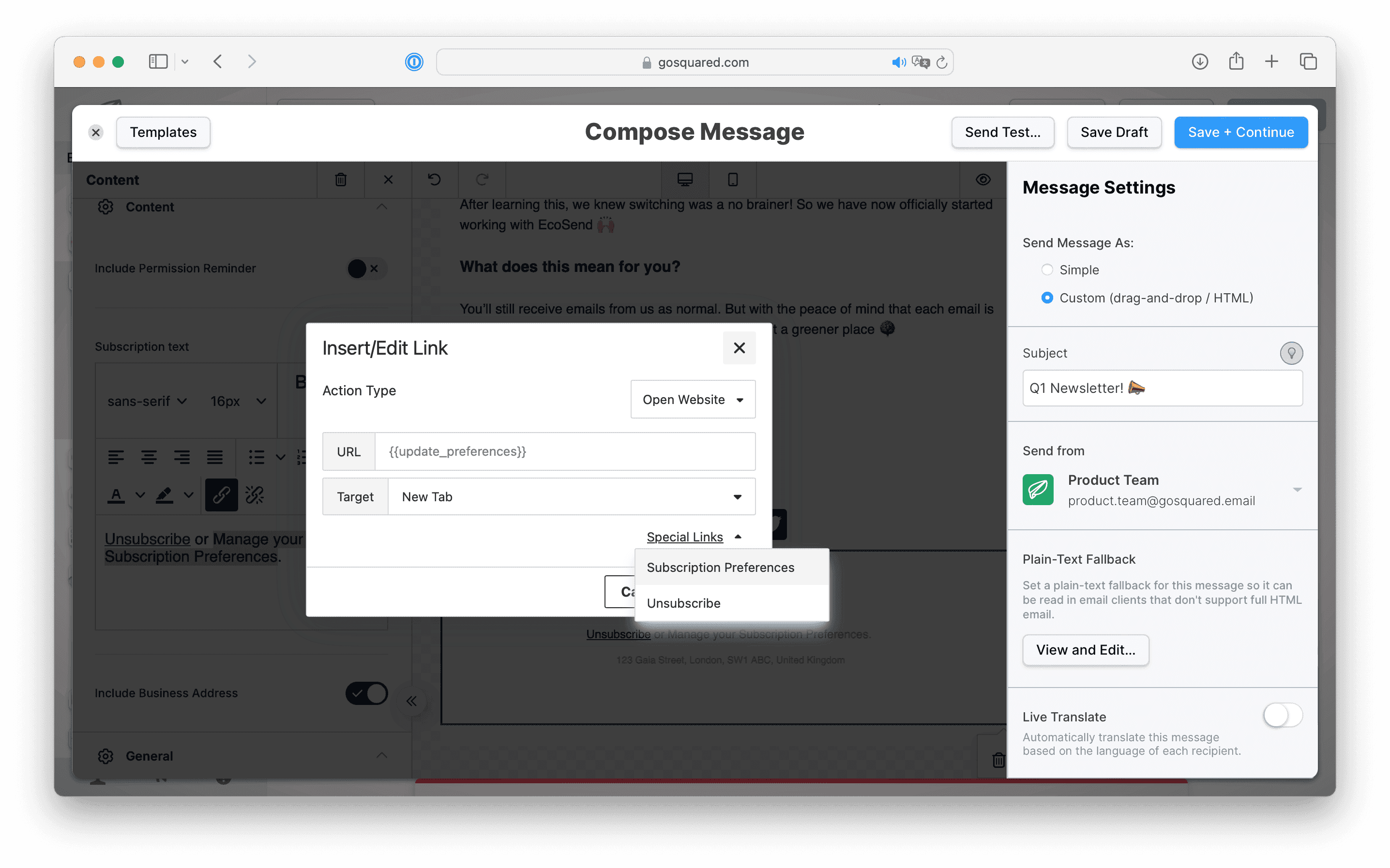
When composing an email, you can insert a link to manage subscription preferences, just as you would with the global {{unsubscribe_url}}.
The syntax to deploy Subscription Preference Centre is {{update_preferences}} and is also available in the preset Special Links in the Message Composer Editor.
Simply select the text, then click the hyperlink icon to deploy the Special Links dropdown.
The experience for your contacts
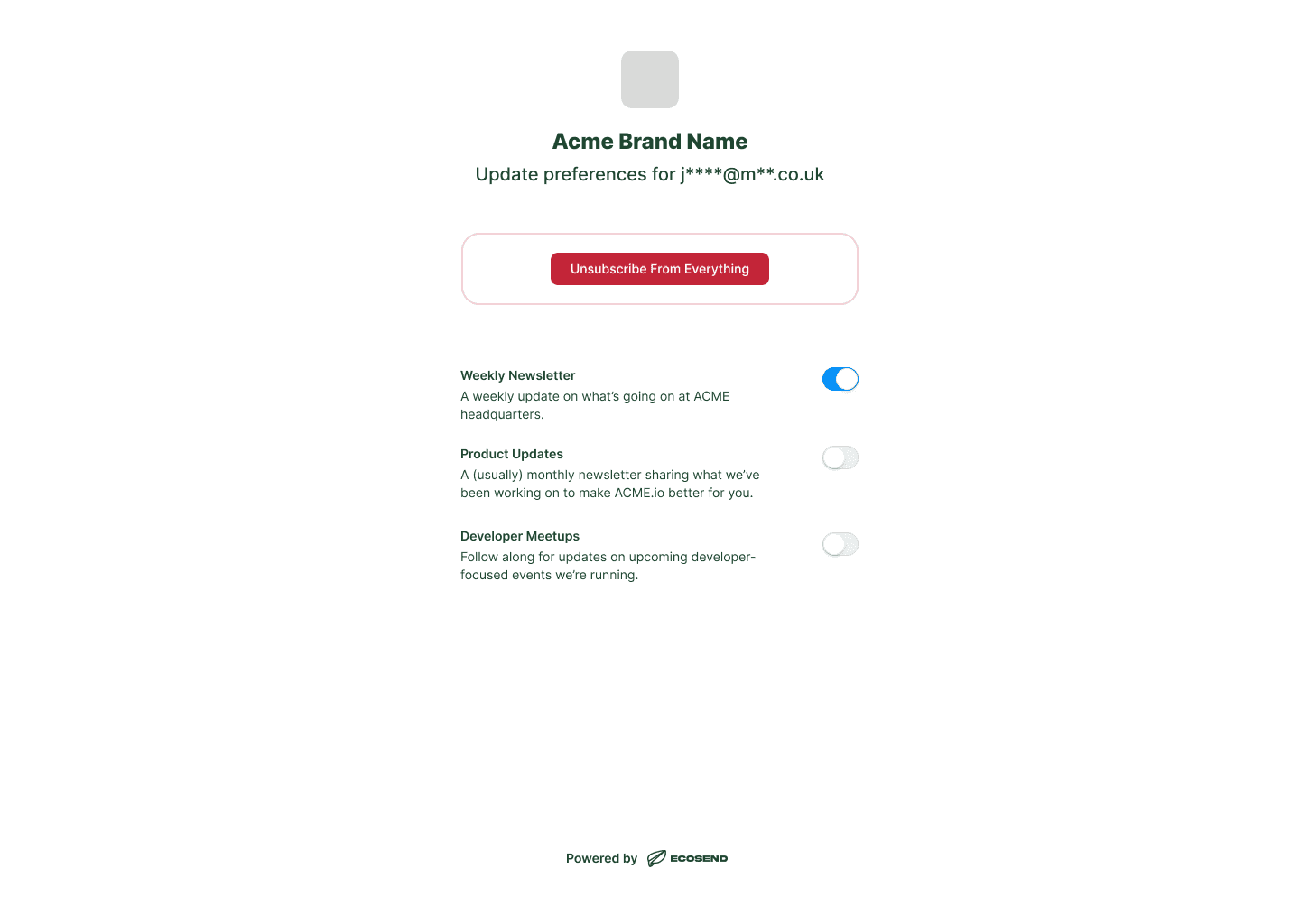
Your recipients will be able to click into the Subscription Preference Centre from the Subscription Preferences link in your email Footer.
From here, they will be able to subscribe to any visible lists, and/or unsubscribe from any lists they are currently subscribed to.
Video walkthrough
Last updated June 2026