Variables
Variables are a flexible and powerful way to personalise your messages at scale.
The more properties and events you track against your contacts the more options you’ll have for personalising your messages.
If you're coming from another tool, you might know of Variables as "Merge Tags" or "Mail Merge" tags.
Examples of common Variables you might like to use:
- Address your contacts by their first name or last name.
- Mention the current plan a customer is currently on.
- Thank customers for their loyalty one year after their sign up date.
- Notify customers of their current usage levels – e.g. "So far you’ve added 200 photos".
- Refer to recipients' Country or Company Industry.
- Thank your Members or regular Donors for their support to your charitable organisation.
The method for using Variables will depend on whether you are creating campaigns with our new email builder, or the old email editor experience using Simple Email, the Drag & Drop Builder, or Custom HTML.
Using Variables in the subject line and preview text
To insert a Variable (like first name) in your subject line or preview text, just type {{ to bring up the Variable picker.
Using Variables in your email content
You can insert a Variable in your email content in just the same way as you insert a Variable in the subject line and preview text — just type {{ to bring up the Variable picker anywhere you can type text.
You can also turn an existing text selection into a Variable:
- Just select a word and you'll see the formatting menu above your selection.
- Select the "Variable" icon.
- Use the Variable picker to select the Variable you want to use.
By default, when converting your text selection into a Variable, the default fallback is set to the words you highlighted. You can change the fallback text to anything you want.
In the old editor experience
Simple Email
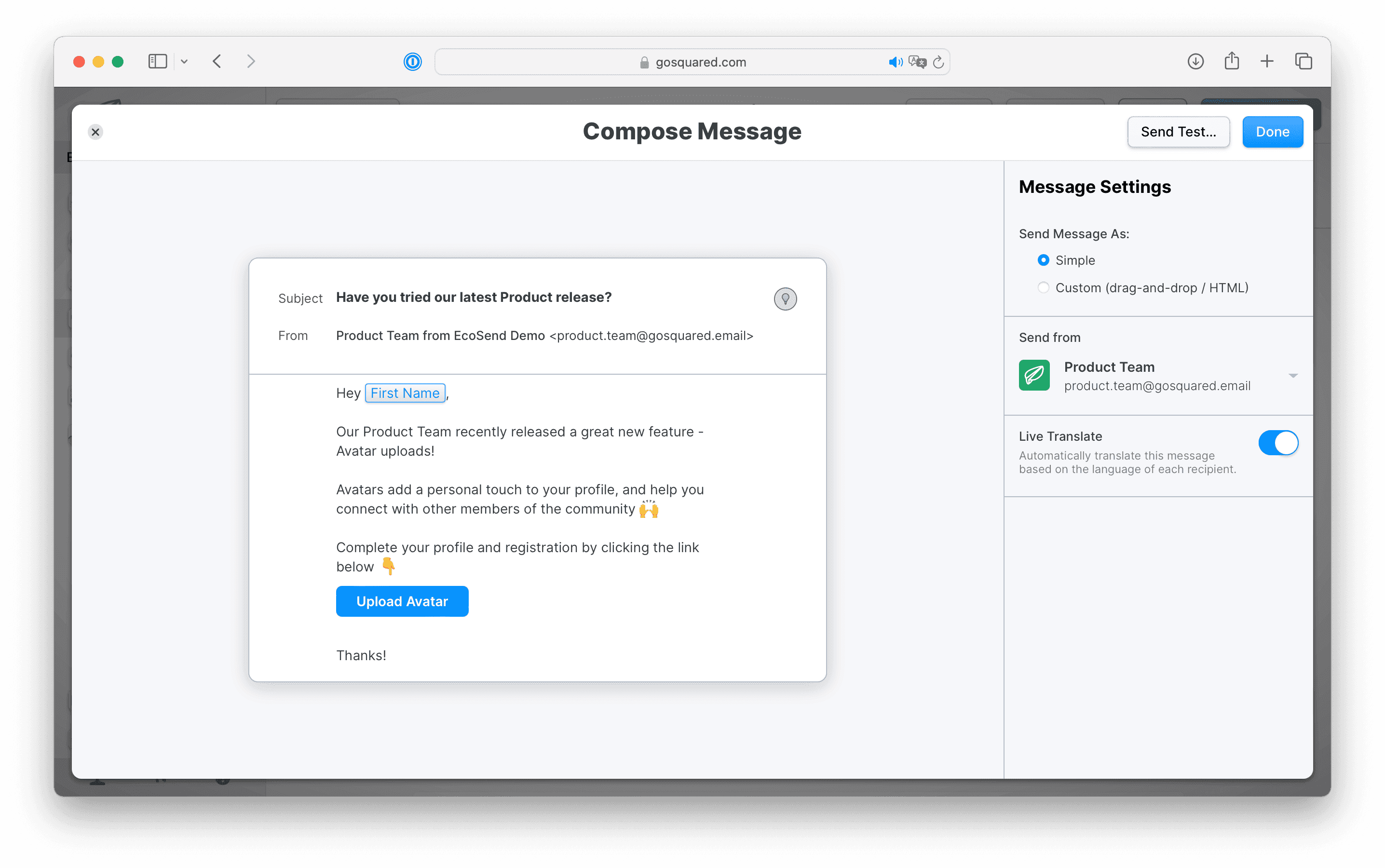
You can personalise both the body of your message and the subject line of a Simple Email email with Variables, simply type '{{' to bring up
the Variable picker.
Drag and Drop Builder
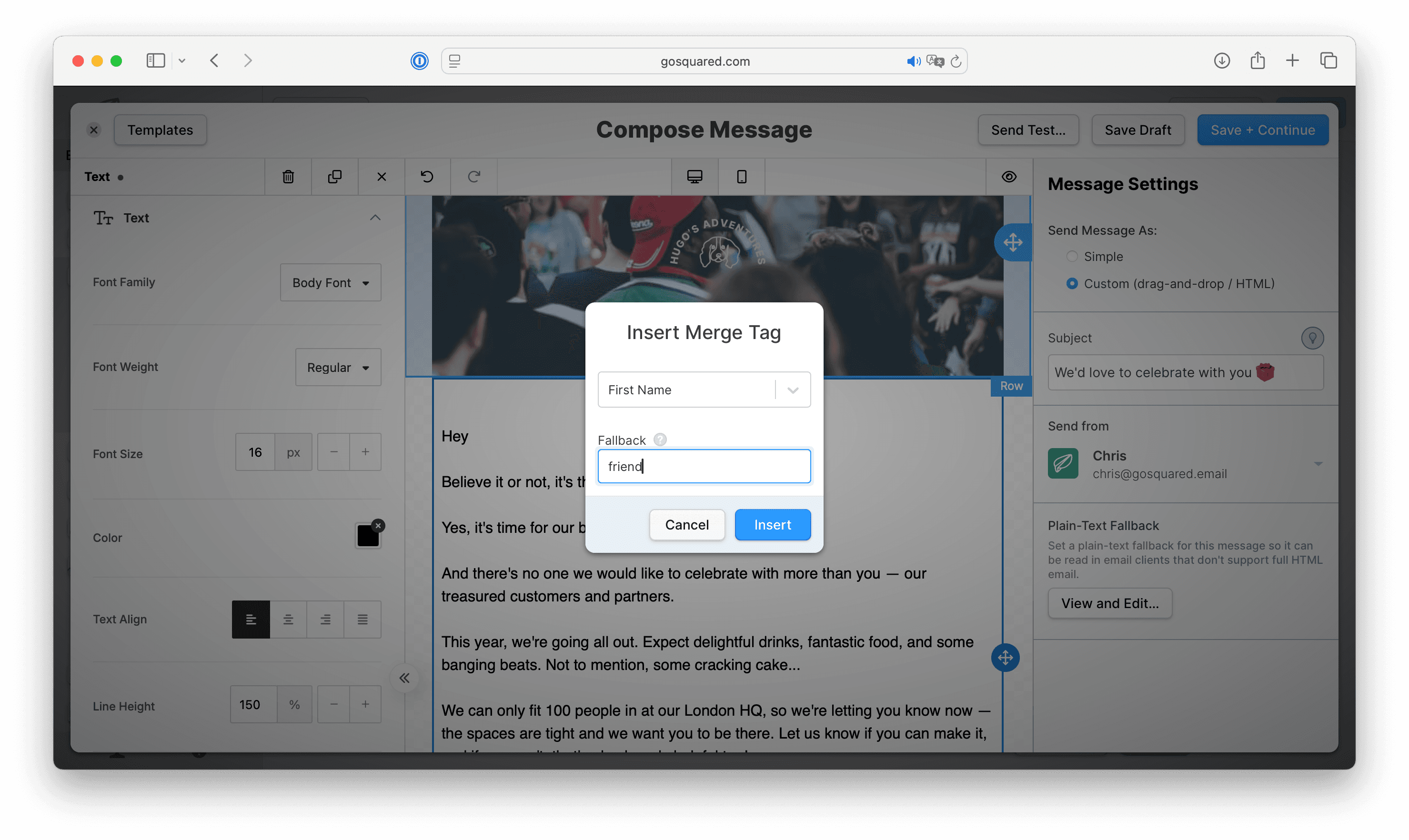
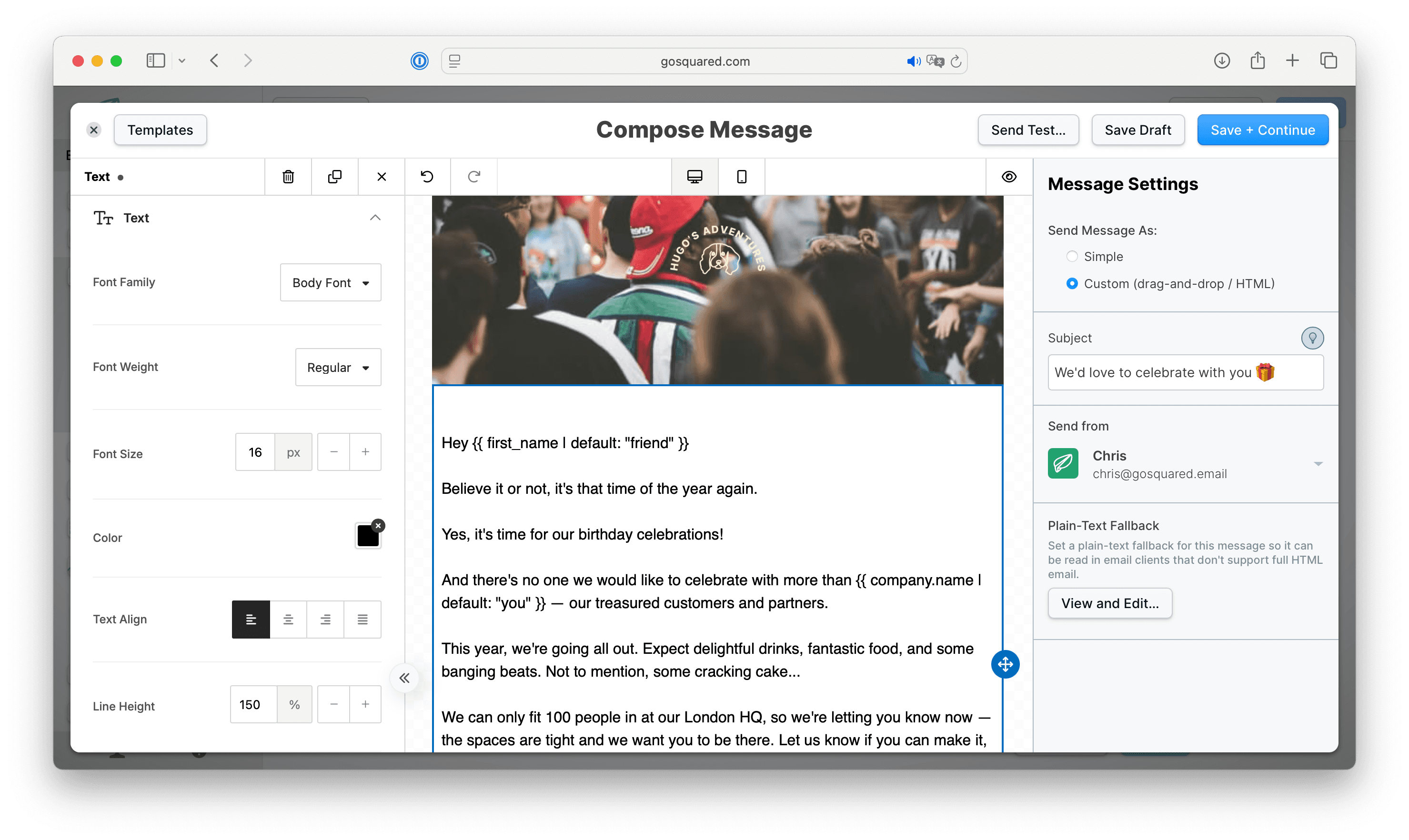
Within your Text box field, write out your Variable and select it in full. Then click Merge Tags. This will open the full list of available Variables in your platform, from which you can click to select your chosen Variable.
We recommend always adding a Fallback option, in case the data for the Variable is not available within your database.
Custom HTML
If you are writing your own HTML you will need to write the full Variable code. For example, to create the 'First Name'
property you would write out {{first_name}}
How to use 'Name' Variables
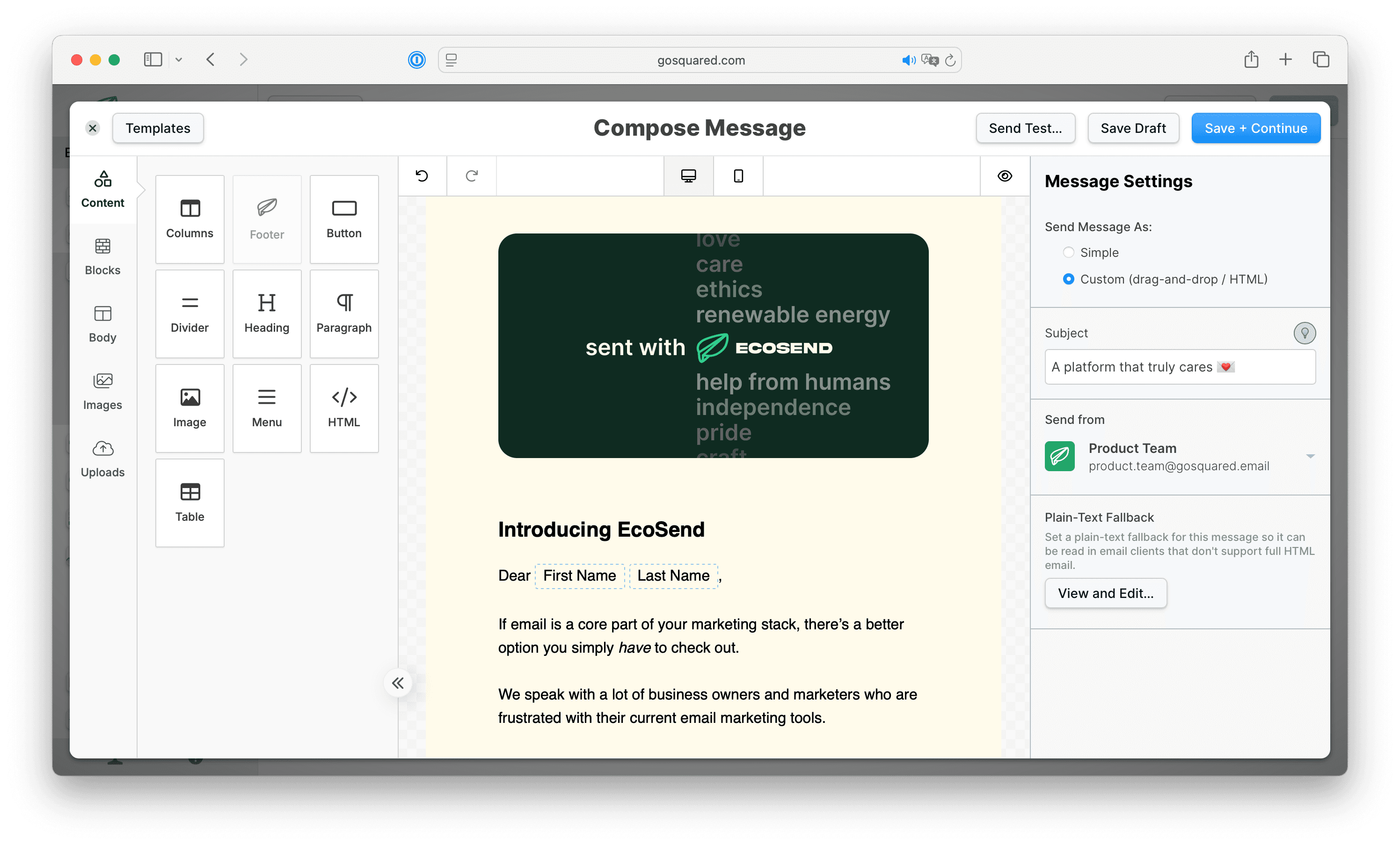
Within EcoSend Contacts, both first_name and last_name properties are merged into the Name column.
When creating an email, you can choose to address your contacts by their first name, their last name, or a combination of the two.
So for example, if your contact's Name column is 'Greta Thunberg', and usually want to address them with their first name (as 'Greta'). When you create your email, use the {{first_name}} Variable and EcoSend will automatically use their first name.
If however, you want to address the contact as 'Greta Thunberg' using both first & last name, you can use both Variables, so write {{first_name}} {{last_name}}.
How to check your Variables are working
When you send a test email for a Broadcast, Variables will display data from a contact selected at random from the audience you are sending to.
For instance, if the first contact in the audience selected for your Broadcast is "Anthony", then the test email will show "Anthony" in the first_name field.
Even though you are often sending a test email to yourself, the Variables will not reflect your information — they will be pulled from a member of the audience you are sending to.
Please note that currently, Variables do not populate any contact data when sending test emails for Automated Messages or Sequences.
Using Variables in links
You can use Variables in links within your emails, so you can give each recipient of your email a unique URL to click on.
This can be useful for situations where you want to offer a personalised journey beyond the email send — like tailoring a Typeform survey to avoid requiring the recipient to re-enter their email address when they click through.
Just use the Variable syntax inside the URL of the links you want to personalise.
For example, to personalise a link identifying a contact with their email address, you could append ?email={{email|url_encode}} to the end of the URL. We'll cover why you need "url_encode" in there shortly.
For example, the full URL of your link might be: https://www.example.com?email={{email|url_encode}}
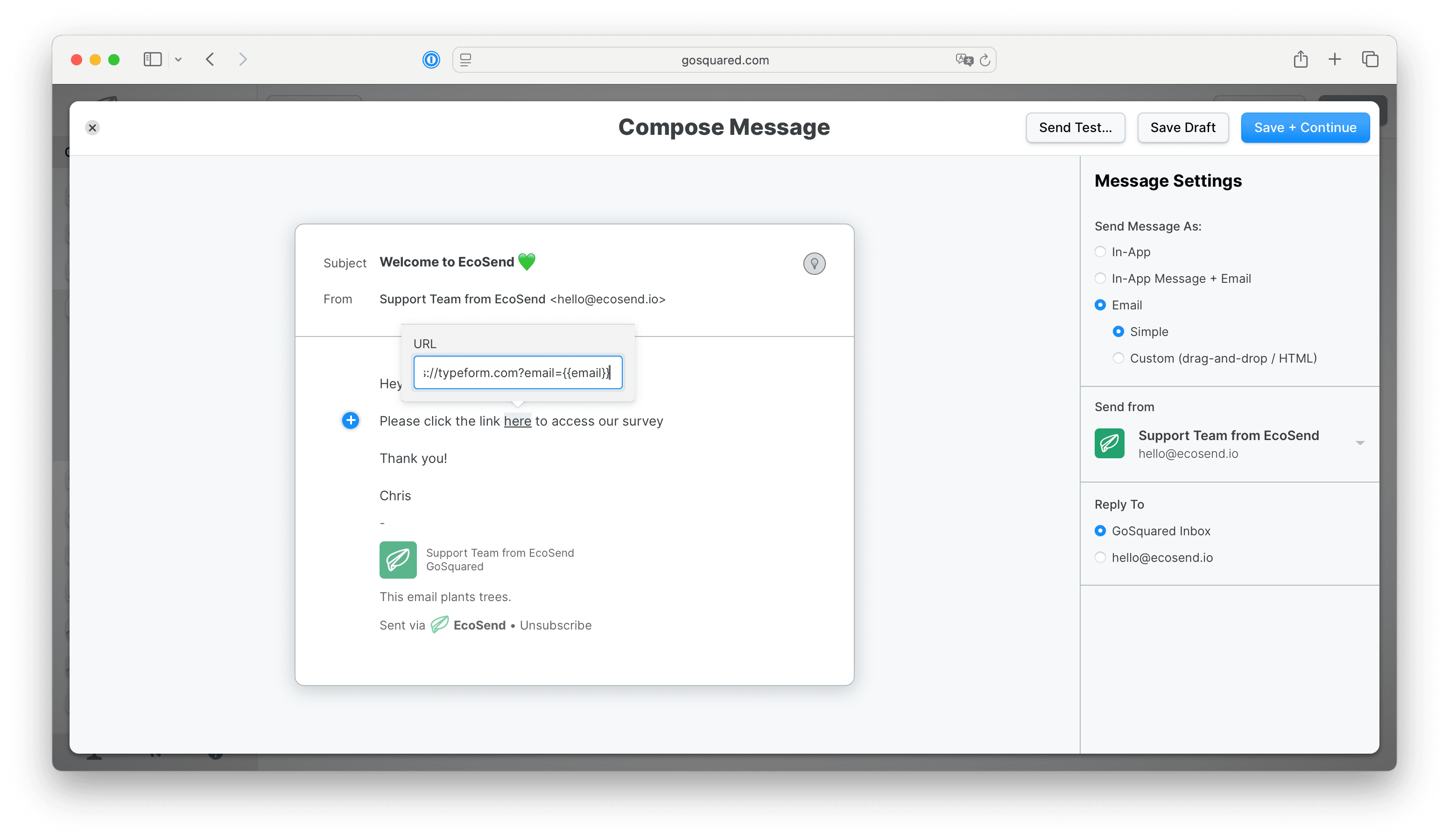
For Typeform specifically, to include a contact's email address within a Typeform link, you would put the following as the URL for your link:
https://typeform.com/[your-form-id]?email={{email|url_encode}}
The resulting link that the recipient (chris@example.com) would see and click on would be:
https://typeform.com/[your-form-id]?email=chris@example.com
URL encoding
It's important you add |url_encode after your Variable name whenever placing Variables in URLs. This ensures the Variable reliably works regardless of the characters that may exist when the real value is displayed to the recipient.
Learn more about URL encoding in the official Liquid syntax documentation.
Last updated June 2026