Pop-up Forms
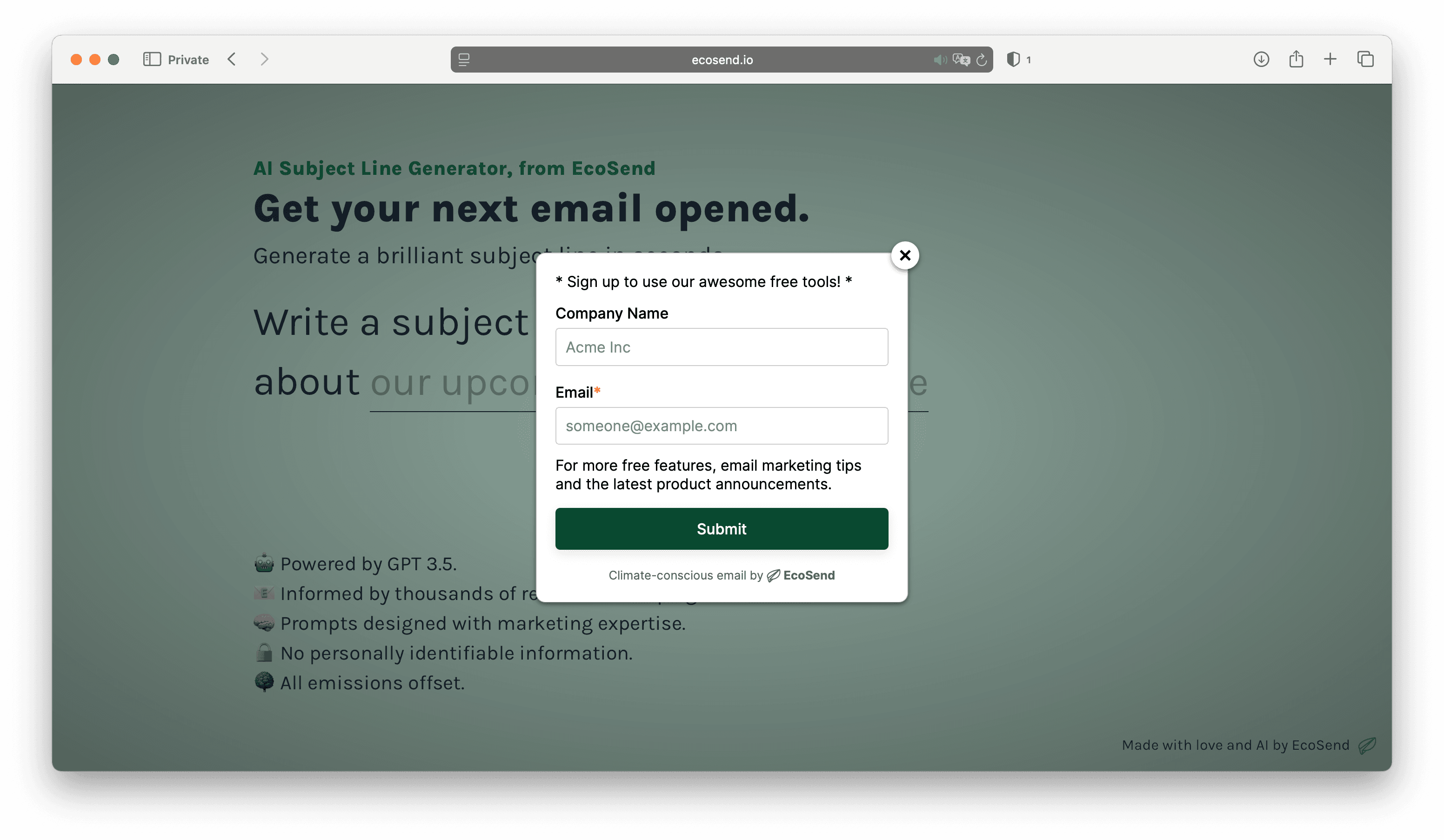
Pop-up Forms are an easy and engaging way prompt your website visitors to subscribe to your emails.
Pop-up Forms are very similar to Inline Forms, but they have a few additional benefits:
- You don't need to find a space for them on your page as they "pop up" over your content.
- They can be display to visitors at the optimum moment — either when clicking a specific link, or when the visitor exhibits certain behaviours.
For example, if a visitor is about to leave your website, you can choose to display a Pop-up Form to trigger and entice them with an offer, in exchange for their email address.
Or, if you have a page listing out free resources, you could trigger a Pop-up Form to suggest the visitor enters their email address for additional "gated" resources.
Create your Pop-up Form
Follow the steps to create your Form (these are just like the steps for creating an Inline Form):
- Build your Form with fields
- Style your Form to match your brand
- Set up Advanced Options if you need
You can do all of this without touching any code. And you can edit these settings any time to update the Form once it's live on your website.
Setting the trigger for your Pop-up Form
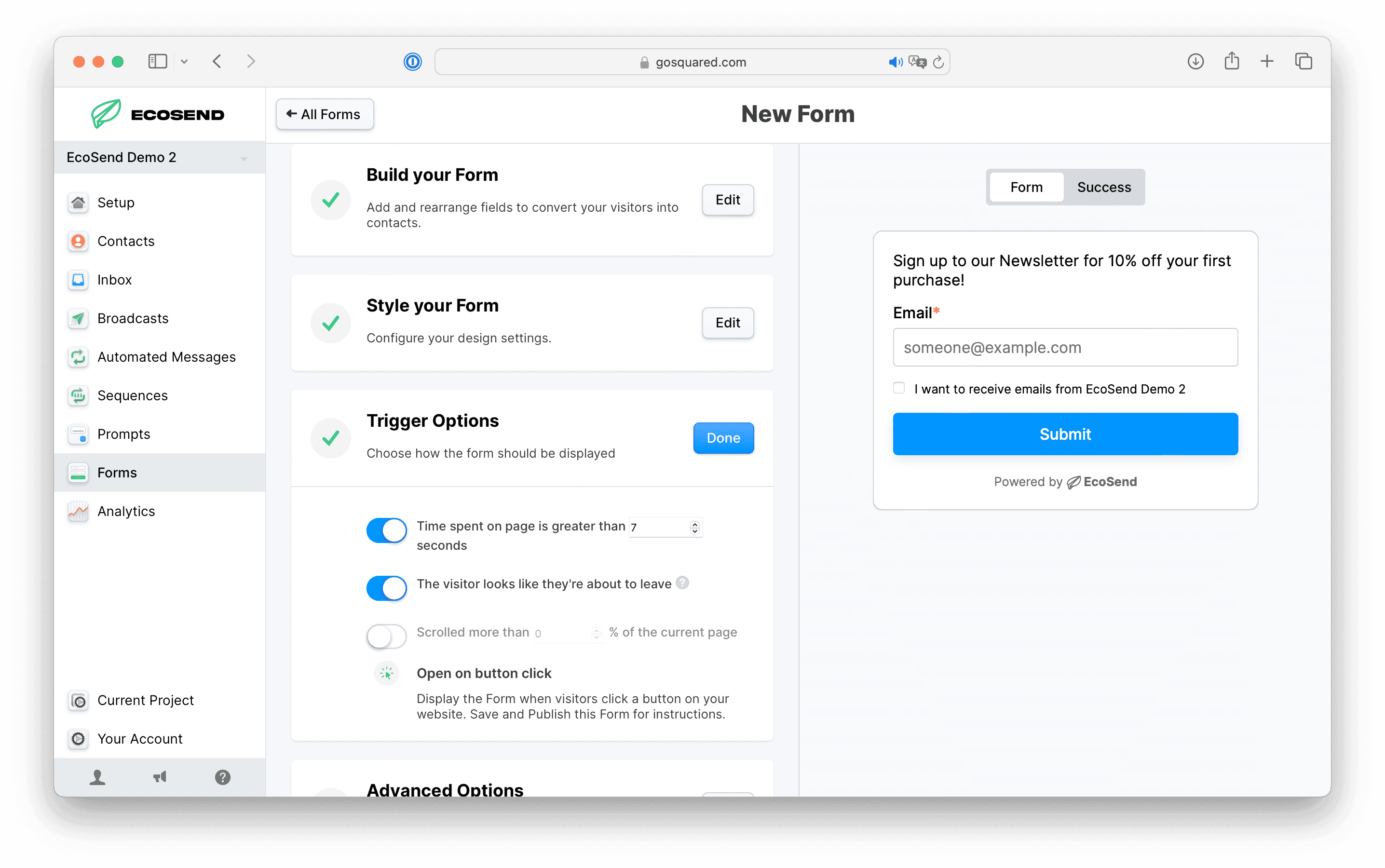
In order to set the trigger that displays your Pop-up Form to visitors, head to Trigger Options.
Pop-up Forms can be triggered based on the following options:
- Time spent on page — how long the visitor has spent on the current page.
- Exit intent — if the visitor looks like they're about to leave, based on a combination of factors around cursor direction and speed.
- Scroll depth — set how far the visitor must scroll before they see your Pop-up Form.
- Button click — add a trigger to any element on your page. When the visitor clicks this element, they will see the Pop-up Form.
You can enable multiple triggers on each of your Pop-up Forms. The first trigger to be met will display the Form. The Form will not display again if dismissed.
Triggering your Form on button click
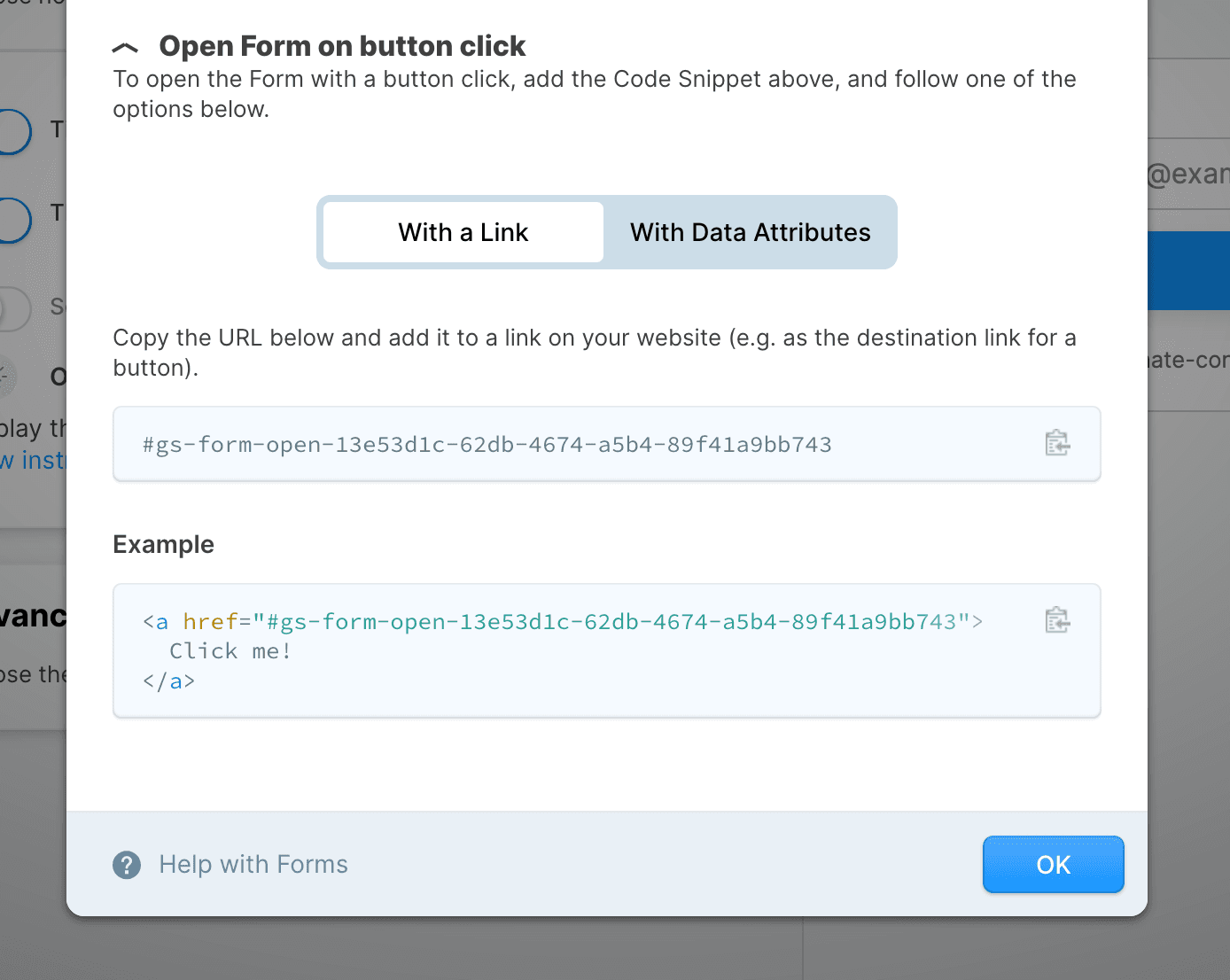
A versatile and powerful way to use Pop-up Forms is to trigger them when the visitor specifically clicks on a certain element or link on the page.
For example, you might have a page with a "Download" link that you want to use as a Lead Magnet. You could trigger the Pop-up Form to display when "Download" is clicked, ask the visitor for their details, and send the resource to the new subscriber via email.
You can find the instructions and specific code snippet to trigger on button click once you create your Pop-up Form. Once created, you can find these instructions again in the top right under "Options > View Integration Instructions".
Advanced options
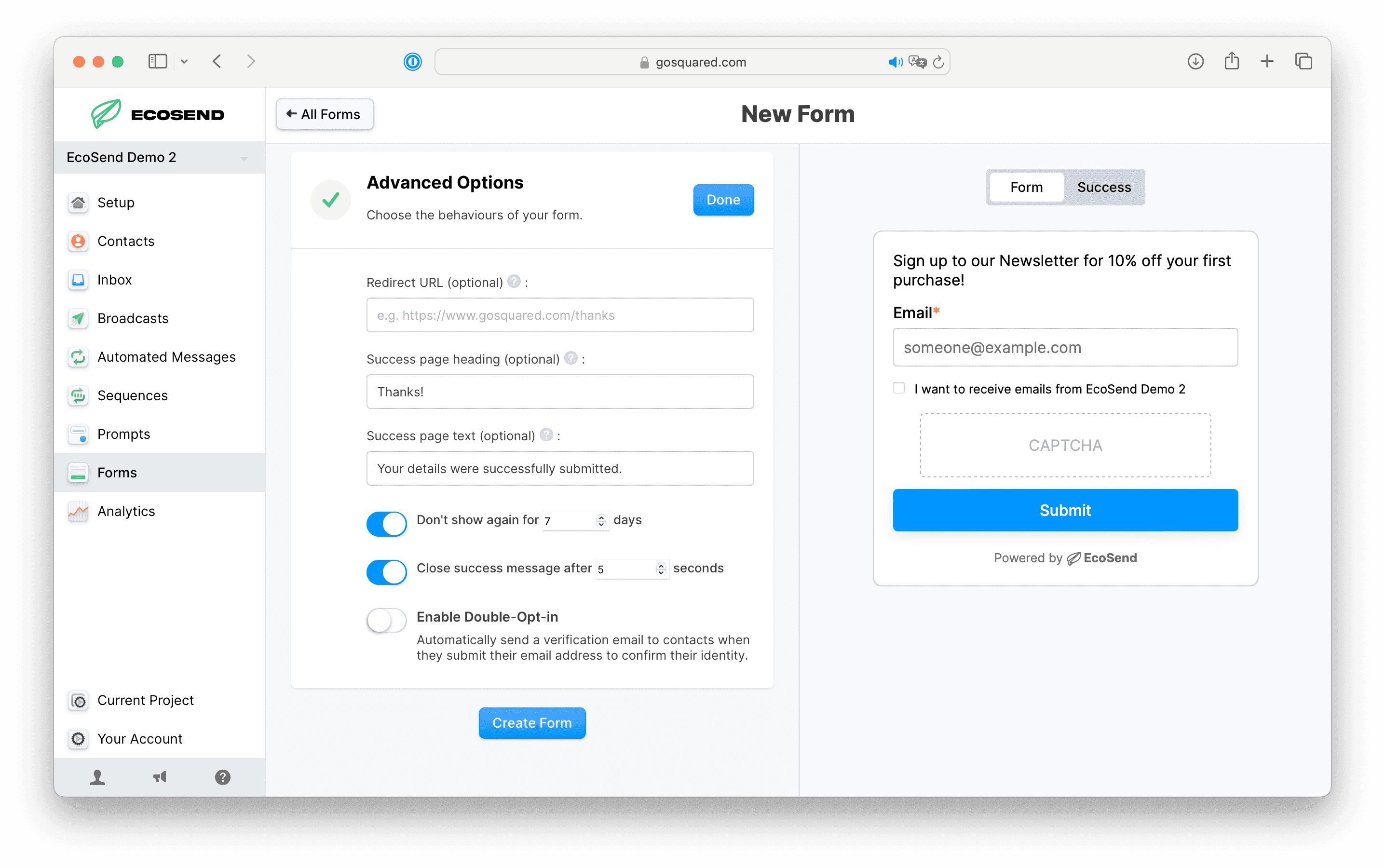
You can also set additional behaviour for the Form in Advanced Options.
Here you can change:
- How long to hide the Form for, once the visitor has dismissed it.
- How long to display the "Success" message before hiding the Form and returning the visitor to your content.
We've set sensible defaults for these, so you don't need to set them yourself unless you want to specifically adjust them for your use case.
Integrating a Pop-up Form
Integrating a Pop-up Form is similar to integrating an Inline Form.
However, Pop-up Forms also require an additional snippet in your website header — in order to display the Form at the optimum moment based on your the trigger you set.
Example: integrating with Wix
To install a Pop-up Form on a Wix website, take the following steps:
- Go to Settings in your Wix website's dashboard.
- Click Custom Code in the Advanced section.
- Click + Add Custom Code at the top right.
- Paste the code snippet in the text box and enter a name for your code.
- Select the option under Add Code to Pages: All pages:
- (Alternatively, you can Choose specific pages from the drop-down menu
- Enter your code in the Place Code in:Head category
- Click Apply.
Video walkthrough
Updating your Form
Need to make changes to your Form after embedding it into your site?
EcoSend Forms are dynamically hosted, meaning any changes you make to your Form, once saved, will update automatically on your site.
Simply make the changes to, click Save and Publish, head back to your site and refresh your browser. Watch as your Form is magically updated!
Learn more about EcoSend Forms
Check out our overview to learn more about the different options, customisations, and use cases available with EcoSend Forms.
Last updated December 2025