Introduction to EcoSend Forms
EcoSend Forms are the easy, integrated way to build your audience with EcoSend.
With a range of options suited to a an ever-growing set of use cases, EcoSend Forms enable you to confidently capture contact details, convert website visitors, block spam and junk, and build a high quality audience of loyal subscribers.
Whether you're just getting started, or have an existing website with complex needs, we've got a Form for you.
Types of EcoSend Forms
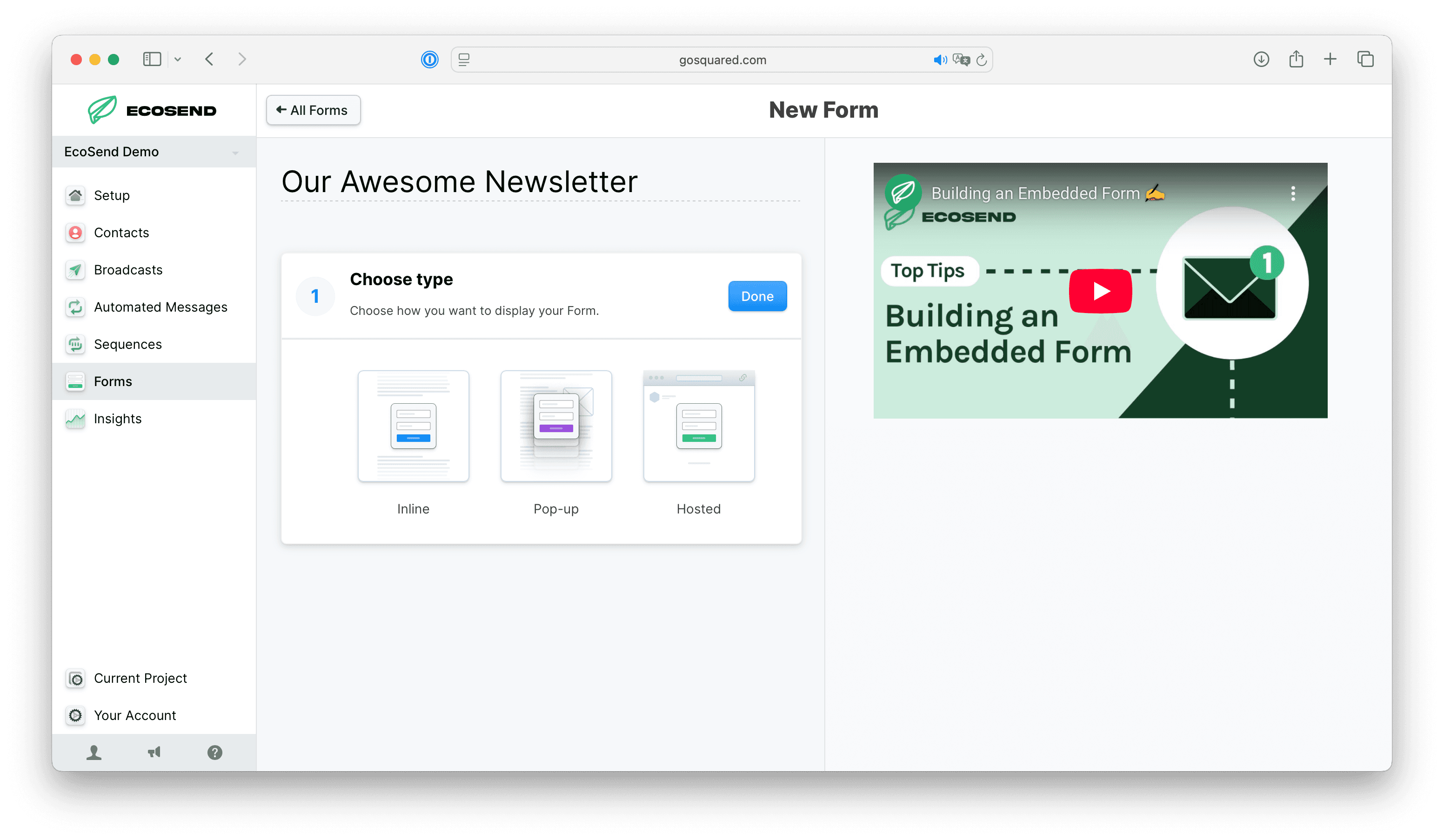
You can create three different types of form in EcoSend:
- Hosted Forms (beta): easy-to-share links, no code or integration required.
- Inline Forms: static forms designed to embed on your website.
- Pop-up Forms: forms that display dynamically over content on your website.
Build your Form
You can edit your Form’s fields to reflect the information you would like to collect.
New fields can be selected from our pre-set options; alternatively, you can create your own custom fields. These fields will populate in Contacts, with the submission information attached to the relevant contact.
Thanks to the tight integration between EcoSend Forms and Contacts, you can segment your audience in granular detail without having to manually update contact records.
Field Types
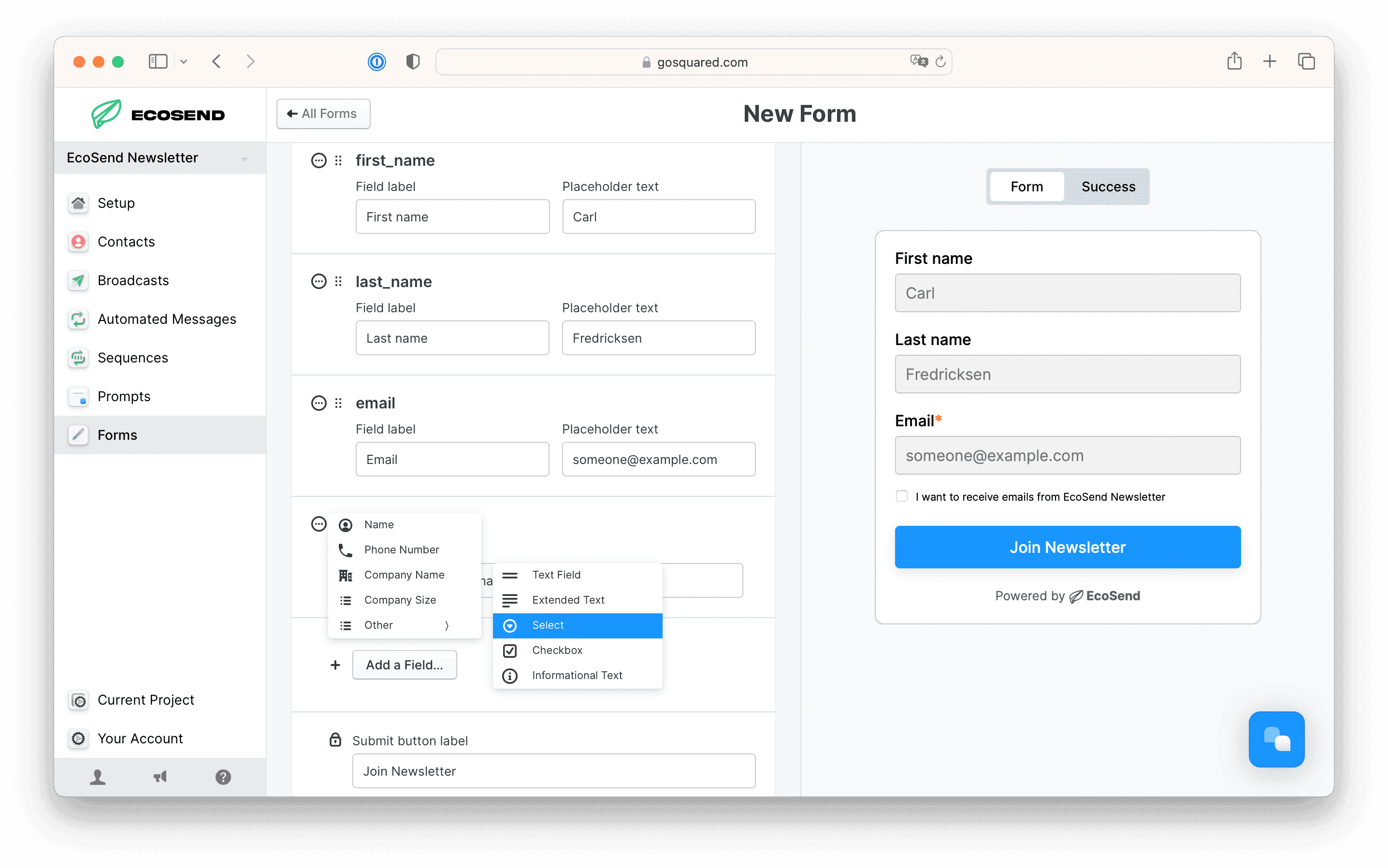
You can select from a number of types for each field in your Form.
EcoSend Forms supports the following field types out of the box. These are available in EcoSend to segment and filter, and use as Variables.
- Name
- First Name
- Last Name
- Phone Number
- Company Name
- Company Size (set as a number)
- Email Opt-in (set as "true" or "false")
- List Subscription (if you're using Lists)
EcoSend Forms also supports the following field types for collecting information unique to your needs:
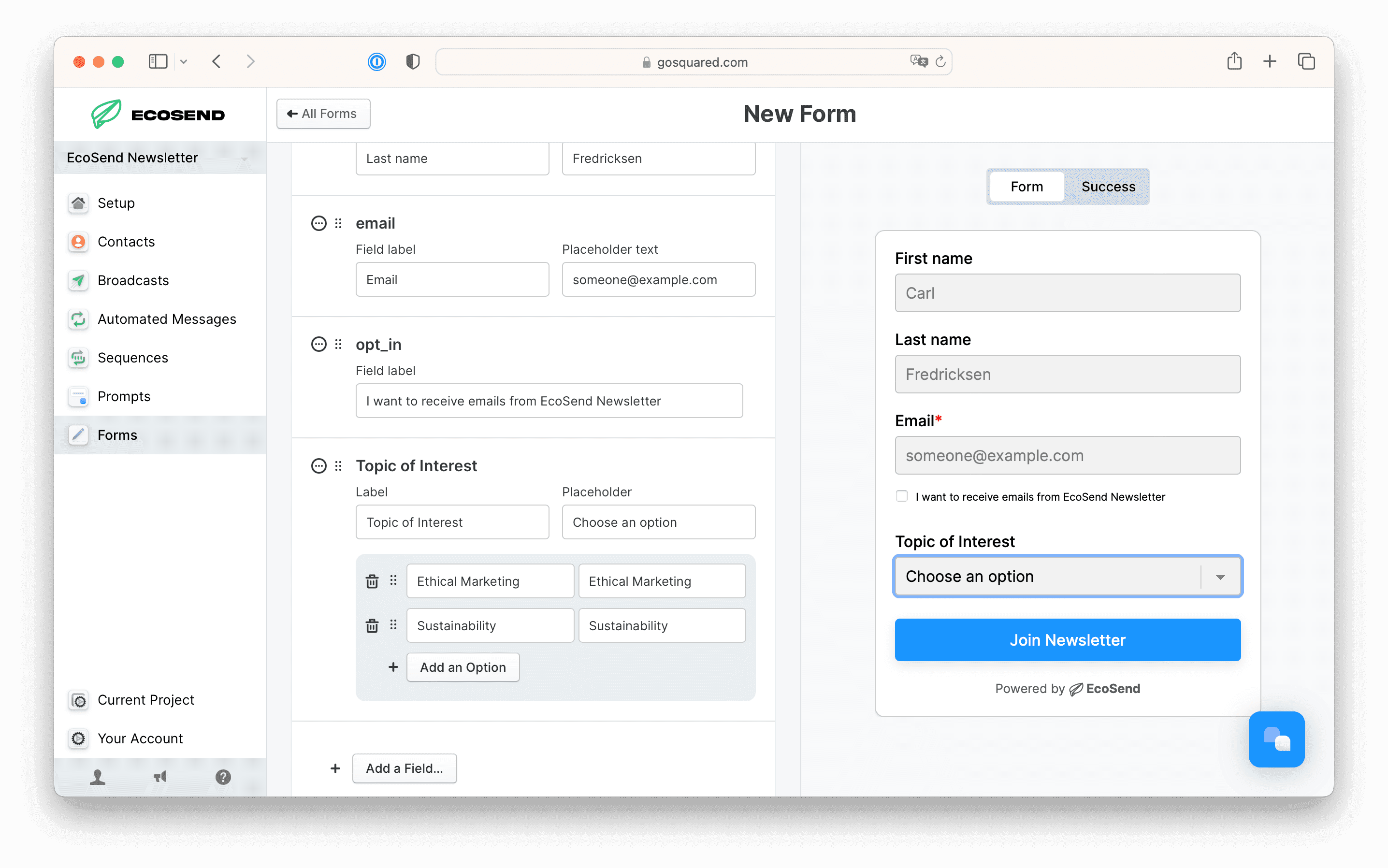
Select (dropdown)
A prefilled menu of options for the visitor to choose from. Helpful when you want to limit the range of input — e.g. t-shirt sizes.
Checkbox
A simple "on" / "off" checkbox — can be used to opt visitors in to specific options.
Text
A single-line text input.
Extended text
A multi-line text input for longer responses.
Informational text
Helpful for displaying information to the visitor. Not interactive.
Dropdown select works best if you want to limit users’ choices, while freehand Text Field allows your submissions to be more varied.
Editing and deleting fields
You can drag & drop fields to re-order for your preferred arrangement.
Hit the "..." icon next to any field and then choose "Delete" to remove an existing field.
If you've already captured data for this field, deleting it won't delete the data stored or the submissions you've already collected.
Style your Form
You can customise the look and feel of your Form to fit with your brand.
Choose your font
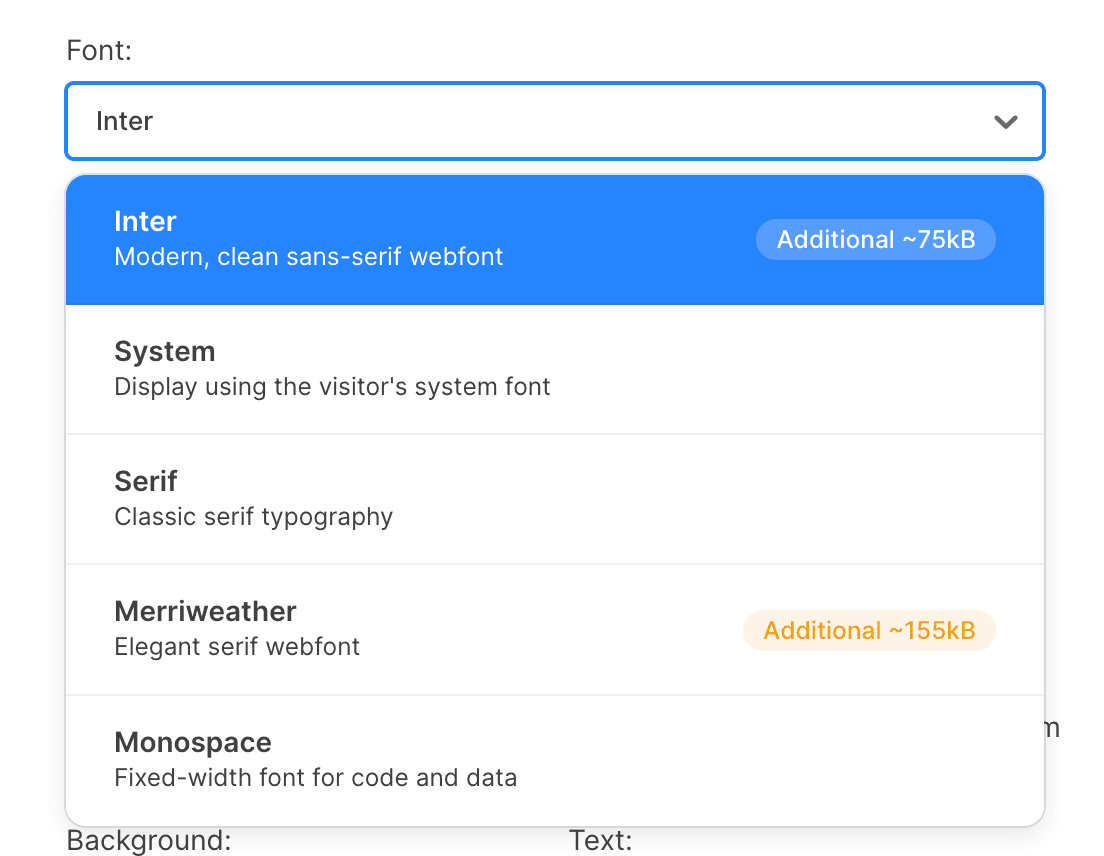
Choose from a carefully selected menu of fonts:
- Inter (the web-hosted default we set all Forms in)
- System (the default interface font of the viewer's device)
- Serif (Times New Roman or similar)
- Merriweather (a beautiful web-hosted serif font)
- Monospace (Courier or similar)
Colours
You can select the colours for each key area of an EcoSend Form:
- Background
- Text
- Button — the background colour of the submit button
- Button text
- Success background — the background of the screen shown after successful submission
- Success text — the text shown on the successful submission screen
Dark Mode
You can also choose colours that are displayed when the Form is in Dark Mode.
To preview the Form in Dark Mode, click the "sun" / "moon" icon in the top right of the Form Preview area to cycle between light and dark.
When enabled for your Form, Dark Mode colours will be used when the visitor's system or browser is set to prefer a dark colour scheme.
Reduce unwanted submissions
CAPTCHA
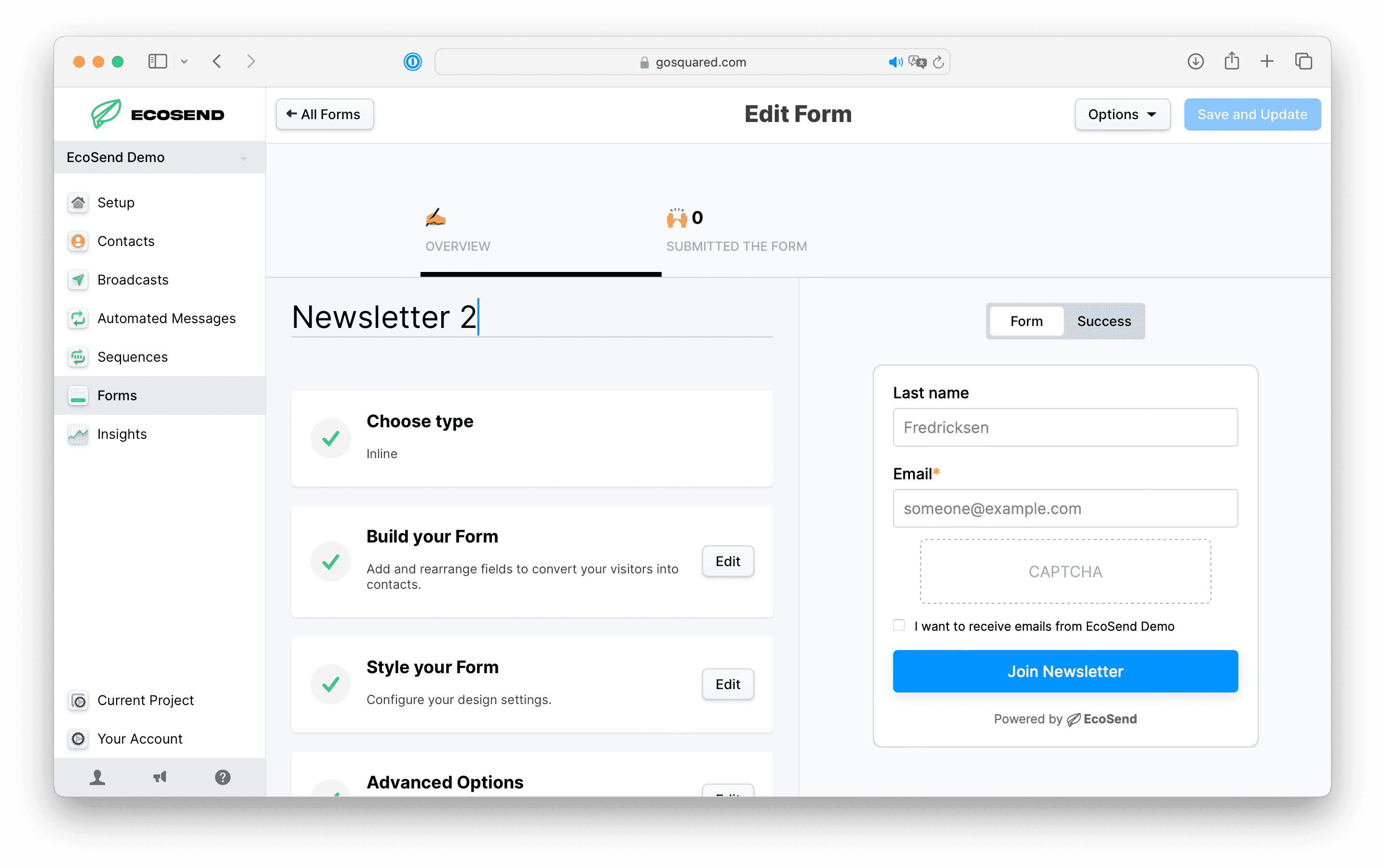
Block unwanted spam signups by requiring a CAPTCHA before submission.
Requiring a CAPTCHA is a great way to reduce spam without negatively impacting the user experience for most of your audience.
To enable the CAPTCHA, add it as a field in the "Build your Form" section.
"Only show if interaction is required"
The CAPTCHA can often verify a human without interaction. Enable this option to hide the CAPTCHA if interaction isn't required — it'll automatically show only when needed.
CAPTCHA on EcoSend Forms is powered by Cloudflate Turnstile.
Double opt-in
Double opt-in is another layer of protection to avoid collecting spam and unwanted submissions.
Double opt-in means that a contact is not added to your audience when they submit your Form. Instead, the contact is only added after they have clicked the link in the verification email they receive after submission.
With Double opt-in enabled, contacts from Forms will not display in your account until they are verified.
Send Double opt-in verification emails from your own domain
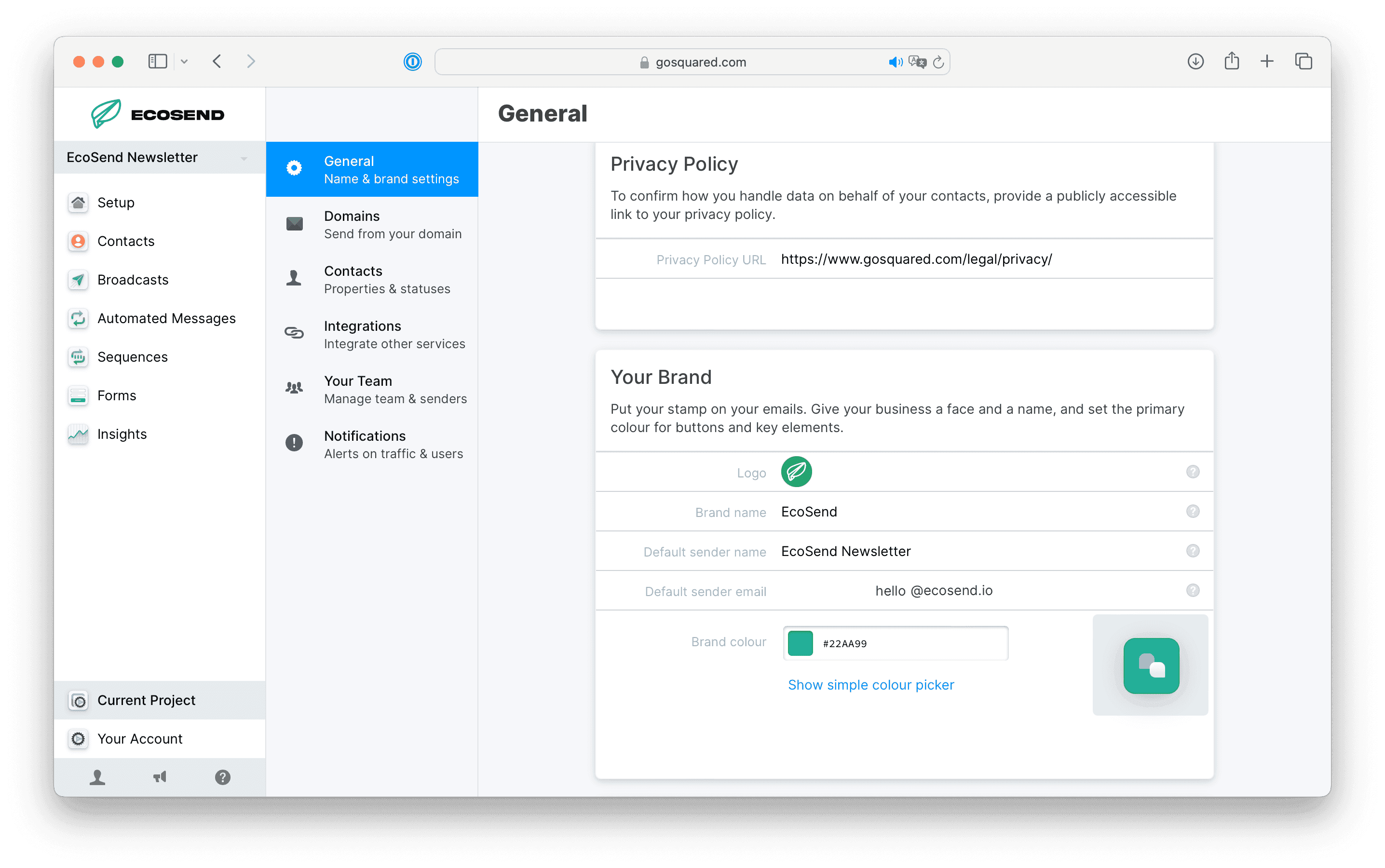
To ensure Double opt-in verification emails get delivered, be sure to update your Default sender email in Project Settings.
You'll need to ensure you have a verified domain on your project. Learn more about adding and verifying domains.
To update the Default sender email address:
- Head to Current Project > General
- Scroll down to the area titled 'Your Brand'.
- Update the 'Default sender email' with the address you wish to send from.
Post-submission experience
There are multiple options for what your contacts see after submitting your Form — you can redirect them to another page, or show them a message in the Form itself.
Redirect URL
You can optionally add a redirect URL after contacts have submitted the Form.
For example, if you have set up your Form as a lead magnet, you might redirect contacts to a download page after submission.
Success page
Alternatively, you can set the title and description message on a "Success" page that shows after submission.
Handling submissions
Add submissions to a List
To add contacts who submit your Form to a pre-determined List, see our dedicated article on Lists and Subscription Preferences.
Review submissions
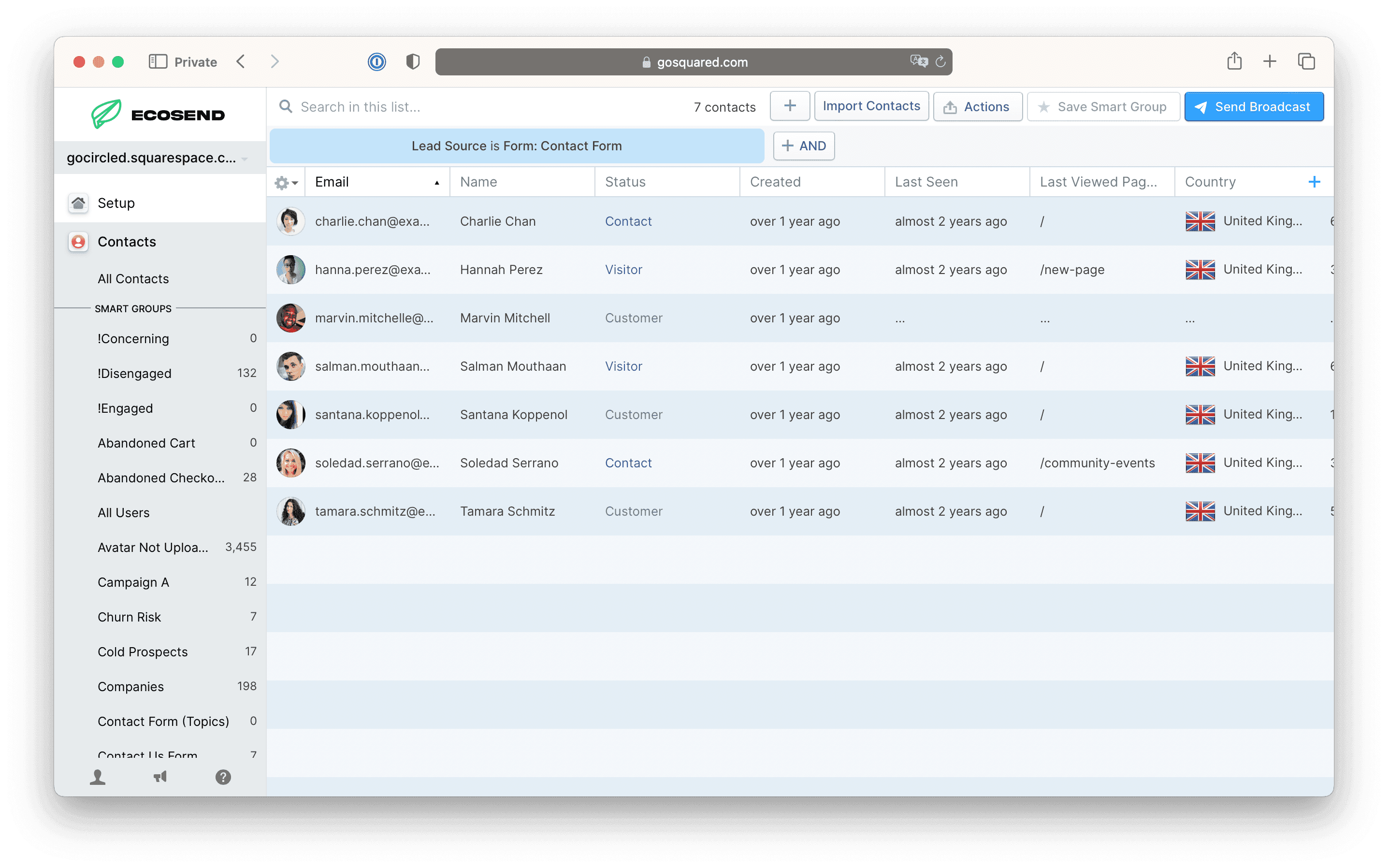
You can access your Form submissions in a number of ways. From the Forms navigation bar, you can view the list of Forms you have built, and click into each Form to view the submissions.
Alternatively, from Contacts, you will be able to select the relevant Form from your Smart Group list. The title will relate to the ‘Name and Purpose’ setting of your Form.
Get notified for new submissions
You can setup a notification to send to your email address whenever a new contact submits a form.
Simply head to Current Project > Notifications, and select the relevant Form's Smart Group.
(If you haven't yet added the relevant email to receive these notifications, head to Current Project > Integrations > Email > Add Email)
Updating an EcoSend Form
Need to make changes to your Form after embedding it into your site or sharing it with the world? No problem!
EcoSend Forms are dynamically hosted, meaning any changes you make to your Form, once saved, will update automatically everywhere.
Simply click into your Form, make your changes, click Save and Publish, head back to your site and refresh your browser. Watch as your Form is magically updated to reflect your changes.
Measure the success of Forms
You can review the performance and conversion metrics of any Form in EcoSend.
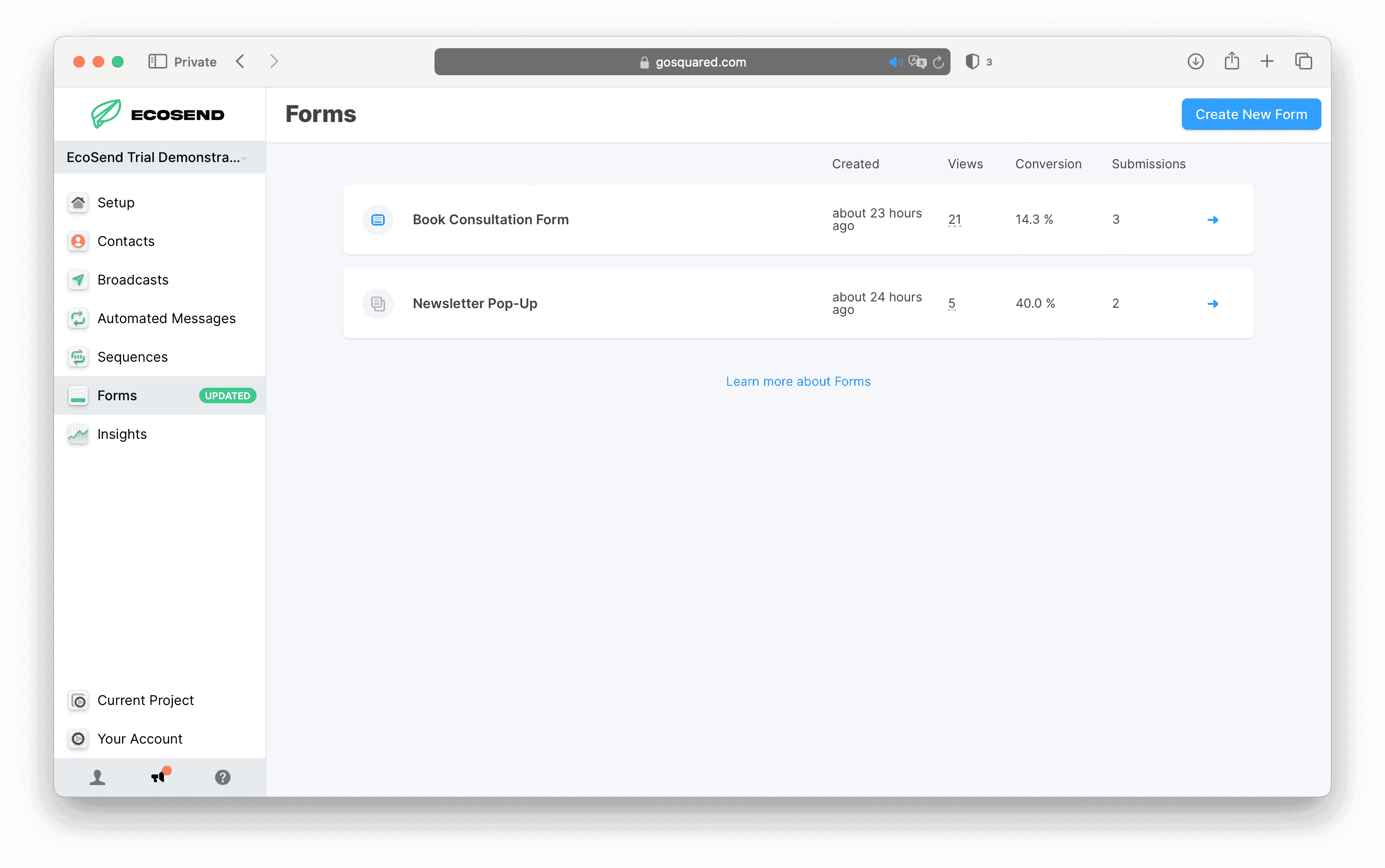
For each Form you can see the number of views, submissions, and the conversion rate between views and submissions.
This enables you to identify your highest performing Forms, and inform your strategy for converting more visitors into contacts.
Note, some metrics are unavailable if your Form was created before 7th November 2024.
Frequently Asked Questions
What happens if a contact, which already exists in my database, submits to a Form using the same email address?
If a contact already exists with the same email address, the new values are merged into the existing contact as follows:
- ID field: no change, this property retains its existing value.
- Created At: this property is only set if not already present on the profile.
- Status: this is set to Lead, but only if not otherwise set.
- Lead Source Type & Lead Source ID: these are only updated if not otherwise set.
For all other fields, the new Form submission values will overwrite any existing values if set.
If the field was left blank in the form, it will be considered not-present and preserve the existing profile rather than overwriting with a blank value.
We strongly recommend you ensure any custom properties you are setting in your EcoSend Forms will not overwrite any key, pre-existing data in your EcoSend Contacts area.
I have some duplicate contacts in my database, what should I do?
If you have contacts created prior to February 2026, it’s possible you may see multiple contacts with the same email address in your audience.
You can manually merge these in Contacts by selecting the contact in question, and choosing the settings cog in the top left of the profile view. Choose "Merge" from the dropdown menu to merge the contact into another.
Can I use a custom website form to send data into EcoSend?
Yes - we have a range of options sending contacts into EcoSend without EcoSend Forms — from a POST endpoint, to integrations, to the EcoSend API. Get in touch to learn more.
Do EcoSend Forms require cookies?
No. EcoSend Forms do not create or require cookies.
How do I switch notifications on or off when users submit my Forms?
You can adjust notification settings for your Forms as outlined here. Any emails activated will receive a notification whenever new contacts submit the Form in question.
You can switch off active notifications in the same settings area.
Last updated July 2026