Form submission notifications
Activate Forms Notifications
If you would like to trigger a notification email anytime a user successfully submits one of your EcoSend Forms, head to Current Project > Notifications
By default, you can set notification emails to any users added as User or Admin to your project in question.
If you would like to send notification emails to users who are not Users or Admins, simply add their email address(es) in your Integrations section first, under the Email widget.
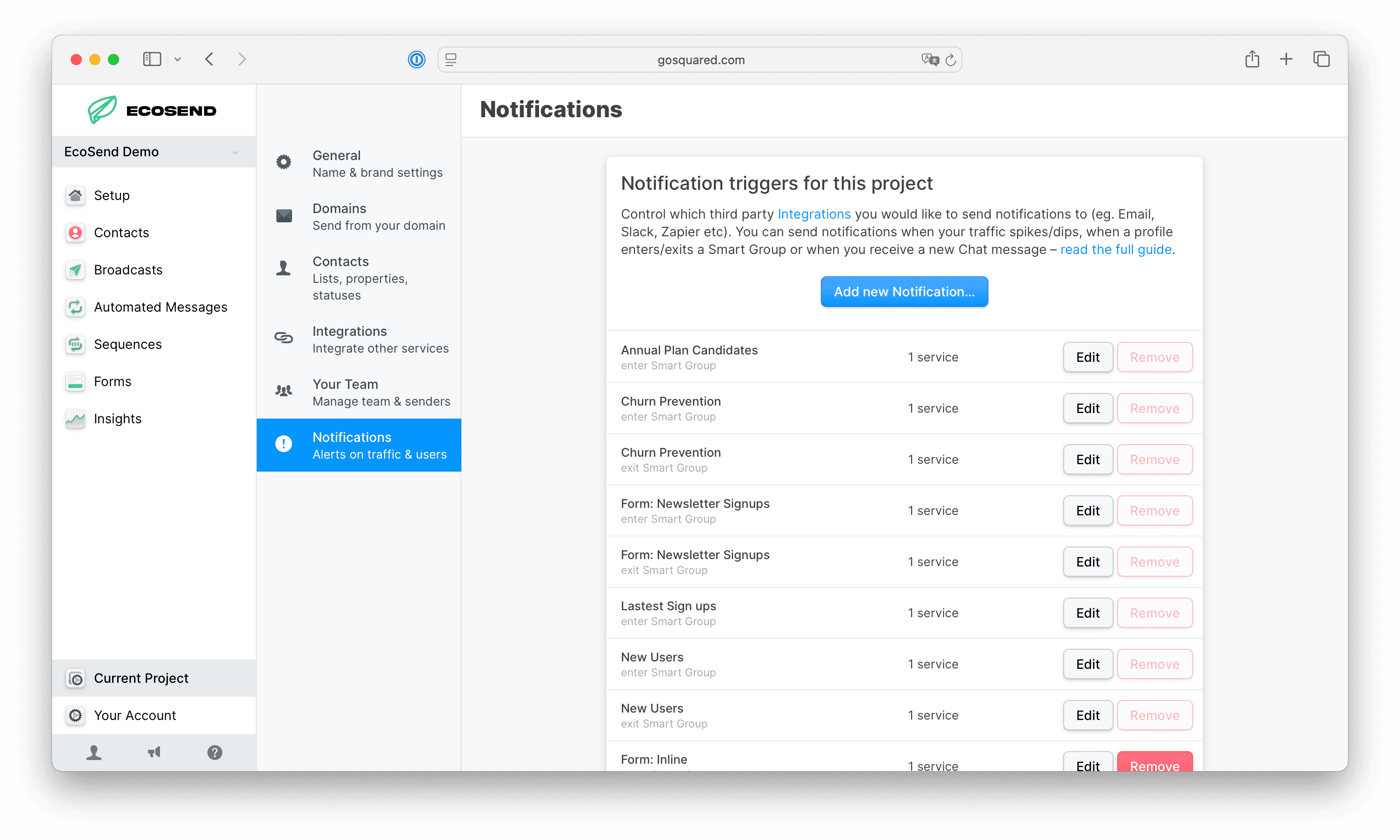
From the Notification Centre, click Add new Notification and select User enters Smart Group as the trigger type.
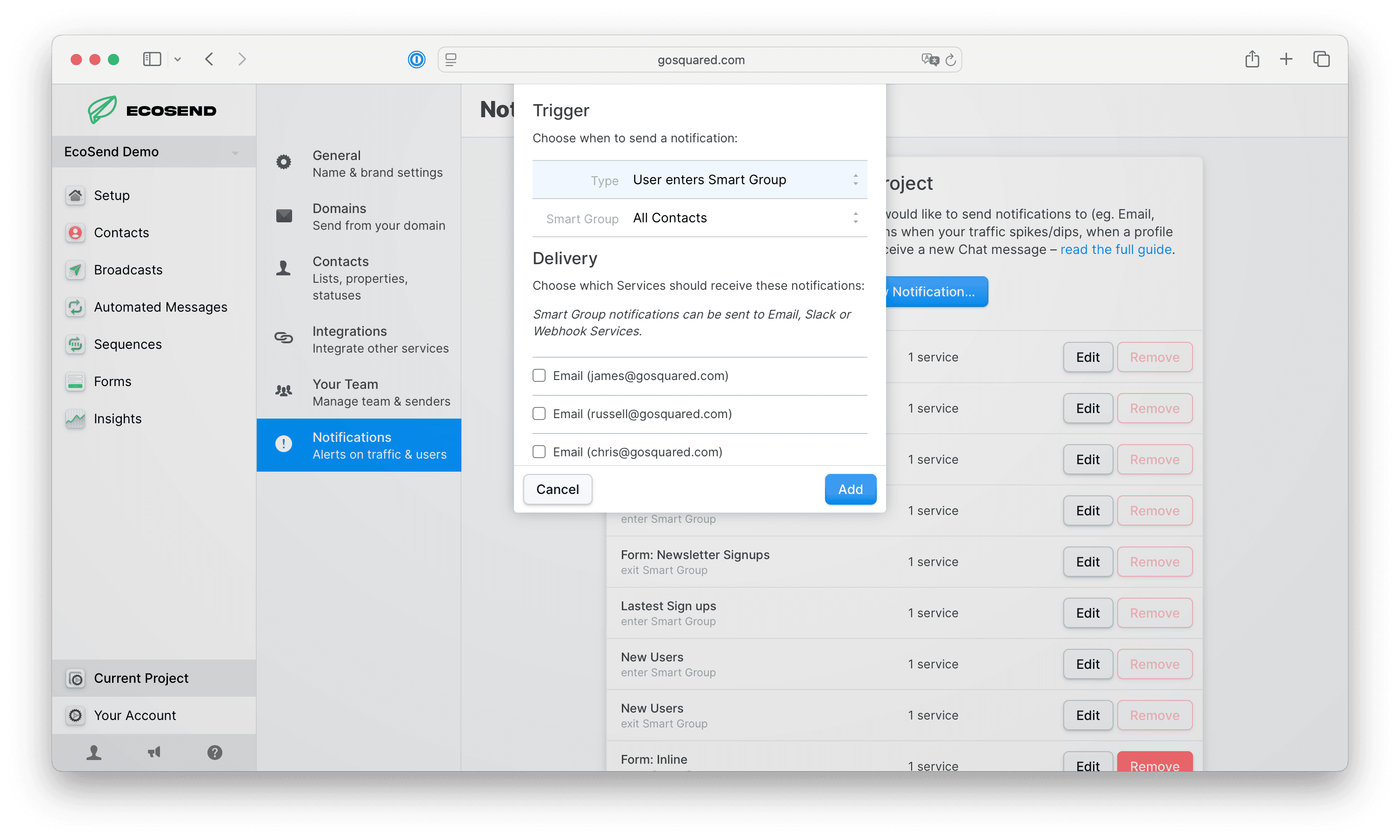
Then, select your Form from the Smart Group dropdown, followed by checking the box(es) of the email address(es) you would like to receive the notifications.
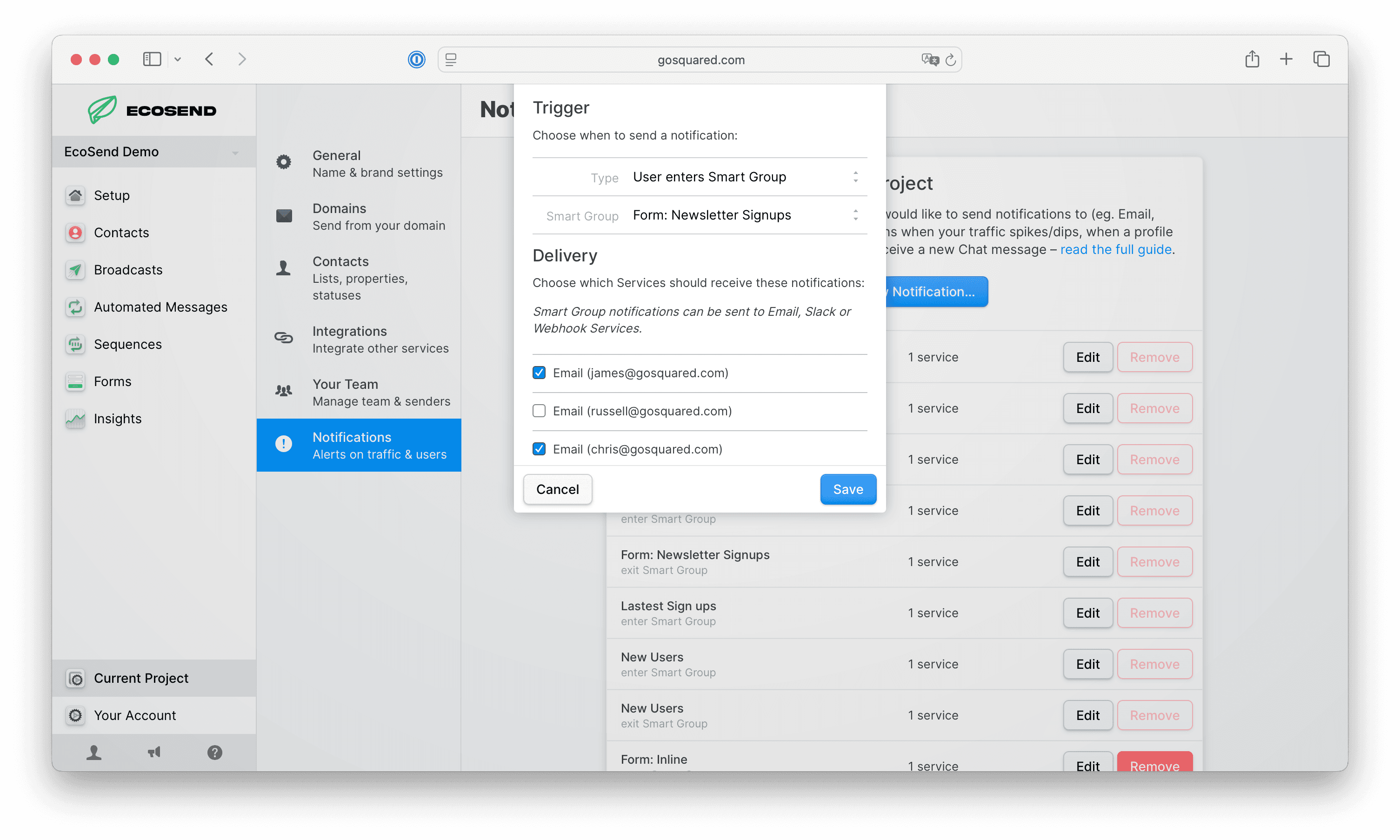
Click Save and that's it! Future Form submissions will send notification emails to any email addresses you have added to the notification trigger 🎉
Deactivate Forms Notifications
To remove a user from Form notifications, simply click Edit on the notification in question, and uncheck the email address(es) from the dropdown.
Once unchecked, the relevant user(s) will no longer receive notifications when users submit the Form in question.
Last updated June 2026