The email builder
Creating beautiful, personalised, and impactful emails is easy in EcoSend.
The EcoSend email builder is designed to be easy from the second you begin, offering a calm and distraction-free writing experience, while providing extensive design and formatting possibilities. For your next campaign, you'll find the only limit is your imagination.
Let's dive in to understand the basics.
A clean, focused writing experience
By default, the email builder gives you a pristine blank canvas for your emails.
Free of distraction, you can start writing instantly, with no need to add or change anything.
Text size, line height, paragraph spacing, titles, buttons, links, and more are all given sensible defaults so you can confidently focus on writing in the knowledge your recipients will receive a well-crafted email.
Formatting your text
You can easily add formatting to your text by selecting words and then choosing to apply formatting to the selection — such as bold, italic, or underline.
To add more structure, you can add headings, lists, dividers, buttons, and more with the "+" Insert menu.
If you're familiar with Markdown, you can use it to format your text even more quickly. For example, on a new line, try typing "##" to instantly create a new second level heading.
Design beautiful emails
By default, your emails will look great without touching anything about the design — typography is perfectly set for readability, colours are chosen to ensure high contrast and brilliant accessibility, and layout and sizing of elements is set so that the overall email is structure well and enticing to read.
But you can stray from these defaults to customise your emails in unlimited ways. From beautiful, rich photography, to highly personalised, actionable alerts, to welcoming event invitations, the only limit is your imagination.
Key concepts
While it can be daunting to learn any tool, once you know the key concepts of the EcoSend email builder you'll be fluent in no time.
Blocks
Every element in an email created with the new email builder is a block. For example, every heading, every paragraph of text, and your footer are all blocks. Here's a list of available block types.
Out of the box, there are 15 blocks giving you everything you need to create a compelling email. If you need to create something custom, you can do that with Saved Blocks.
Sections
Sections are just like blocks but are full width areas that enable you to break up the content of your email. You can place blocks within a section.
Variables
Variables are an easy, yet powerful way to personalise your emails so that each recipient gets a message tailored to them. Type {{ anywhere in the email builder to create a Variable.
Templates
Templates are coming soon to the new email builder.
Working with the editor
While the editor is designed to be easy-to-use for everyone, there are a number of ways you can be even more productive.
Undo your changes
If you make a mistake or want to take a step backwards, you can use CMD + Z to undo your last change. You can do this repeatedly to undo multiple changes.
Save regularly
Bear in mind your work in the editor is not automatically saved. While there are many affordances given to help you avoid losing your work, be sure to regularly hit the "Save Draft" button in the top right of the editor, or use CMD + S, to guarantee your latest updates are saved.
Keyboard shortcuts
You can use a variety of keyboard shortcuts to quickly create your emails in the new builder without losing your flow.
Use common markdown formatting to create headings, lists, and to format text.
You can bring up the "Insert" menu at any time by entering a new line and typing / and then using your keyboard navigation to cycle through the list of available blocks to add into your email.
Images
You can edit images inline — crop, rotate, flip, and style them without leaving the builder. Every image is also automatically optimised for the size it'll be displayed at, so emails load faster and waste fewer bytes.
The Image Library lets you easily find and reuse images across campaigns.
Spellcheck and Review Mode
The email builder supports your device's built-in spellcheck, so you'll see your device's standard approach to highlighting mis-spelled words (often a red underline). You can right-click on any mis-spelled word to bring up your device's system menu for suggestions and options.
On top of this, Review Mode automatically checks your whole email for spelling, grammar, accessibility, and compliance issues — and suggests one-click fixes for each of them.
Add an "unsubscribe" link
You can add an "unsubscribe" link and a "subscription preferences" link to your emails using the Footer block, the Signature block, or by adding a special link.
To create an "unsubscribe" link or "subscription preferences" link anywhere in your email:
- Highlight the word or phrase you want to turn into a link.
- Click the Link icon in the contextual toolbar (represented by a chain "link" icon).
- In the Link modal, rather than entering a URL, click the drop-down arrow.
- Choose Unsubscribe or Subscription preferences.
- Click the checkmark to confirm.
And there you have it — you have created an unsubscribe link on whatever elements you had selected.
Add a "mailto" link
Sometimes you want to encourage people to send you an email, rather than linking out to a page on your website.
To do this, you might wish to encourage recipients to reply to your email, or give them a "mailto" link that, when clicked, will open their email client.
To create a mailto link:
- Highlight the text you wish to turn into a link.
- Click the Link icon in the toolbar.
- In the URL field, enter
mailto:followed by the email address you wish to receive email at. For example:mailto:james@example.com
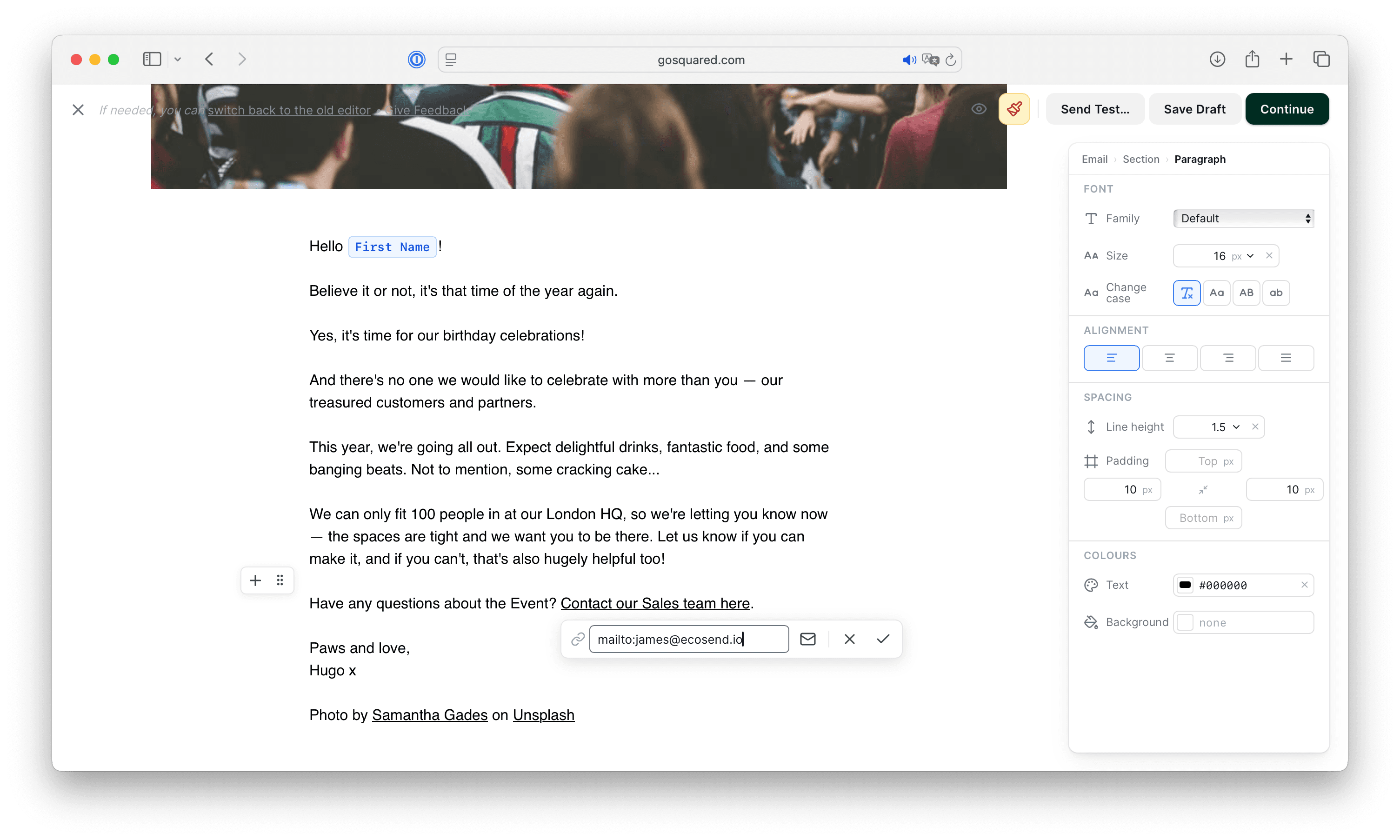
Now, when someone opens your email, if they click on this link, they'll open their email client (like Apple Mail or Gmail) and it will be ready to compose an email to the address you specified.
Video embeds
It's not currently possible to embed videos in your EcoSend campaigns. Because videos are not widely supported in email clients, the only way to surface a video to your audience is to link out to it.
In order to bring attention to videos in your email campaigns, it's often desirable to show a thumbnail from your video. While EcoSend doesn't currently do this for you, here's a workaround:
- Play your video elsewhere and capture a screenshot of the frame you wish to capture.
- Add this screenshot to your email as an image.
- Select the image, and add a link to it by entering the URL of the video (e.g. a YouTube link) in the field below.
When contacts open your email and click the linked image, they will be taken to the URL to watch the video in their browser.
Review Mode
Now you're familiar with the basics of the email builder, learn more about Review Mode — the automatic checker that helps you avoid making common mistakes before hitting send.
Last updated July 2026