Set up your Sender Profile
Your Sender Profile is who your emails come from. It's a combination of a name, an email address, and an avatar, and it's what your contacts see in their inbox when you send them an email.
Set up your Sender Profile once you've verified your email domain, and before you send your first email.
Why your Sender Profile matters
Your Sender Profile attaches your verified email domain to the emails you send. If you don't set one up, your emails send from the generic 'gosquared.email' domain instead. Neither your contacts nor their inboxes will recognise it, which makes your emails less likely to be opened, and more likely to end up in spam.
EcoSend won't let you send a Broadcast until you have a valid Sender Profile.
Set up your personal Sender Profile
Every member of your team has their own personal Sender Profile, so they can send emails in their own name.
When you first set up EcoSend, you'll be asked to set up your Sender Profile straight after verifying your domain.
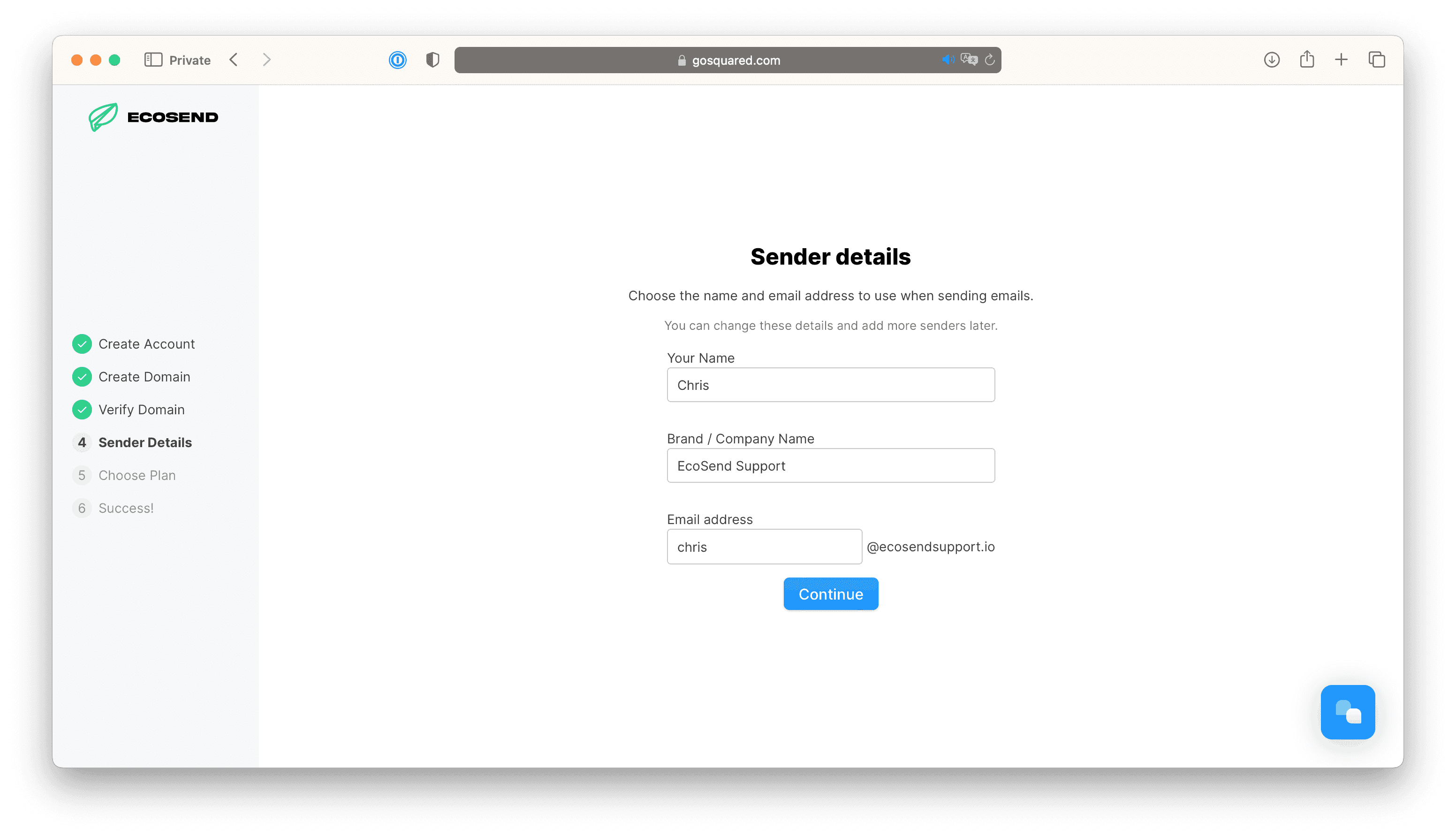
New team members can set up their Sender Profile to send from your project's verified domain as soon as they join.
Edit your personal Sender Profile
You can edit your Sender Profile at any time:
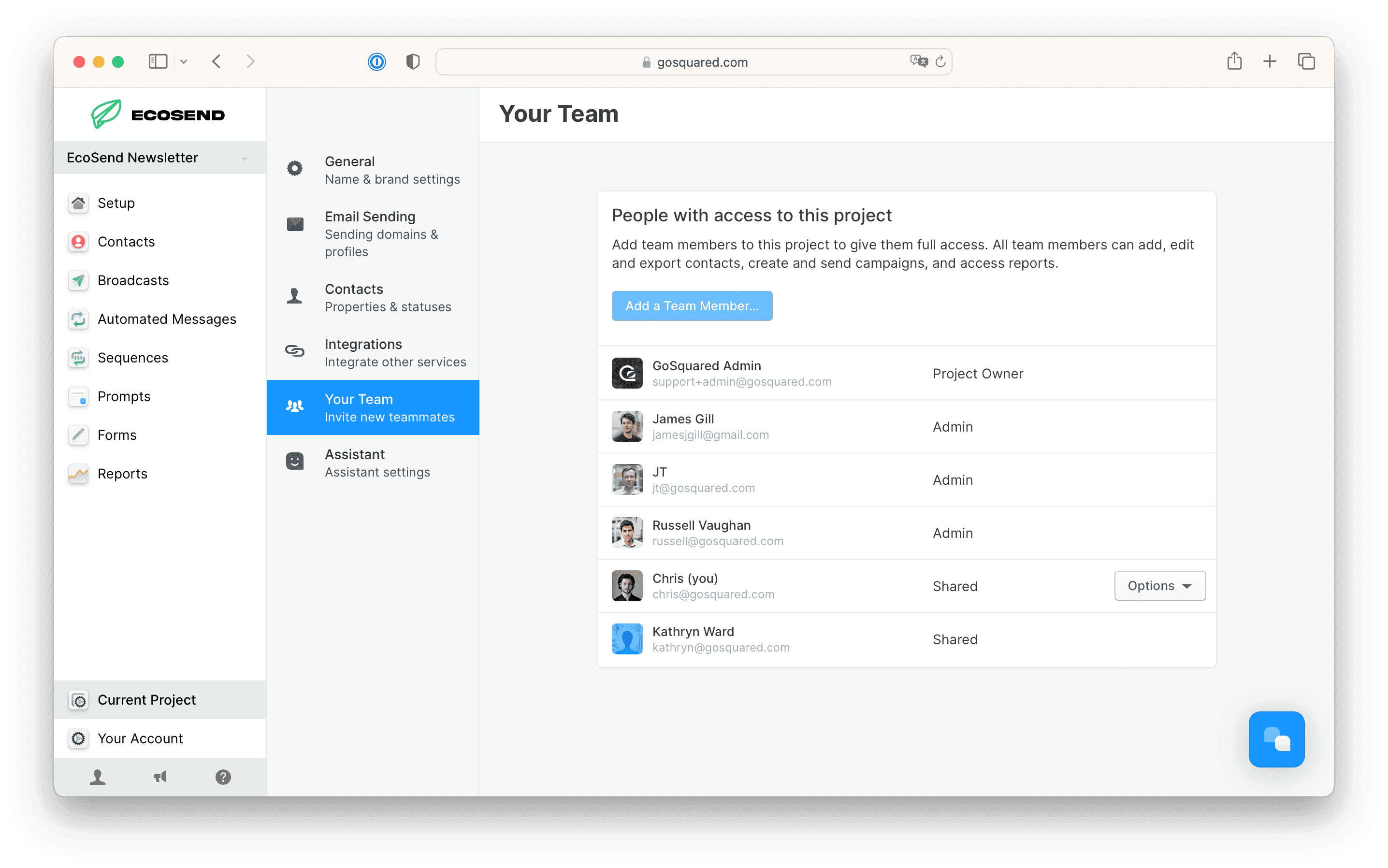
- Go to Current Project > Your Team.
- Find your profile, which is listed first, and choose Edit…. To edit someone else's profile, choose Options > Edit Team Member….
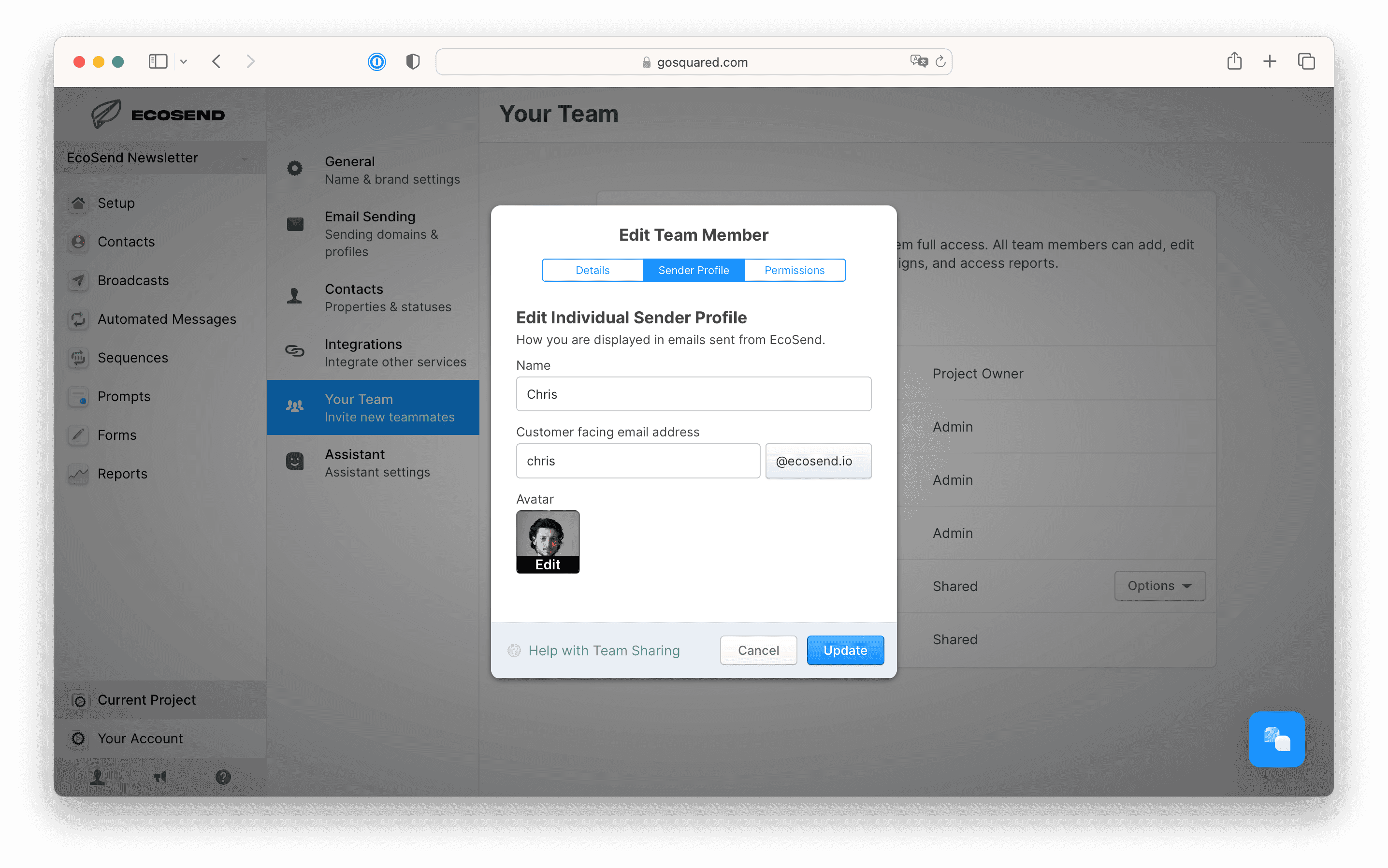
- Go to the Sender Profile tab.
- Set the name and email address exactly as you want your contacts to see them.
- Hit Update.
Set up a Shared Sender Profile
If you'd rather send from a team address, such as hello@example.com or team@example.com, set up a Shared Sender Profile. These are ideal when you're speaking on behalf of your whole organisation, rather than as one person.
- Go to Current Project > Your Team.
- Under Shared Sender Profiles, hit Add Shared Sender….
- Add the name and email address you want to send from.
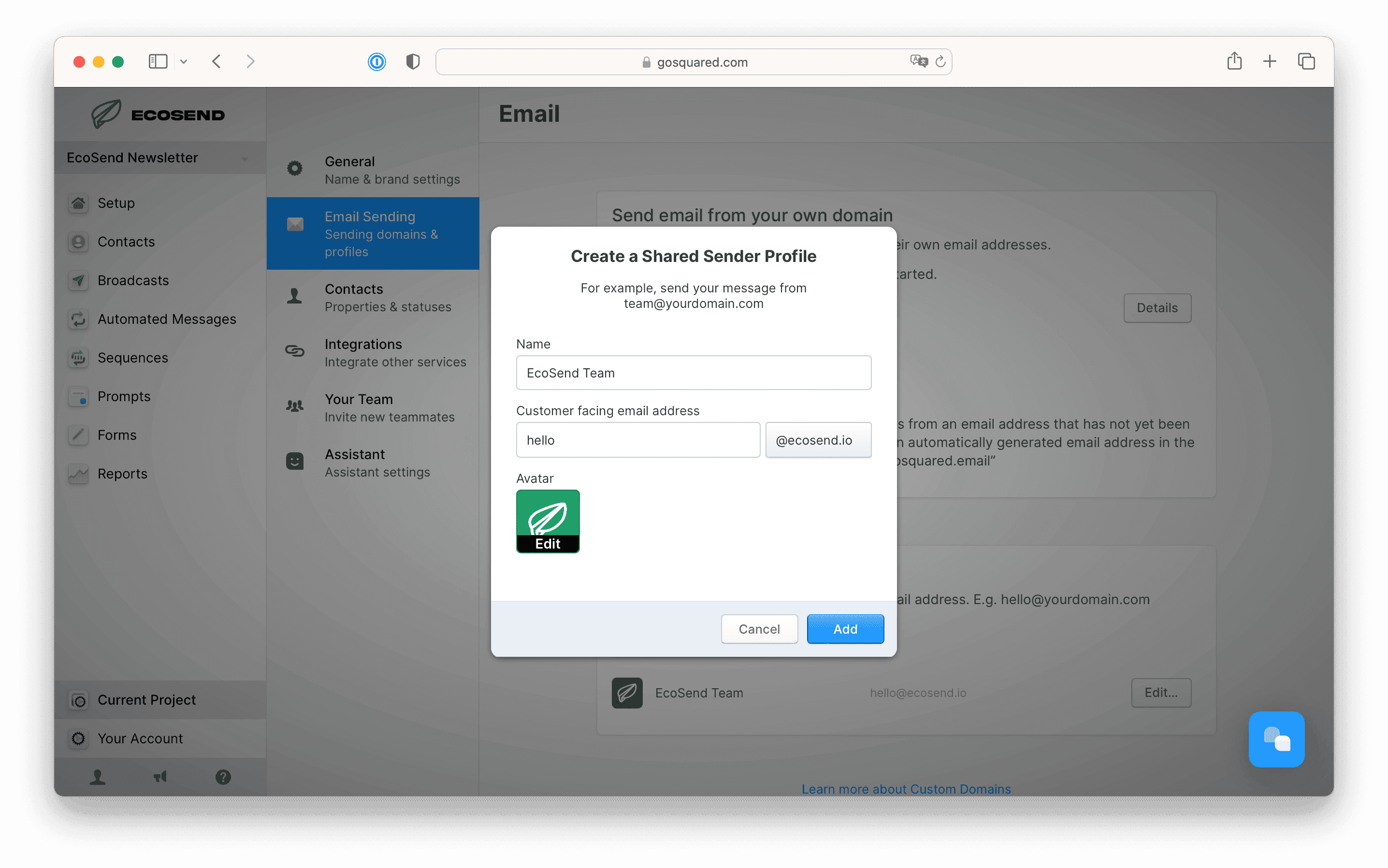
You can remove Shared Sender Profiles you no longer use from the same place.
Choose a Sender Profile when you send
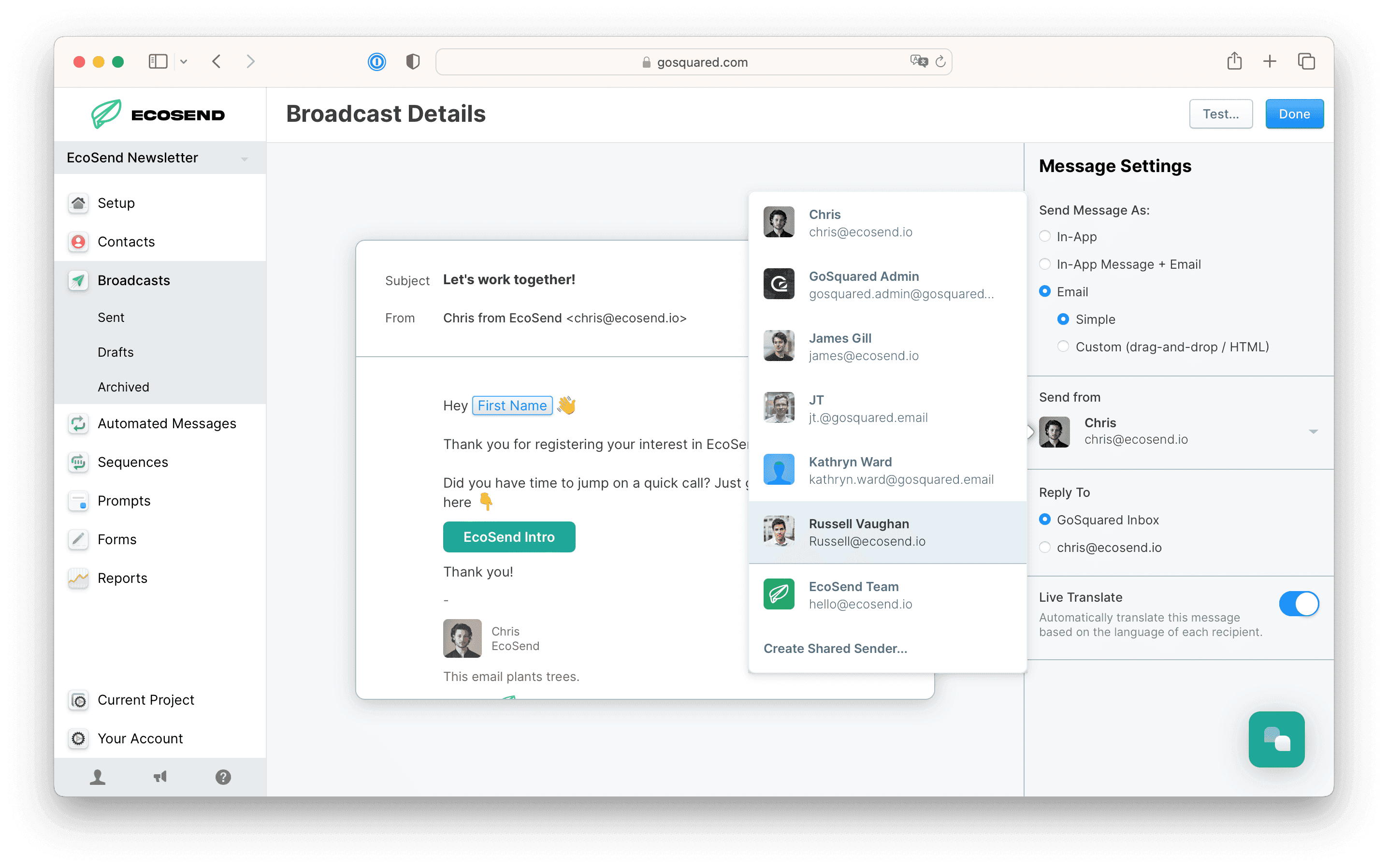
When you're writing an email, choose who it's from in the Send from menu. You can pick any personal or Shared Sender Profile.
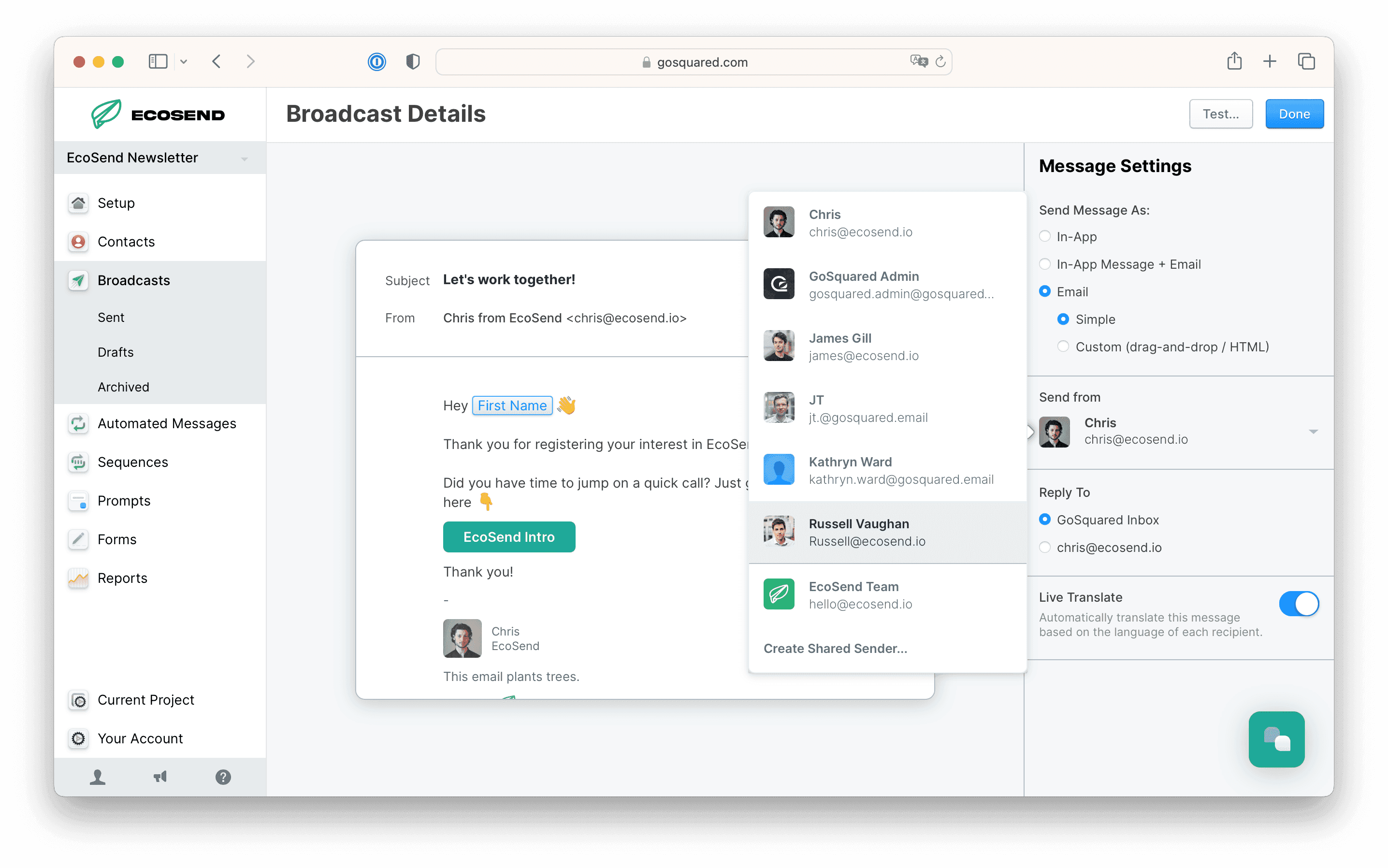
Always double-check you've picked the right Sender Profile before you send.
Where your Sender Profile appears
As well as the "from" name and address in your contacts' inboxes, your Sender Profile's name and avatar also appear in the Signature block at the bottom of your email. Learn more about the Signature block.
Next steps
Last updated October 2026