Manage your team
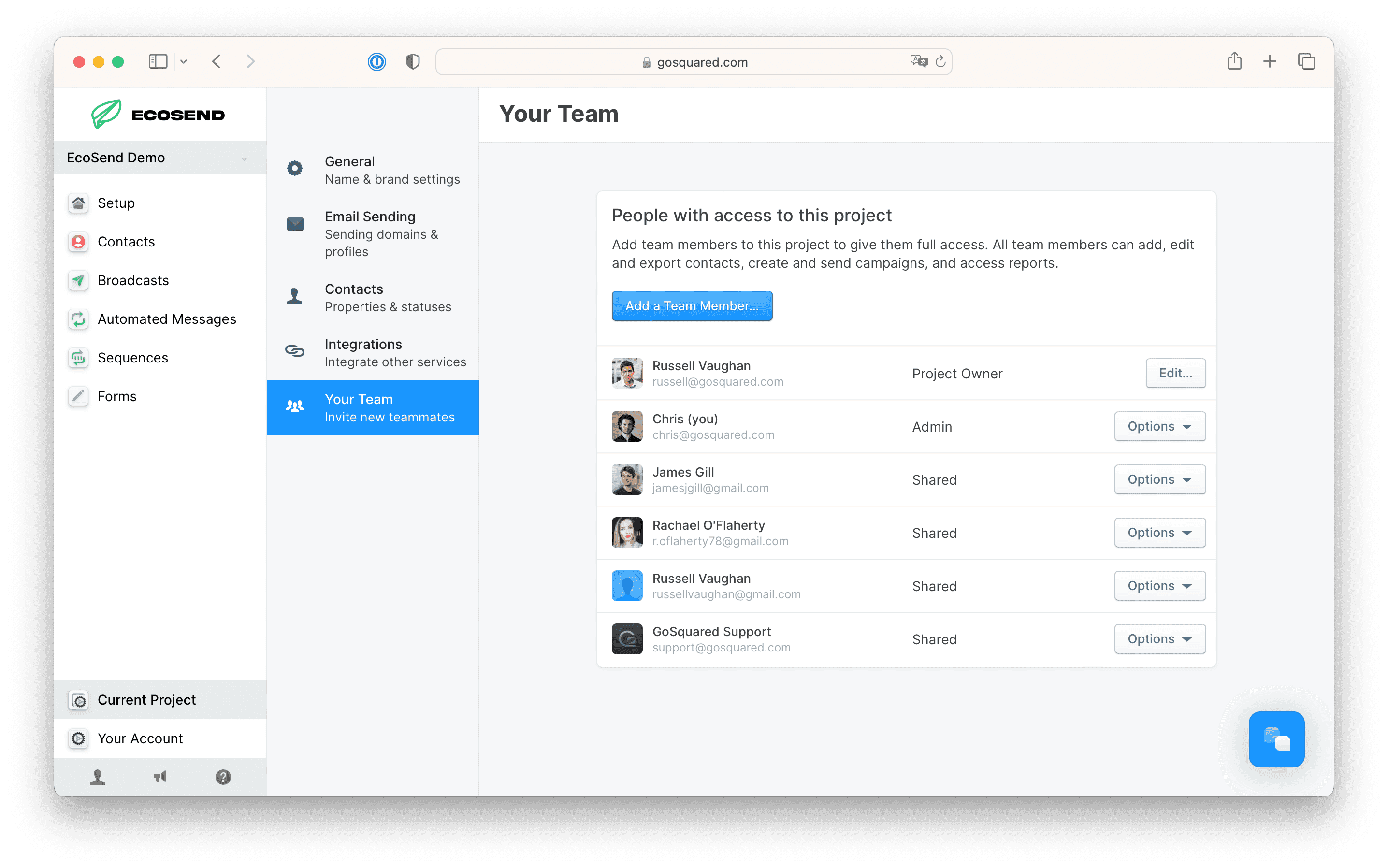
EcoSend makes it easy to collaborate with other people so you can work on campaigns and grow your audience with your team.
Learn how to invite team members, manage permissions, and see who has access to your EcoSend account.
Invite team members to EcoSend
- Use the Project Switcher menu at the top of the sidebar to ensure you're on the right project.
- Then head to Settings > Current Project > Team Sharing.
- Click the "Add a Team Member..." button.
- In the modal, enter the the email address of the person you want to invite to the project.
- Choose whether to give the user Admin permissions or not.
- Click "Invite" and the team member will receive an email inviting them to join the EcoSend project.
Note: You must be an owner or an admin to add and remove team members.
Team permissions
To edit a team member’s permissions, head to Settings > Current Project > Your Team.
Click the "Options" button next to the relevant team member, and select "Edit Team Member...".
There are currently three levels of permissions within a team in EcoSend:
- Owner
- Admin
- User
Admins have boosted access to add and remove other team members, as well as the ability change a project's details such as timezone.
Permissions by role
| User | Admin | Owner | |
|---|---|---|---|
| Edit project settings | — | ✅ | ✅ |
| Delete project | — | ✅ | ✅ |
| Invite and manage team members | — | ✅ | ✅ |
| Manage billing | — | — | ✅ |
Sender Profiles for your team
Every team member has their own Sender Profile, so they can send emails in their own name from your project's verified domain. New team members can set theirs up as soon as they join.
If you'd rather send from a shared address, like hello@ or team@, you can add a Shared Sender Profile instead.
Learn how to set up Sender Profiles.
Teams and projects
All team settings apply on a per-project basis. Each project has its own set of team members and permissions, so users shared on one project cannot access other projects in your account unless they are specifically invited.
Last updated March 2026