Block types
Every element in emails created with the email builder is a block.
You'll find an extensive set of block types that enable you to craft an ambitious email from scratch in minimal time.
Here's a list of available block types you can use to create your next email.
You can use the Insert menu to add any block — which can be invoked by either typing / at the start of a new line, or but clicking the + button to the left of your content in the editor.
You can also insert most blocks by typing a Markdown-style shortcut — we've outlined the keyboard shortcuts for each block where they're available below.
Headings
Use headings to break up your written content and give it structure. Headings are given generous padding and sensible line-height by default to ensure they're optimised for readability out of the box.
You have a choice of three heading levels. We recommend never using more than one Heading 1, and to always use headings sequentially (E.g. a Heading 3 should follow a Heading 2, not a Heading 1) to help guide readers on the progression of your written text.
Heading 1
#
Aim to only use one Heading 1 in your email. If using, it should be your first heading.
Heading 2
##
The most commonly used heading, with generous padding and font size for optimum readability.
Heading 3
###
Should follow a Heading 2 where possible.
Lists
You can easily create lists in your emails, with bullets or numbers, and indentation.
Bullet list
* or -
Create a standard bullet list easily to clearly display items in a vertical list.
Numbered list
1.
Typing 1. at the start of a new line will automatically create a numbered list with your first list item.
Quote
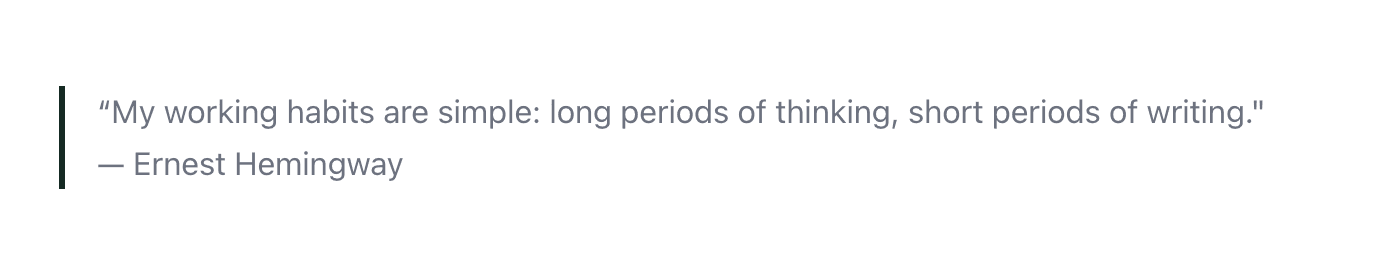
>
Emphasise an inspiring or important quote with a Quote block.
You can customise the style of quotes with the left border colour and thickness, and the text and background colour of the content within.
Divider
---
Dividers a beautifully simple way to separate content with a thin horizontal line. You can customise the colour and thickness of the line to suit your taste.
Image
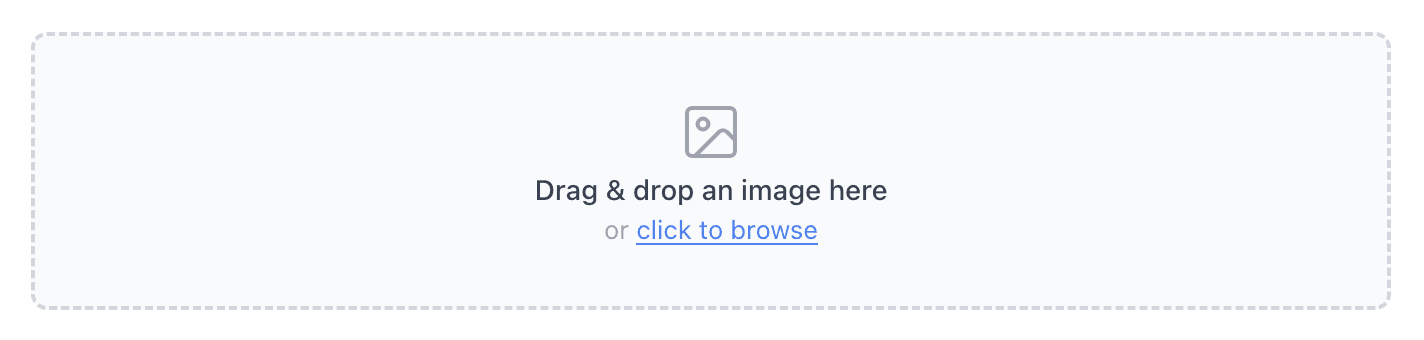
Be sure to set alternative text on your images so that those with accessibility needs can read your emails, and to ensure the clarity of your message is not lost for recipients who cannot load images for whatever reason.
You can edit images inline — crop, rotate, flip, add borders, and round corners — without leaving the builder. You can also swap out an existing image by dragging a new image on top of the existing one.
Every image is automatically optimised for how it's displayed, so your emails stay light without any extra work.
Button

Buttons are a great way to encourage recipients to take action on something in your email.
Customise the look and feel of buttons with background colour and text colour, borders, shadow, and border radius. You can also set padding to give space around the button itself, and to give space around the text within the button.
Columns
Display content side-by-side with columns.
To optimise your design, you can choose to stack columns on mobile so they display side-by-side on desktop, and below each other (stacked) on mobile.
2 column
Display two columns of content side-by-side.
3 column
Display three columns of content side-by-side.
Social icons

The Social icons block is a huge time-saver. Simply paste in the links to each of your social channels, and the Social icons block will display appropriate icons for each.
You can customise the look and feel of your social icons by setting the background and foreground colour on all icons, and by customising the size and spacing between the icons.
Footer
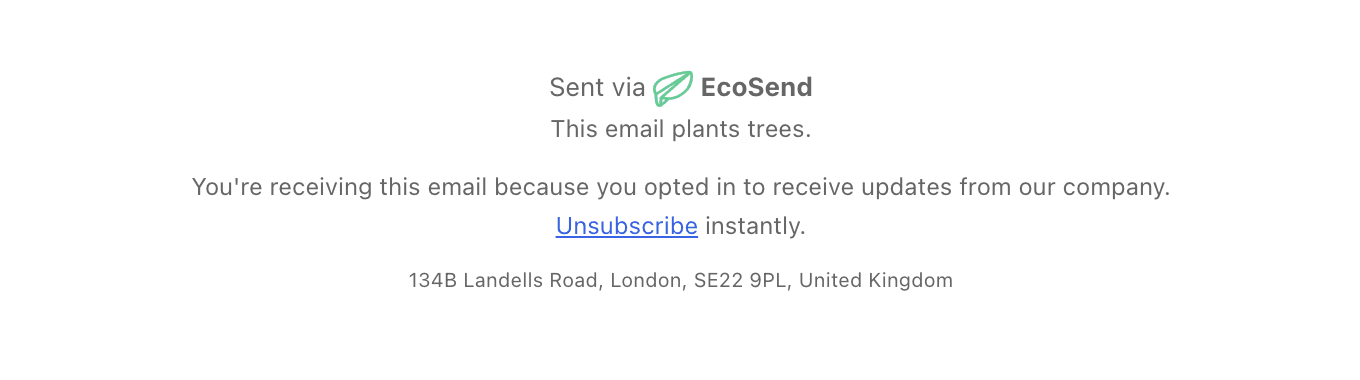
The Footer is a really helpful time-saving block that puts your key information in the footer of your email and ensures you're compliant for sending.
In the Footer you'll find:
- An Unsubscribe link
- Your organisation's address (required in many territories)
- A permission reminder (a good idea to remind contacts why you're emailing them)
- The EcoSend badge
Signature
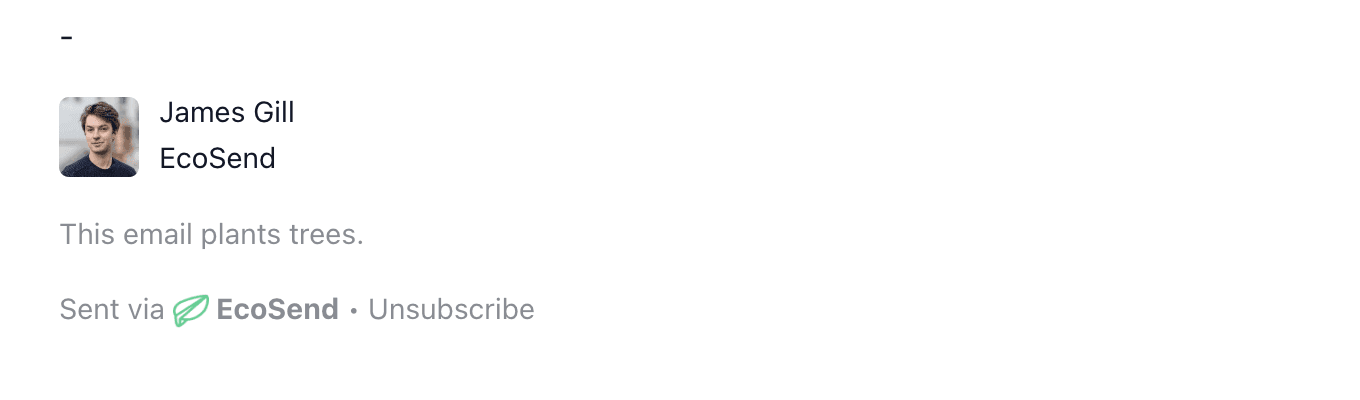
The Signature block is a minimal alternative to the Footer block for sending more personal emails.
The Signature is automatically populated with the details of the sender of the email — so when you change the "From" field, you'll see the Signature update to match.
The Signature including:
- An Unsubscribe link
- The sender's full name
- The brand name
- The avatar for the sender
- "Sent via EcoSend" link
To update the sender details that display in the Signature:
- Exit the Email Builder (be sure to save any changes you want to make).
- Go to EcoSend > Current Project > Your Team.
- Choose the user you want to update — your own profile will be first.
- Choose Edit... or Options > Edit Team Member... depending on which profile you want to update.
- Go to the Sender Profile tab.
- Make your edits and hit Update.
- Return to the Email Builder to continue where you left off.
Saved Blocks
You can also save your own custom blocks for re-use in your campaigns.
Last updated June 2026