Import contacts
It's easy to bring contacts into EcoSend — whether it's from another tool, your computer, or via an integration.
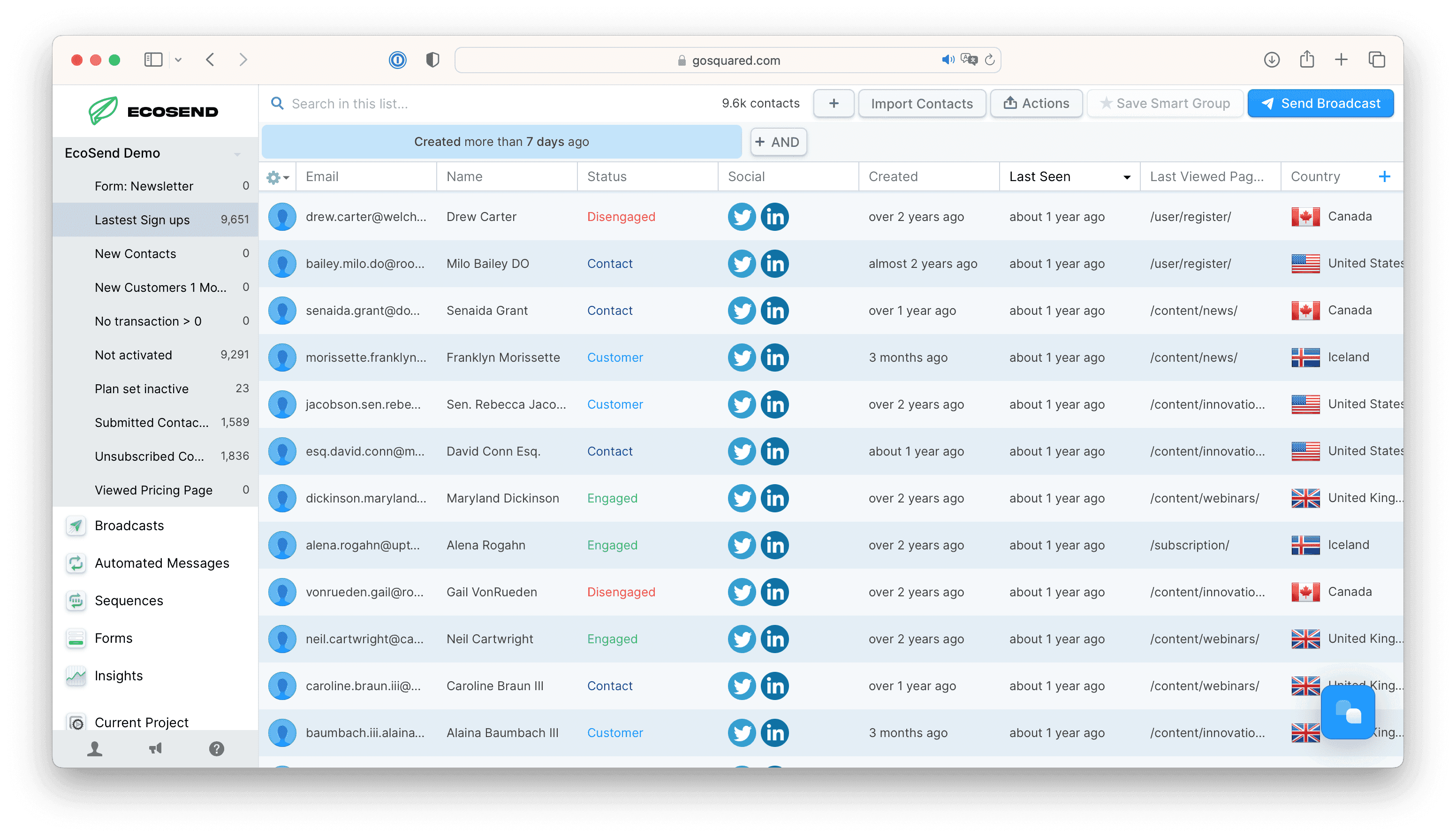
Let's look at how you can import contacts from a CSV file — something you can usually get easily when exporting from most other tools.
The rows will populate into contacts profiles according to email address, and columns will populate both user-profile properties as well as create searchable filters for you to build your Smart Group.
Many tools will have an option to export your data as a CSV. If not you'll need to create a spreadsheet and save it as a CSV file.
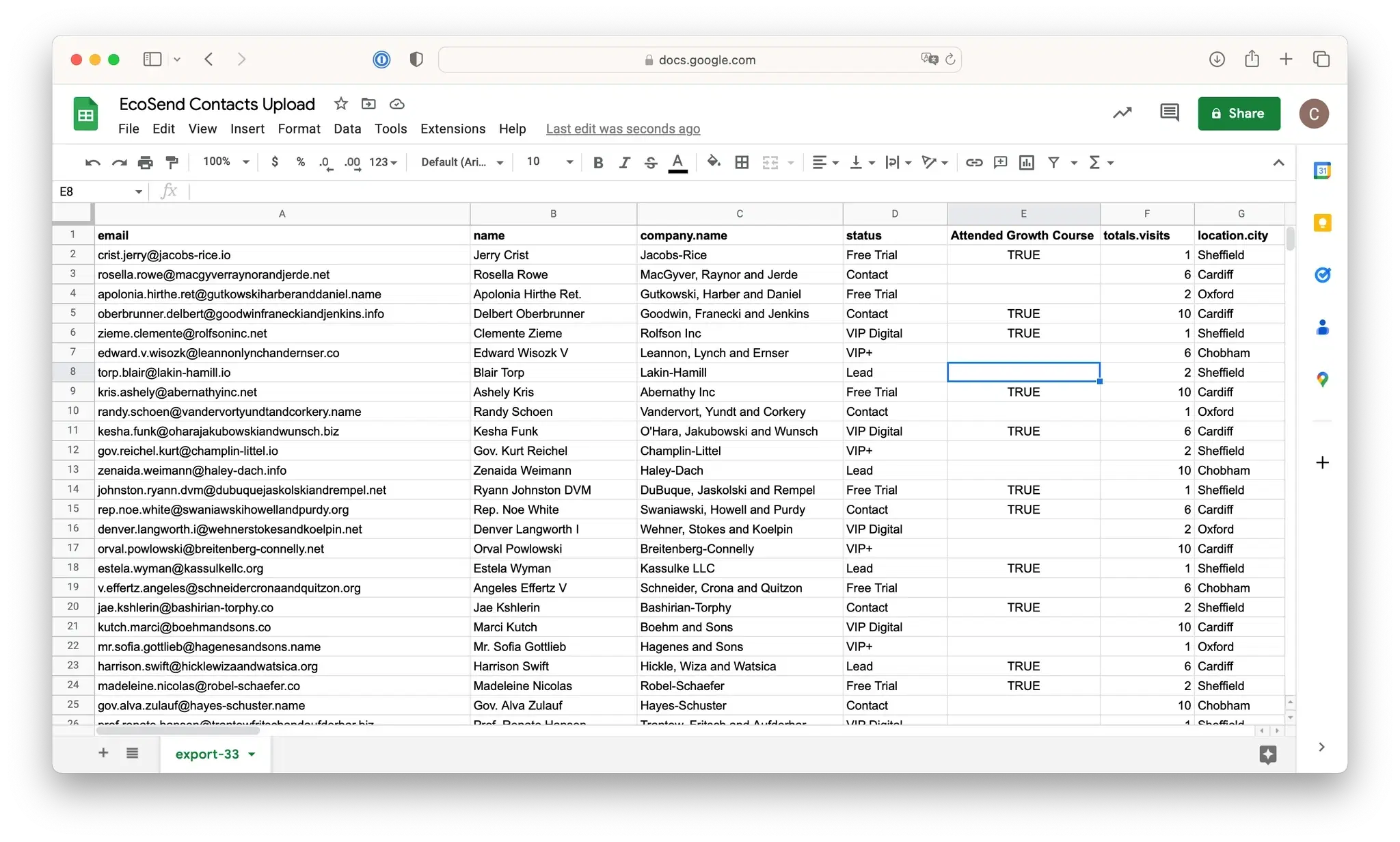
Each row in the CSV must contain a user's email address. Extra properties associated with that user should be in the same row.
The column headers in the CSV should be labelled with the name of each of the properties that you want to track.
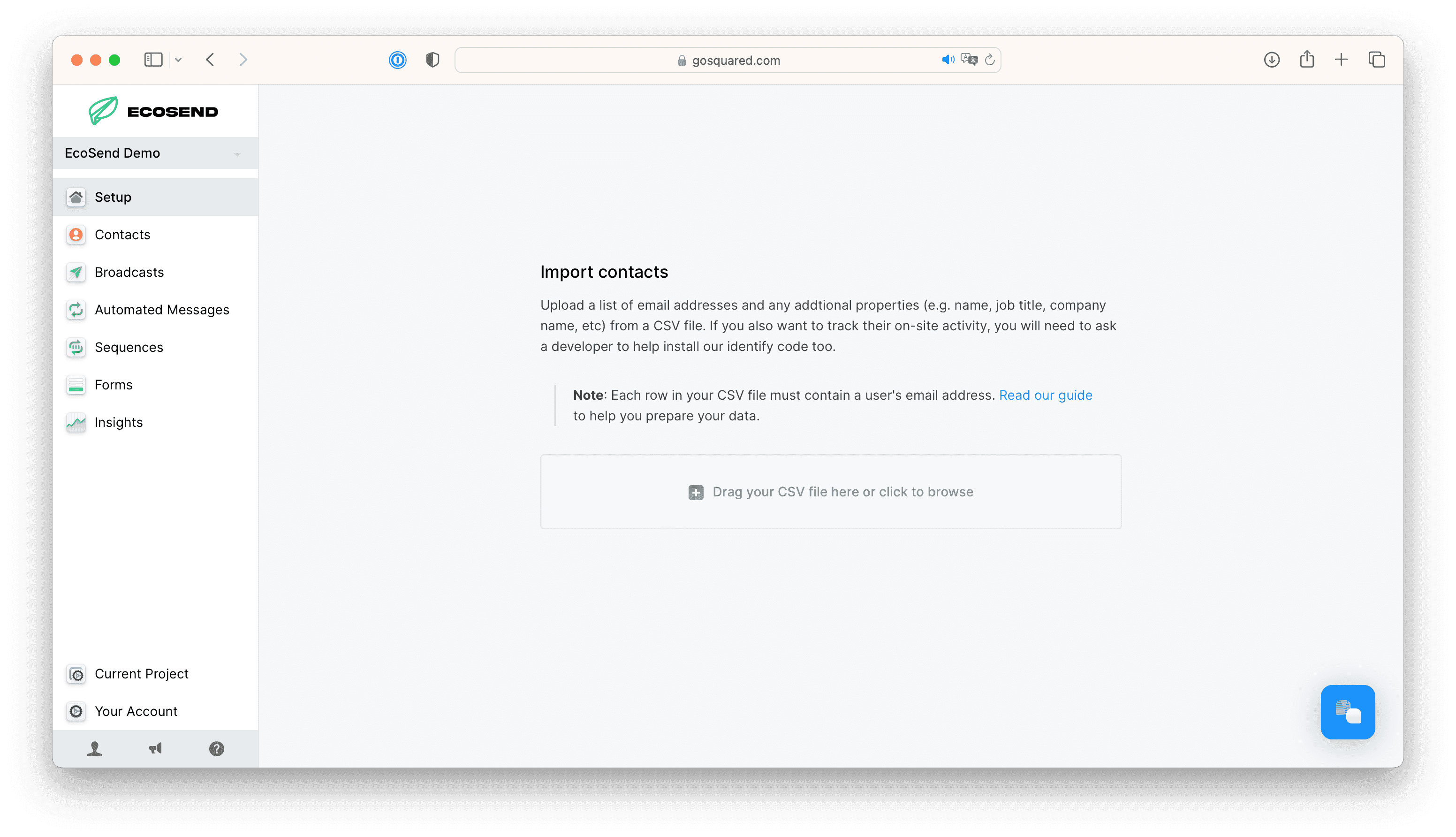
Head to Contacts > Import Contacts to upload your first file.
Migrating from Mailchimp? Check out the guide for switching from Mailchimp.
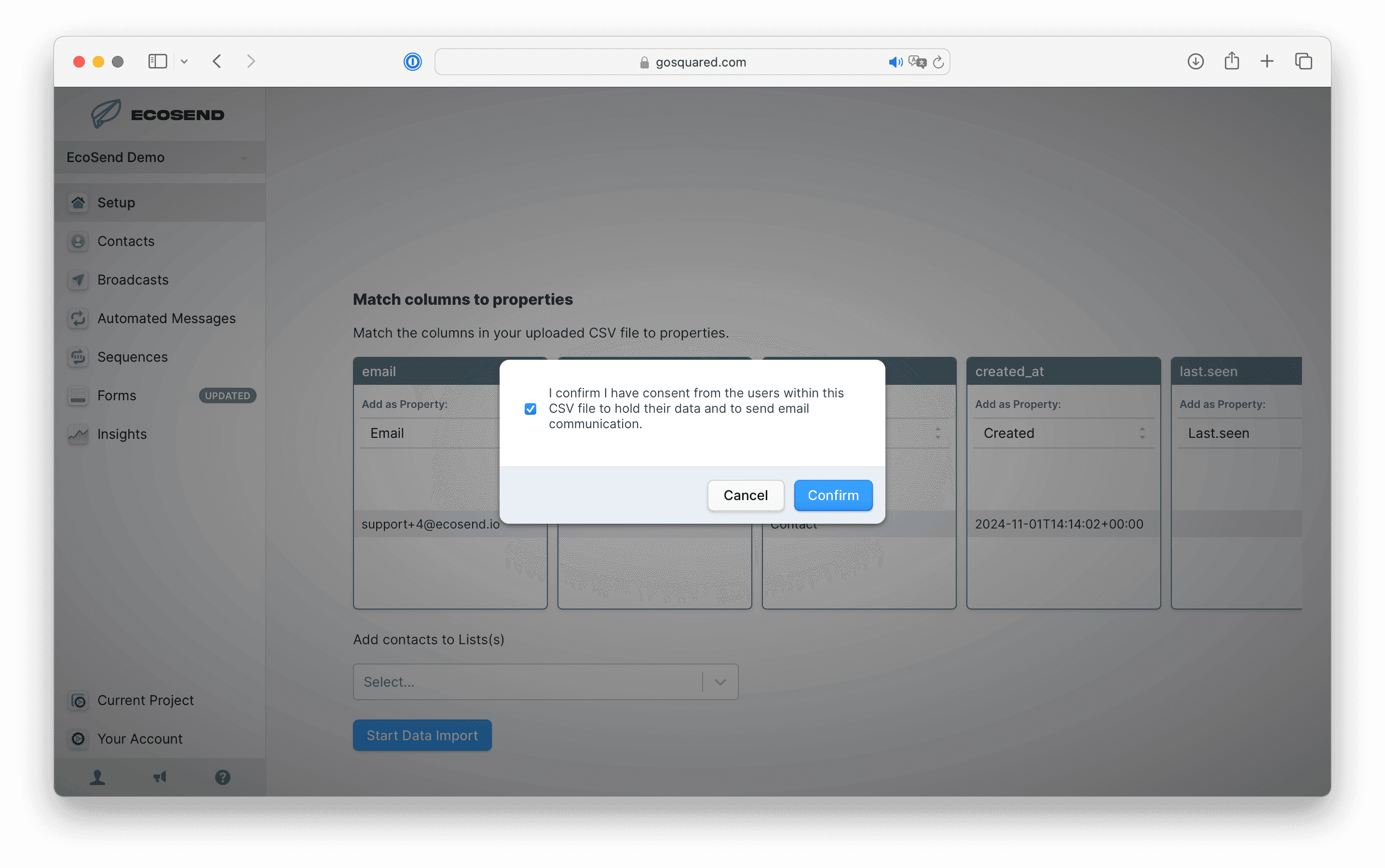
Please note, when uploading contacts you will be required to tick the box to confirm that you have the uploaded users' consent to send communications to them.
Importing contacts with properties
You can also import custom property and event data into GoSquared, simply by adding an additional column in your CSV file.
Your custom data will then automatically become a searchable filter within People. Any users associated to the property in your upload will also be associated to it in your Contacts section.
The column headers in the CSV should be labelled with the name of each of the custom properties that you want to upload.
Walkthrough video
Updating properties on existing contacts
If you would like to update properties on users who already have profiles within your Contacts area, you can include their email addresses within the email column of your CSV file.
Any email addresses from your import which match exactly onto pre-existing email addresses in your contacts, will not create duplicates.
Instead, EcoSend will automatically add the updated custom properties onto the existing user's profiles.
Changing property data types
The 'type' of data that each property is affects the filtering options that are available in Contacts.
The first time you track a custom property we will automatically classify the data as one of four types:
- Text
- Number
- Date/Time
- Boolean (true or false – represented as 'yes' or 'no')
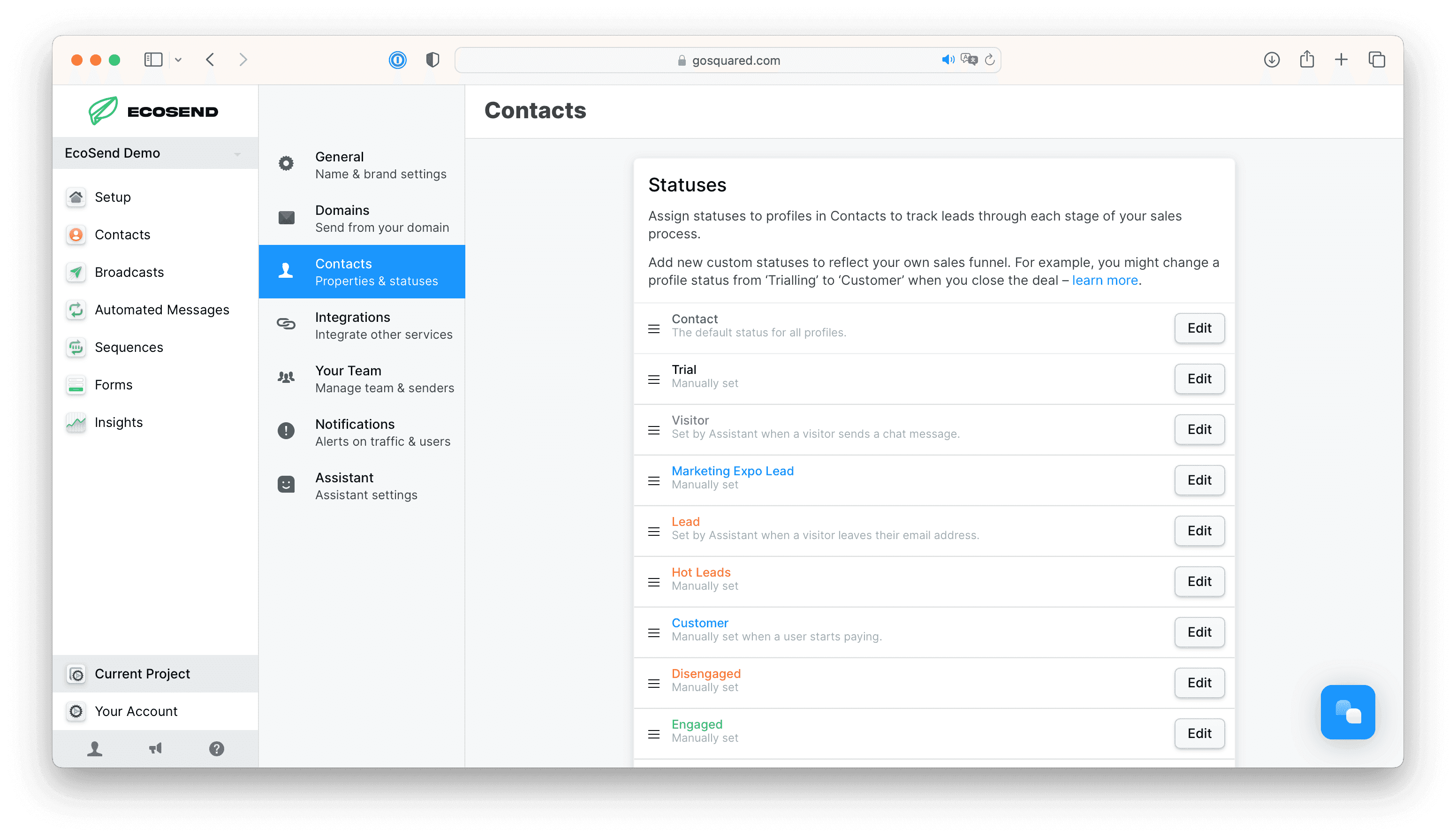
In order to edit the logic of the uploaded custom events, head to Current Project > Contacts.
Uploading contacts onto a List
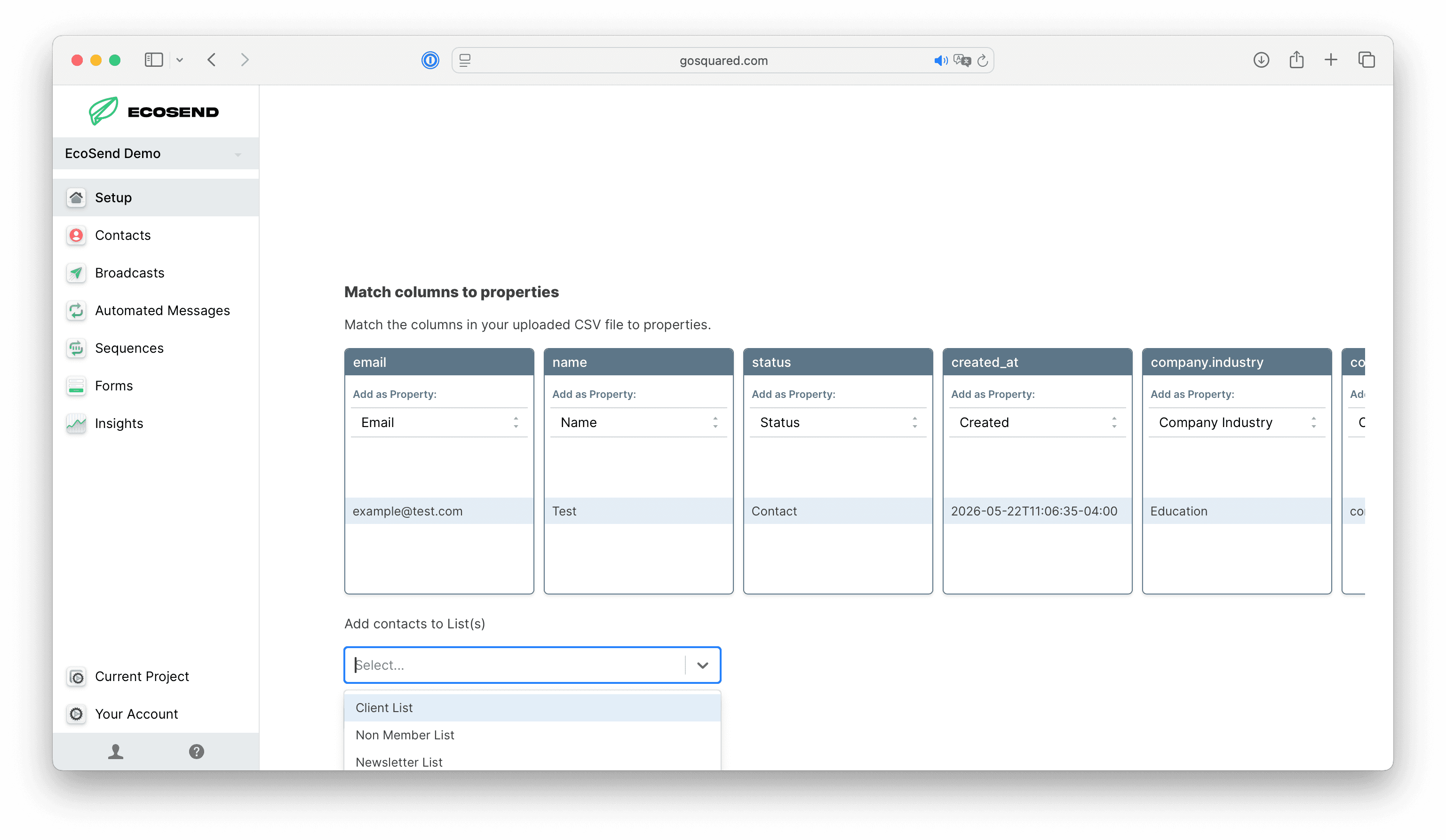
If you have already created a List, and would like to add the imported contacts onto the List, simply select the relevant List(s) from the dropdown on the import page. Multiple lists can be selected, if required.
Last updated June 2026